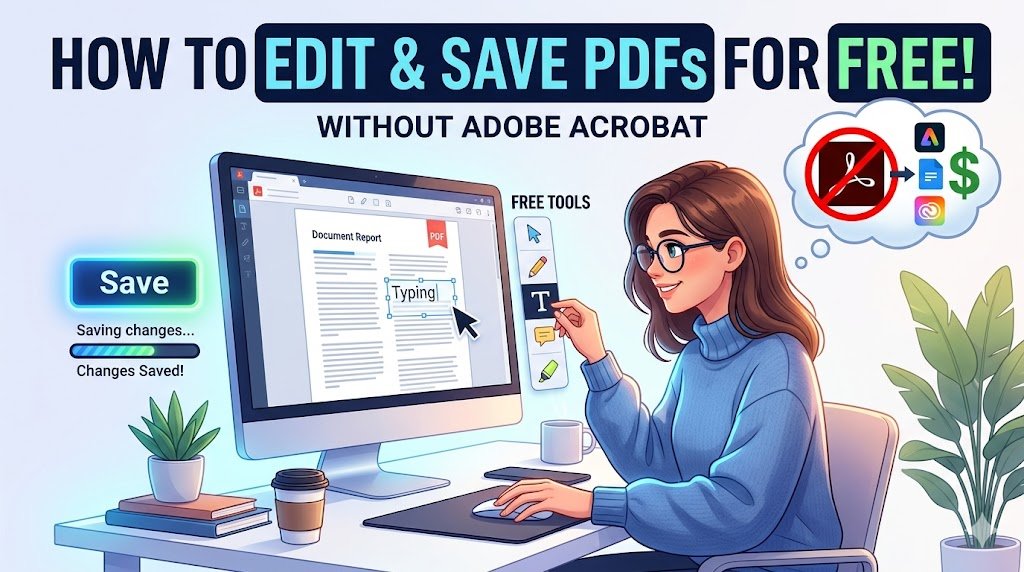
Adobe Acrobat wants $23.99 a month. You just want to fix a typo in a form, add your signature, or change one line of text. That’s a problem with an easy solution — and Adobe is not part of it.
In 2026, you have multiple free, legal ways to edit a PDF and save your changes without touching Adobe Acrobat. Some work entirely in your browser. Some work offline with no sign up at all. And a couple are already sitting on your computer right now.
This guide covers all of them honestly, including what each one actually cannot do.
Why Most People Get Stuck With Adobe in the First Place
Adobe Reader, the free version, lets you view and annotate PDFs but locks actual text editing behind Acrobat Pro. Adobe Acrobat Pro costs over $239 per year on a subscription. The online version of their editor lets you add sticky notes and highlights for free, but to edit existing text or save real changes, you need to start a paid trial.
Many people hit this wall and assume editing a PDF always costs money. It does not.
The key is knowing what type of edit you actually need. Fixing a typo, filling a form, adding a signature, or highlighting text are all very different from rebuilding a document’s layout. The good news is that the first group, which covers most everyday needs, is completely achievable with free tools today.
The Fastest Option Right Now: PDFgear Online
If you need to edit a PDF in the next five minutes with no account and no watermark, go to PDFgear.
PDFgear is a 100% free PDF editor that provides both a free online PDF editor and free desktop software with no sign-up, no registration, no watermarks, and no purchase-in-app required. There is no limit on the number of files you can edit, and your file data is processed locally in your browser, meaning it is not sent over the internet.
Here is how to use it:
- Go to pdfgear.com/edit-pdf
- Click “Select PDF” or drag your file in
- Use the toolbar to add text, highlight, annotate, fill form fields, add a signature, or draw shapes
- Click the download button to save your edited file to your computer
That is it. No email address. No subscription prompt. No watermark on the saved file.
What PDFgear Online can do for free: add and edit text boxes, highlight, annotate, fill forms, add signatures, insert shapes and stamps, and protect files with a password.
What it cannot do: deep text reflow editing (changing the flow of existing paragraphs), full OCR on scanned documents in the browser version, or batch processing multiple files at once.
For the vast majority of everyday edits, PDFgear covers everything you need.
The Workaround You Already Have: Google Docs
If you have a Gmail or Google account, you already have a free PDF editor you probably haven’t used for this purpose.
Google Docs converts any PDF into an editable document automatically. Once it is open, you can change text, delete content, add new sentences, and then download the result back as a PDF. No new tool required.
Here is exactly how to do it:
- Go to drive.google.com and sign in
- Click “New” then “File Upload” and select your PDF
- Once uploaded, right-click the file and choose “Open with” then “Google Docs”
- Google will convert the PDF into an editable document automatically
- Make your changes to the text
- Click “File” then “Download” then “PDF Document” to save it back as a PDF
The honest limitation: this method works best on plain text documents like essays, simple letters, or plain reports. If your PDF has complex tables, columns, multi-image layouts, or unusual fonts, those elements will shift or break during conversion. The more designed the original PDF, the messier the result.
Use this for simple documents. Use a dedicated PDF editor for anything with complex formatting.
Edit a PDF Through Microsoft Word
Microsoft Word has been able to open and edit PDF files directly for several years now. When you open a PDF in Word, it converts the document into an editable Word file automatically. You make your changes, then save it back as a PDF.
Here is how:
- Open Microsoft Word
- Click “File” then “Open” and select your PDF file
- Word will show a message saying it is converting the PDF — click OK
- Make your edits
- Click “File” then “Save As” and choose PDF as the file format
This works very well for PDFs that were originally created from a Word document or from a simple word processor. Like Google Docs, it struggles with heavily designed layouts, scanned pages, and complex graphics.
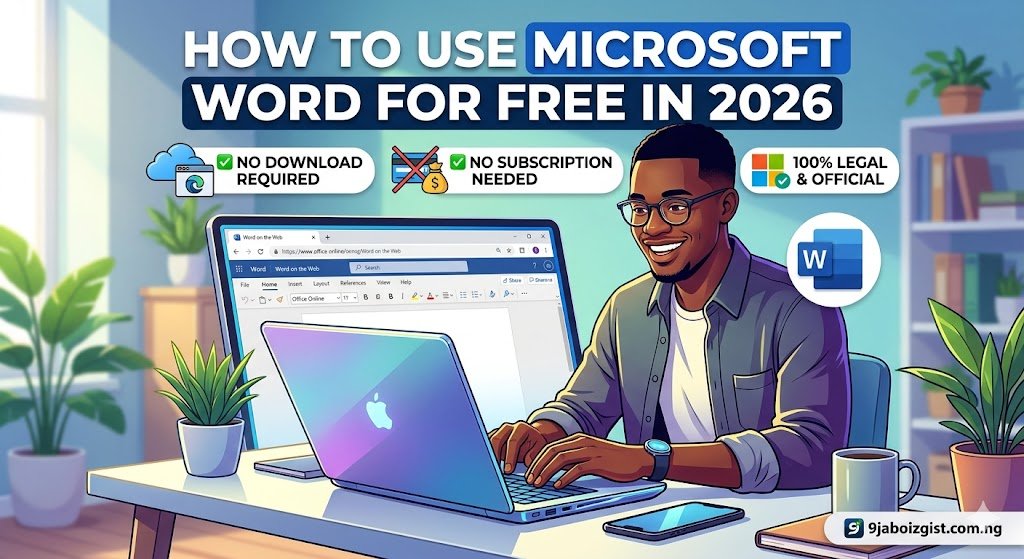
If you do not currently have Microsoft Word installed, you do not need to pay for it. Check out our full guide on how to use Microsoft Word for free in 2026 without downloading anything before you get started.
Free Desktop Tools That Work Offline (No Upload, No Internet Needed)
If you are editing a sensitive document — a contract, an ID document, a financial record — you should think twice before uploading it to any cloud-based tool. The safest option is to edit locally on your own computer.
These three tools are completely free, work offline, and do not require an account:
PDF24 Creator (Windows): PDF24 Creator is a free Windows-only software that is rich with essential editing features and requires absolutely no payment. It handles inserting text, adding images, annotating, reorganizing pages, merging files, and more. No sign up. No file limits. No watermarks. Download it at tools.pdf24.org.
PDFgear Desktop (Windows and Mac): The desktop version of PDFgear goes further than the browser tool. It includes AI-powered features, OCR for scanning text from image-based PDFs, and full editing tools, all completely free. Your files never leave your computer. Download it at pdfgear.com.
LibreOffice Draw (Windows, Mac, Linux): LibreOffice is free, open-source software and an excellent Adobe Acrobat alternative for editing PDF forms, modifying graphics, and making structural changes. It is ideal for occasional PDF editing with open-source flexibility. Download it at libreoffice.org. Open your PDF through LibreOffice Draw, not LibreOffice Writer, to keep the layout intact.
Mac Users: You Already Have a Built-In Tool: If you are on a Mac, you do not need to download anything. Preview is a built-in Mac app that handles quick text edits, notes, highlights, and signatures natively. Open your PDF with Preview, use the Markup toolbar, and save. It works for quick changes, notes, and signatures without any extra software or cost.
How to Edit a Scanned PDF for Free (The OCR Problem)
This is where most free tools hit their ceiling. A scanned PDF is essentially a photograph of a document, not actual editable text. To edit it, a tool needs OCR, which is software that reads the image and recognizes the text so you can change it.
Most online tools lock OCR behind a paid plan. But here are two legitimate free paths:
Option 1: Google Drive OCR This is an underused trick that most people do not know about.
- Upload your scanned PDF to drive.google.com
- Right-click the file and choose “Open with Google Docs”
- Google Drive will run OCR on the scanned image and convert it to editable text
- Edit the text in Google Docs
- Download as PDF when done
The accuracy is good for clean, well-scanned documents. Handwritten text, low-resolution scans, and unusual fonts will give mixed results.
Option 2: PDFgear Desktop The PDFgear desktop app includes basic OCR features for free. Open your scanned PDF, use the OCR function to make the text selectable and editable, then save your changes. For most standard scanned documents, this works reliably.
Filling Forms, Signing, and Annotating for Free
These tasks are different from editing the actual text content of a PDF. And the good news is that nearly every free tool handles them well.
For forms, annotations, and signatures, these two tools are reliable and free to use for basic tasks without creating an account:
iLovePDF at ilovepdf.com is a free online tool that lets you edit, convert, compress, and manage PDFs easily with no downloads needed. It covers merging, splitting, annotating, and signing. You can upload a saved signature or draw one directly on screen, and you can even invite others to sign a document from within the tool.
Smallpdf at smallpdf.com lets you add text, images, highlights, and drawings to your PDFs for free with a free account. It is clean, fast, and easy to use on mobile. Note that direct text editing inside an existing PDF requires the Pro subscription, so for basic annotation and signing the free account works, but for deeper edits, use PDFgear or PDF24 instead.
What Free PDF Editors Cannot Do — Honest Limitations
Most everyday edits are completely covered by the tools above. But there are things that free tools generally cannot do well:
True text reflow editing means restructuring entire paragraphs, reflowing text around images, or redesigning a page layout. No free tool handles this reliably. If you need to do this, the best approach is to convert the PDF to Word, make changes there, and export it back.
Full OCR on complex scanned documents, such as multi-column academic papers, handwritten notes, or low-quality scans, usually produces imperfect results on free tools. Paid tools like Adobe Acrobat Pro handle this much better.
Reliable redaction, which means permanently removing sensitive text so it cannot be recovered, is something to test carefully on any free tool before trusting it with real sensitive content.
Batch editing, processing dozens of PDF files in one go, is generally a paid feature in most platforms.
Which Method Should You Use?
Here is a simple decision guide:
| Your Need | Best Free Option |
|---|---|
| Quick edit or annotation, no account | PDFgear Online (pdfgear.com) |
| Fix text, you have Google account | Google Docs conversion trick |
| Fix text, you have Microsoft Word | Open PDF directly in Word |
| Offline editing, Windows | PDF24 Creator or PDFgear Desktop |
| Offline editing, Mac | Preview (built-in) or PDFgear Desktop |
| Scanned PDF with text to edit | Google Drive OCR or PDFgear Desktop |
| Fill a form or add a signature | iLovePDF or PDFgear Online |
| Sensitive document, no cloud upload | PDF24 Creator or LibreOffice (offline) |
One important reminder: if you are editing a document that contains personal information, financial data, contracts, or identification details, use an offline tool. PDFgear Desktop, PDF24 Creator, LibreOffice, and Mac Preview all process files entirely on your device, meaning your document never gets sent to any server.
Adobe Acrobat is a powerful tool. But for the everyday tasks most people actually need, including fixing a typo, filling a form, adding a signature, or annotating a document, you do not need to pay a cent. The tools above cover all of it, for free, right now.
Frequently Asked Questions About Editing PDFs for Free
Can I edit a PDF without Adobe Acrobat for free?
Yes. Tools like PDFgear, PDF24 Creator, and LibreOffice let you edit PDFs completely free without Adobe Acrobat. You can also use the Google Docs trick if you already have a Google account. None of these require a subscription or credit card.
Is there a free PDF editor that does not add a watermark?
Yes. PDFgear Online and PDFgear Desktop are both completely free and save your edited file with no watermark. PDF24 Creator on Windows is also fully free with no watermarks and no file limits.
How do I edit text inside a PDF for free?
The easiest way is to open the PDF in Google Docs or Microsoft Word, which converts it to editable text automatically. For direct PDF editing without conversion, use PDFgear or PDF24 Creator. Keep in mind that complex layouts may shift slightly during conversion.
Can I edit a PDF on my phone for free?
Yes. PDFgear has a mobile-friendly browser version that works on both Android and iPhone. iLovePDF also works well on mobile for forms, signatures, and annotations. For deeper editing, the Microsoft Word mobile app can open and edit PDFs on phones for free on screens under 10.1 inches.
How do I fill out a PDF form without Adobe?
Go to pdfgear.com or ilovepdf.com, upload your PDF, click on any form field, type your answers, and download the completed file. Both tools are free and require no account to get started.
How do I add a signature to a PDF for free?
PDFgear, iLovePDF, and Smallpdf all let you add a signature for free. You can draw your signature with your mouse or finger, upload an image of your signature, or type it in a signature-style font. Mac users can do this directly in the built-in Preview app without any extra tools.
Can I edit a scanned PDF for free?
You can, but it requires OCR (a process that reads text from scanned images). The best free option is to upload your scanned PDF to Google Drive and open it with Google Docs. Google will automatically run OCR and convert the scan into editable text. PDFgear Desktop also includes free OCR functionality.
Is it safe to upload my PDF to a free online editor?
For general documents, most reputable tools are safe. However, if your PDF contains personal information, financial data, ID documents, or contracts, use an offline tool instead. PDF24 Creator, PDFgear Desktop, LibreOffice, and Mac Preview all process files locally on your device without uploading anything to the internet.
Why can I not edit text directly in Adobe Reader for free?
Adobe Reader is a free viewer only. Text editing and saving changes are locked behind Adobe Acrobat Pro, which requires a paid subscription. This is intentional, as Adobe uses Reader as a gateway to upsell Acrobat. The free tools covered in this article bypass this entirely.
What is the best free alternative to Adobe Acrobat in 2026?
For most people, PDFgear is the best free alternative in 2026. It is completely free with no watermarks, no sign up, and no file limits. It works both online in your browser and as a desktop app on Windows and Mac. For offline-only use, PDF24 Creator on Windows and LibreOffice on all platforms are excellent open-source options.
For more ways to get more done without paying for premium software, check out our guides on how to use Google NotebookLM to study any PDF for free and how to make AI text sound human without paying for any tool.