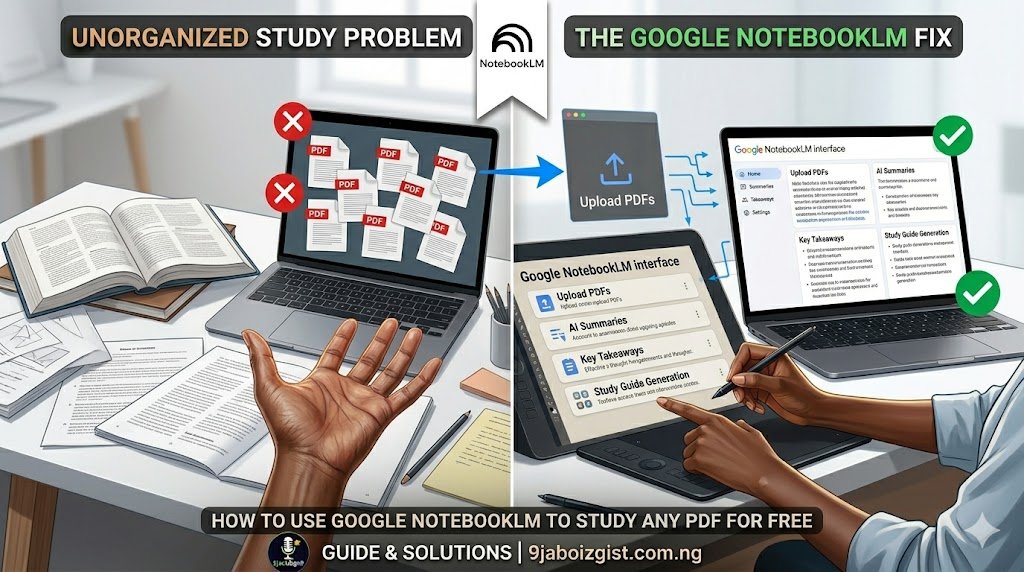
You have a PDF you need to understand. Maybe it is a research paper for an assignment, a textbook chapter before an exam, or a set of lecture notes that somehow covered six weeks of content in forty pages. Reading it cover to cover takes hours. Understanding it deeply takes even longer.
Google NotebookLM changes that equation significantly. It is a free AI tool that reads your PDF, answers questions about it, generates study guides and practice questions, and even turns the content into a podcast-style audio summary you can listen to on the go. The whole process takes minutes to set up, and you can start getting useful outputs from your document almost immediately.
Before anything else: yes, it is free. And yes, a Google account is required, but the tool itself costs nothing. If you have a Gmail address, you are already set up. If you do not, creating a Google account takes about two minutes and is completely free at accounts.google.com.
What Makes NotebookLM Different From Just Asking ChatGPT
Most people who discover NotebookLM already use some form of AI assistant. It is worth understanding why NotebookLM is genuinely different for studying specific documents before diving into the how-to, because that difference is what makes it so much more reliable for academic work.
NotebookLM is powered by Google’s Gemini AI, but it operates in a fundamentally different mode from ChatGPT, general Gemini, or Claude. It only answers questions based on the documents you upload. It cannot pull from general internet knowledge, make things up from training data, or mix in information from outside your sources. This is called a grounded AI approach, and for studying it matters enormously.
When you ask ChatGPT to explain a concept from a research paper, it might blend its general training data with the paper’s actual content and produce something that sounds accurate but is not necessarily what the paper says. When you ask NotebookLM the same question about a paper you uploaded, it pulls the answer directly from that document and shows you exactly which passage it used. Every response comes with inline citations you can click to jump to the relevant section of your PDF.
For exam preparation, essay writing, and research, that difference is significant. You are not getting an AI’s general interpretation of a topic. You are getting a precise, document-anchored answer you can trust and verify.
How to Upload Your PDF and Get Started
Getting your PDF into NotebookLM is straightforward. Here is the complete process from start to first result.
Go to notebooklm.google.com and sign in with your Google account. You will see your notebook dashboard. Click the button that says “New Notebook” to create a fresh workspace for your document.
Inside the notebook, you will see a sources panel on the left side of the screen. This is where your uploaded documents will live. Click “Add Source,” then choose “Upload” from the options that appear. Select your PDF from your device and confirm the upload.
NotebookLM will process the document, which typically takes between thirty seconds and two minutes depending on the file size. During processing, it reads the document, indexes the content, and prepares everything for the AI to reference. Once processing is complete, the PDF appears in your sources panel and you are ready to work.
One practical note worth knowing before you start: NotebookLM works best with text-based PDFs, meaning documents where the text is embedded and selectable. If your PDF is a scanned document where the pages are essentially photographs of printed text, NotebookLM may struggle to read the content accurately. Most modern academic PDFs, downloaded textbook chapters, and journal articles are text-based and will work without any issues. If you have a scan, look for a digital version of the same document from the publisher’s website or your library database.
NotebookLM accepts files up to 500MB each and supports not just PDFs but also Google Docs, Google Slides, web page URLs, YouTube video links, and copied text. Each notebook can hold up to 50 sources, which opens up a powerful study strategy covered later in this guide.
Everything You Can Do With a PDF Once It’s Uploaded
This is where NotebookLM separates itself from every other PDF tool. Uploading is step one. The features you use after upload are where the real studying happens.
Asking Direct Questions and Getting Cited Answers
The chat panel on the right side of your notebook is your primary interface with the document. Type any question about the content and NotebookLM will answer using only the material in your uploaded PDF. The response will include numbered citations in brackets. Clicking any citation takes you directly to the relevant passage in the source document, so you can immediately verify the answer against the original text.
This is the most important feature for academic use. You can ask about specific concepts, request explanations of difficult sections, ask how two ideas in the document relate to each other, or request the evidence behind a particular claim. The answers stay anchored to your document at all times.
Generating Complete Study Materials Instantly
On the left panel above your sources, there is a section called “Notebook Guide.” This is where NotebookLM’s automated generation features live. Click the options available and NotebookLM will produce study materials directly from your document in seconds.
The Study Guide option creates a structured overview of the document’s main topics, key vocabulary, and central arguments. The FAQ option generates a list of questions and answers based on the document’s content, which is excellent for exam preparation. The Table of Contents option maps the document’s structure into a navigable outline. The Briefing Document produces a concise summary of the most important points. If your document contains historical events or dated information, the Timeline option arranges them chronologically.
All of these can be saved as notes in your notebook. You can edit them, add to them, and build a growing study resource around your original document. Think of it as a smart notebook that is always working from your actual source material rather than generic internet summaries.
The Prompt Library: What to Actually Ask NotebookLM
The quality of what NotebookLM produces depends almost entirely on what you ask. Vague questions produce vague answers. Specific, purposeful questions produce study-ready outputs. Here are prompts organized by study goal that you can copy and use immediately.
When you need to understand the core content:
- “What are the five most important concepts in this document? Explain each one in simple terms.”
- “Summarize the main argument of this document in three sentences.”
- “What does [specific term or phrase from the document] mean in the context of this material?”
When you are preparing for an exam:
- “Generate 15 practice questions from this document, including both multiple choice and short answer formats, with answers.”
- “What topics from this document would most likely appear on an exam?”
- “Create a fill-in-the-blank exercise using the most important facts and definitions in this document.”
When you are analyzing a research paper:
- “What research question is this paper trying to answer?”
- “What methodology did the researchers use, and what limitations do they acknowledge?”
- “What are the main conclusions of this paper, and what evidence supports each one?”
When you are planning an essay or assignment:
- “What are the strongest arguments in this document I could use to support a position on [topic]?”
- “Does this document acknowledge any counterarguments? What are they?”
- “Create a structured essay outline using the themes and arguments in this document.”
When something is confusing you:
- “Explain the section on [topic] as if I have no prior background in this subject.”
- “The document says [specific quote or paraphrase]. What does this actually mean?”
- “Are there any points in this document that seem to contradict each other?”
Running through five to eight of these prompts on a single document will give you a deeper understanding of the material than most students achieve through a full read-through.
The Audio Overview: Study Without Looking at a Screen
The Audio Overview is the feature that makes NotebookLM genuinely unique among AI study tools right now. No other mainstream study tool offers anything quite like it.
After uploading your PDF, look for the Audio Overview section in the Notebook Guide panel. Click “Generate” and wait one to two minutes while NotebookLM processes the request. What you get is a realistic audio conversation between two AI hosts who discuss the content of your document.
This is not a text-to-speech reading of the PDF. The hosts actually discuss the material. They ask each other questions, explain complex ideas in conversational language, highlight the most important points, and occasionally express genuine interest in the ideas. The conversation format makes dense academic content far more approachable than reading it directly.
The audio file can be downloaded and listened to anywhere. The typical length ranges from five to twenty minutes depending on how long and complex the document is.
For students who process information better through listening than reading, this feature is genuinely transformative. It is also excellent for commuters who want to study during a bus or train journey, anyone who has already read a document and wants to reinforce understanding through a different format, and students who find academic writing difficult to follow but have no trouble understanding the same ideas in conversation.
One honest caveat: the Audio Overview is a thematic discussion, not a precise recitation of the document. For exams that test specific facts, dates, or exact definitions, the chat interface with direct questions will serve you better. Think of the Audio Overview as the conversation you wish you could have with someone who has already read the document and wants to help you understand it, rather than a replacement for engaging with the source directly.
Studying Multiple PDFs at Once: The Strategy Most Users Miss
If you only ever upload one PDF at a time, you are using about half of NotebookLM’s capability.
Each notebook supports up to 50 sources simultaneously, and NotebookLM processes all of them together. That means you can ask questions that draw from multiple documents at once, which opens up study strategies that are genuinely difficult to achieve any other way.
Consider what this makes possible. You can upload all your lecture slides alongside the corresponding textbook chapters for a module and ask: “What topics does the textbook cover that the lecture slides do not? What should I study from the textbook that was not mentioned in class?” You get a cross-document gap analysis in seconds.
You can upload multiple research papers on the same topic and ask: “How do these papers’ conclusions agree or disagree? Where is there consensus and where is there debate?” NotebookLM synthesizes across all sources and gives you a comparative analysis that would take hours to produce manually.
You can upload your own essay draft alongside the marking rubric as two separate sources and ask: “Based on the rubric criteria, what is missing or underdeveloped in this draft?” The AI evaluates your work against the rubric and gives specific feedback.
For this multi-source approach, it is worth giving each uploaded document a clear descriptive name when you add it to the notebook. NotebookLM’s citations will tell you which source each answer came from, and having named sources makes those citations more useful when you are reviewing your notes.
What Happens to Your Documents After You Upload Them
This is a question worth answering directly, because not everyone is comfortable uploading their academic materials to a third-party platform without knowing what happens to them.
According to Google’s current terms for NotebookLM, content uploaded to the tool is not used to train Google’s AI models by default for personal Google accounts. Your documents are processed to power the service, and they are stored within your Google account the same way a file stored in Google Drive would be.
For the vast majority of students using lecture notes, downloaded textbook chapters, and published research papers, the privacy implications are similar to keeping those documents in a Google Drive folder. If you are comfortable using Google Drive or Gmail for study-related files, NotebookLM represents a comparable level of risk.
If you are working with genuinely sensitive materials, such as unpublished research under a non-disclosure agreement, proprietary datasets, or documents covered by your institution’s data governance policy, it is worth checking with your supervisor or IT department before uploading. In those cases, using the copy-paste source option for specific relevant sections rather than uploading the complete document is a reasonable middle ground.
NotebookLM Compared to Other Free Alternatives
Students often ask whether NotebookLM is worth using when they already have access to ChatGPT, Claude, or other AI tools. Here is an honest comparison.
| Tool | Document Grounding | Audio Feature | Free Tier Depth | Best Use Case |
|---|---|---|---|---|
| NotebookLM | Fully grounded to uploads | Audio Overview included | Generous, no per-query limit | Studying specific documents |
| ChatGPT | Partial, can hallucinate | None | Limited on free plan | General knowledge questions |
| Claude AI | Mostly grounded | None | Limited free tier | Long document analysis |
| PDF.ai | Fully grounded | None | Very limited free queries | Quick PDF questions |
| Perplexity AI | Web search based | None | Moderate free access | Current information research |
For studying a specific PDF you already have, NotebookLM is the strongest free option available. It combines document-grounded answers, multiple study generation features, the Audio Overview, and a generous free tier with no per-query cost into a single tool.
ChatGPT and Claude are more capable for general questions and tasks outside your uploaded documents, which is why many users find them complementary rather than interchangeable. If you run into limitations with Claude, including its own usage caps, the guide on what to do when Claude hits its usage limit explains exactly how to manage that. And if you want ChatGPT to remember your study preferences between sessions, how to make ChatGPT remember your writing style covers that without needing a paid plan.
For users who encounter accuracy problems with AI tools in general, why Gemini AI gives wrong answers provides useful context on how to read AI output critically — a skill that makes any AI study tool more effective.
Frequently Asked Questions
Is Google NotebookLM completely free to use?
Yes. The standard NotebookLM plan is free with no per-query charges or subscription required. Google also offers NotebookLM Plus, a paid tier with higher usage limits and additional features, but it is entirely unnecessary for most students. The free plan includes PDF uploads, all study generation features, the Audio Overview, up to 100 notebooks, and up to 50 sources per notebook.
Do I need a Google account to use NotebookLM?
Yes, a Google account is required. NotebookLM needs an account to save your notebooks between sessions. If you have a Gmail address, you already have a Google account. If not, creating one is free and takes about two minutes at accounts.google.com.
How do I upload a PDF to Google NotebookLM?
Go to notebooklm.google.com, sign in, create a new notebook, and click “Add Source” in the sources panel. Select “Upload” and choose your PDF file. NotebookLM will process it within one to two minutes, after which you can start asking questions and generating study materials from the document.
What can NotebookLM actually do with a PDF?
NotebookLM can answer questions about the document with cited responses, generate a study guide, create FAQs and practice questions, produce a briefing summary, build a table of contents, create a timeline of events, and generate an Audio Overview podcast-style discussion of the content. All outputs are grounded in the uploaded document.
How does NotebookLM’s Audio Overview work?
The Audio Overview converts your document’s content into a realistic conversational audio file featuring two AI hosts who discuss, explain, and highlight the most important points from the document. It is not a text-to-speech reading — the hosts actually have a back-and-forth discussion about the material. The audio file can be downloaded and listened to anywhere.
What is the file size limit for PDFs in NotebookLM?
Individual source files can be up to 500MB. Each notebook supports up to 50 sources, and each source is processed in full. Most academic PDFs, lecture slides, and research papers are well within this limit.
Does NotebookLM work with scanned PDFs?
It works best with text-based PDFs where the text is embedded and selectable. Scanned image PDFs, where pages are photographs of printed text, may produce limited results because the AI cannot reliably extract text from images. If your document is a scan, look for a digital version from the publisher, library database, or course management system.
Can I use NotebookLM on my phone?
Yes. NotebookLM is accessible through a mobile browser on any smartphone. There is no dedicated app as of 2025, but the web version works on mobile devices. The Audio Overview feature is particularly useful on mobile since the audio file can be downloaded and played through any podcast or audio app.
Can I share a NotebookLM notebook with others?
Yes. NotebookLM includes sharing functionality that allows you to share a notebook with others via a link. This makes it useful for group study, where multiple students can contribute sources and use the shared notebook for collaborative study sessions.
How is NotebookLM different from just copying text into ChatGPT?
When you copy text into ChatGPT, the AI can mix that text with its general training knowledge and produce answers that are not always traceable to your specific document. NotebookLM works exclusively from uploaded sources and provides inline citations with every answer, so you know exactly where each response came from. This makes it significantly more reliable for academic work where accuracy and source traceability matter.
Start With the PDF You Have Been Putting Off
NotebookLM is one of the most practical free AI tools available for students and researchers right now. The combination of grounded document answers, instant study guide generation, practice question creation, and the Audio Overview makes it genuinely useful in a way that general AI chatbots, despite their power, are not optimized for.
The best way to understand what it can do is to use it. Open notebooklm.google.com, create your first notebook, and upload the PDF that has been sitting in your downloads folder waiting to be studied. Ask it three questions from the prompt library in this guide, generate a study guide, and then generate an Audio Overview.
Twenty minutes with NotebookLM on a document you have been avoiding will give you a clearer picture of its value than any amount of reading about it. That is the point of a tool this practical: it proves itself the moment you actually use it.