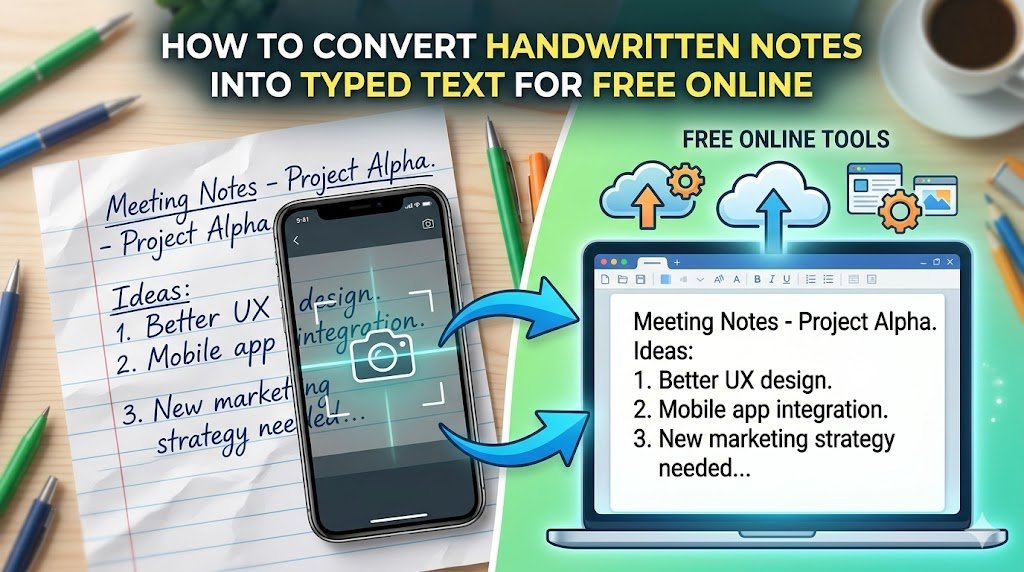
You have a notebook full of notes, a phone full of photos, and zero interest in typing everything up word by word. The sensible solution seems like taking a picture and letting software do the work. The frustrating reality is that most free tools either fail completely on handwriting or quietly ask for payment the moment you want to save the result.
The good news is that in 2026, there are four genuinely free methods that can turn a photo of handwritten notes into editable typed text. Two of them work directly on your phone. Two work from a desktop browser. None of them require a subscription, a credit card, or a third-party download.
This guide covers all four methods step by step, explains exactly where each one struggles, and shows you how to get the best accuracy from your photos before you even start.
The Fastest Phone Method You Already Have: Google Lens
Google Lens is the quickest free way to extract text from a photo of handwritten notes on a mobile device. On most Android phones it is already built in. On iPhone, it is available through the free Google app. No account is required, nothing needs to be downloaded if you already have it, and the process takes about thirty seconds.
Here is exactly how to use it:
On Android:
- Open your camera app and point it at your handwritten notes
- Tap the Google Lens icon (it looks like a small viewfinder in the corner of some camera apps) or open Google Lens separately from your app drawer
- Let it focus on the page
- Tap the Text tab at the bottom of the screen
- Tap Select All or highlight the specific text you want
- Tap Copy to copy it to your clipboard, or tap Listen to have it read aloud, or tap Share to send it directly to another app
On iPhone:
- Download the free Google app from the App Store if you do not have it
- Tap the Lens icon (camera icon) in the Google search bar
- Take a photo of your notes or select one from your camera roll
- Tap the Text tab at the bottom
- Select the text and copy it
Google Lens handles neat, clear handwriting very well. Block letters and well-spaced writing produce the most accurate results. It begins to struggle with tight cursive, overlapping lines, and very small handwriting. If your notes fall into that category, the AI vision method covered further below will perform better.
The Desktop Free Method Most People Have Never Tried: Google Drive OCR
If you are working on a computer, Google Drive has a built-in OCR (optical character recognition) feature that most people have never used for this purpose. OCR is the technology that reads text from images. Google Drive activates it automatically when you open a photo using Google Docs. You already have access to this if you have a Google account, and it costs nothing.
Here is the step-by-step method:
- Go to drive.google.com and sign in to your Google account
- Click New then File Upload and select the photo of your handwritten notes
- Once the file appears in your Drive, right-click it
- Choose Open with then select Google Docs
- Google will open the image in a new Google Doc
- Scroll below the image — the extracted text will appear directly underneath it
- Select the text you need, copy it, and paste it into a new document
You can then edit the text, clean it up, and download it as a Word document, PDF, or plain text file from File > Download.
What affects accuracy here: Google Drive OCR performs significantly better on printed or typed text than on handwriting. For handwriting, it still produces a usable starting point on neat writing, but results vary widely. The photo quality matters enormously, which is why the section on taking a better photo later in this guide is worth reading before you begin.
The cleaner your handwriting and the better your photo, the more accurate the output. For most students and professionals with reasonably legible notes, this method saves a large amount of typing even when the result needs some correction.
Microsoft OneNote’s Hidden Feature: Copy Text From Picture
Microsoft OneNote has a little-known built-in feature called “Copy Text from Picture” that reads handwriting from images and converts it to editable text. OneNote is free with any Microsoft account and works both as a web app and as a desktop application.
This feature handles handwriting better than the basic Google Drive OCR method in many cases, especially for notes written in clear, consistent block letters.
Here is how to use it:
On the OneNote web app (free, no install):
- Go to onenote.com and sign in with a free Microsoft account
- Create a new page
- Click Insert then Picture and upload your photo of handwritten notes
- Once the image is inserted on the page, right-click directly on the image
- Select Copy Text from Picture from the menu
- Open a text area on the page or in any text editor and paste the result
On the OneNote desktop app (Windows, free): The same steps apply. Insert the image, right-click it, and choose “Copy Text from Picture.”
The result is placed in your clipboard and ready to paste wherever you need it. The quality of extraction on handwriting depends heavily on how clear and consistent the writing is. OneNote tends to perform well on structured notes written in straight lines and less well on casual scribbled writing.
If you do not currently have a Microsoft account, it is free to create one. You may also want to check out our guide on how to use Microsoft Word for free in 2026 since the same free account gives you access to both tools.
The 2026 Method That Changes Everything: AI Vision Tools
This is the method that has genuinely shifted the landscape for handwriting transcription in 2026. AI tools that can look at and understand images, called vision-capable AI models, are now available on free tiers from multiple providers. They can read handwriting, including difficult or cursive writing, far more accurately than traditional OCR tools.
The best free options available right now are:
- ChatGPT (Free Tier) at chat.openai.com — supports image uploads on the free plan
- Google Gemini (Free) at gemini.google.com — accepts image uploads on the free tier
- Microsoft Copilot (Free) at copilot.microsoft.com — handles image uploads with no subscription
Here is how to use any of these to transcribe your handwritten notes:
- Open your chosen AI tool in a browser
- Click the image upload icon (usually a paperclip or camera icon in the message box)
- Upload your photo of handwritten notes
- Type this prompt: “Please transcribe all the handwritten text in this image exactly as written. Preserve paragraph breaks and keep the original structure.”
- The AI will return a typed version of your notes
For better results on messy or cursive handwriting, adjust your prompt to: “This image contains handwritten notes that may be difficult to read. Please do your best to transcribe all visible text, and where a word is unclear, make your best guess based on context.”
AI vision tools outperform traditional OCR on handwriting because they understand context. A traditional OCR tool sees individual characters. An AI tool understands that a squiggly mark between two words is probably “the” based on the surrounding sentence. This context awareness makes a significant difference on messy or casual handwriting.
Free tier limits to know: ChatGPT’s free tier has a limit on how many images you can upload per session or per day, though this changes periodically. Gemini and Copilot are generally more generous on image uploads at the free tier. If you hit a limit with one tool, switch to another.
For related tips on getting the most out of free AI tools, our guide on how to use Perplexity AI for research without running out of free searches covers strategies that apply across most free AI platforms.
The One Thing That Improves Every Method: Take a Better Photo
This is the single most overlooked factor in handwriting conversion. A bad photo will produce bad results no matter which free tool you use. A good photo dramatically improves accuracy across all methods. These tips take less than a minute to apply and make a measurable difference.
Lighting: Use natural daylight near a window when possible. Avoid direct overhead artificial lighting that creates shadows across the page. The goal is even, shadow-free illumination across the entire surface.
Angle: Hold your phone directly above the notebook page, shooting straight down at a 90-degree angle. Even a slight tilt distorts the text shape and confuses OCR tools. Most phones now have a grid overlay in the camera app that helps you align the shot.
Background: Place the notebook on a plain, light-coloured surface. Busy patterns behind the page confuse recognition tools. A clean white desk or a plain wall works well.
Focus: Tap directly on the text in your camera viewfinder before taking the shot. This locks focus on the handwriting specifically rather than on the edge of the page or the background.
Resolution: Use the highest resolution your camera supports. In your camera settings, ensure you are not shooting in a compressed low-resolution mode. Larger image files give OCR tools more detail to work with.
Following these five steps consistently can improve transcription accuracy by a very large margin, especially on the free tools that do not have the processing power of paid enterprise OCR systems.
What to Do With Messy OCR Output
No free tool produces perfect results on handwriting every time. The output will often have spacing errors, missed punctuation, occasional wrong words, and jumbled line breaks. This is normal and expected. The question is whether fixing it takes less time than typing the whole thing from scratch.
For most notes, it does. Here is how to clean up free OCR output efficiently:
Use an AI tool to fix the cleanup too. Take the messy transcription text, paste it into ChatGPT or Google Gemini free, and type this prompt: “The following text was extracted from a photo of handwritten notes using OCR. Please clean up any obvious spacing errors, punctuation issues, and word recognition mistakes while keeping the original meaning and structure intact.” The result is usually significantly cleaner in seconds.
Use Find and Replace for repeated errors. If OCR consistently misreads the same word (for example, reading “the” as “tne” every time), use the Find and Replace feature in any text editor to fix all instances at once.
Do a single read-through, not a line-by-line correction. Read the whole transcription once at normal speed and fix errors as you go. This is faster than carefully scrutinising each line individually.
For notes that are just a few lines, retyping is faster. For a full page or multiple pages, the OCR and cleanup method almost always saves time overall even when results are imperfect.
What Free Tools Cannot Handle Well
Being upfront about limitations saves frustration. Here is where all free handwriting transcription methods consistently struggle:
Heavy cursive handwriting is the single biggest challenge for both OCR tools and AI vision tools on the free tier. Cursive connects letters in ways that are very difficult to segment and recognise. AI tools handle it better than traditional OCR but results are still unreliable on complex cursive.
Very faint or light writing such as light pencil on white paper, especially in a low-contrast photo, produces very poor results. If the writing is hard for a human to read in the photo, it is much harder for software.
Non-English scripts including Arabic, Chinese, Korean, and other non-Latin scripts have variable support across free tools. Google Lens handles some non-Latin scripts well. AI vision tools vary by language.
Mixed-content pages with doodles, diagrams, charts, and text mixed together confuse all OCR tools. The text extraction will capture some words from diagrams or miss text near drawings entirely.
Multi-column layouts like some structured study notes confuse the reading order of OCR tools. The output may mix up column order. AI vision tools handle this better than traditional OCR when you specify the layout in your prompt.
When accuracy genuinely matters and free tools consistently fail on your specific handwriting style, that is when a paid tool like Adobe Acrobat’s OCR or a dedicated handwriting app may actually be worth the cost for the specific task.
Which Free Method Is Right for Your Situation?
| Your Situation | Best Free Method |
|---|---|
| Quick extraction on your phone right now | Google Lens |
| Desktop, have a Google account | Google Drive OCR (open in Google Docs) |
| Desktop, have a Microsoft account | Microsoft OneNote Copy Text from Picture |
| Cursive or difficult handwriting | AI vision tool (ChatGPT, Gemini, or Copilot free) |
| Full page of dense notes with context | AI vision tool with descriptive prompt |
| Need editable Word document output | Google Drive OCR or AI tool, then copy to Word |
| Want the cleanest result with least effort | AI vision tool + AI cleanup prompt |
| No account at all, phone only | Google Lens (no sign in required) |
All four methods covered in this guide are free, legal, and working in 2026. None of them require a credit card or a paid subscription tier for basic transcription use.
Frequently Asked Questions
Can I convert a photo of handwritten notes to text completely for free?
Yes. Google Lens, Google Drive OCR, Microsoft OneNote, and free-tier AI tools like ChatGPT, Gemini, and Copilot all transcribe handwritten notes from photos for free. No credit card or subscription is required for basic use of any of these tools.
What is the most accurate free tool for converting handwriting to text?
In 2026, AI vision tools (ChatGPT free, Google Gemini free, Microsoft Copilot free) generally produce the most accurate results on handwriting because they understand context rather than just individual characters. For simple neat block lettering, Google Lens on mobile is fast and reliable.
Does Google Docs or Google Drive convert handwriting to text?
Yes. Upload your photo to Google Drive, right-click the file, and choose “Open with Google Docs.” Google will extract the text from the image using OCR and display it below the photo in an editable document. Accuracy depends heavily on photo quality and how legible the handwriting is.
Can Google Lens copy text from handwritten notes?
Yes. Open Google Lens, point it at your handwritten notes, tap the Text tab, and select and copy the recognised text. It works on both Android and iPhone (through the free Google app) and requires no sign in for basic use.
How do I use Microsoft OneNote to extract text from a handwriting photo?
Insert your photo into a OneNote page, then right-click the image and select “Copy Text from Picture.” OneNote will extract the text from the image and copy it to your clipboard. OneNote is free with any Microsoft account.
Can I use ChatGPT to transcribe handwritten notes for free?
Yes. On ChatGPT’s free tier, you can upload a photo of handwritten notes using the image upload button in the message box. Type a prompt asking it to transcribe the handwriting, and it will return a typed version. This method handles difficult or cursive handwriting better than traditional OCR tools.
Why is my free OCR output full of errors on handwritten notes?
Handwriting is significantly harder for OCR software to read than printed text because every person writes differently, letters vary in shape, and spacing is inconsistent. Poor photo quality amplifies these errors. Improve your photo first (better lighting, shoot straight down, high resolution, tap to focus) and then try an AI vision tool for better results.
How do I clean up messy handwriting transcription output for free?
Paste the messy OCR text into a free AI tool like ChatGPT or Google Gemini and ask it to clean up spacing errors, punctuation, and obvious word recognition mistakes while keeping the original meaning. This takes a few seconds and usually produces a much cleaner result than manual correction.
Is there a free handwriting to text tool with no daily limit?
Google Lens and Microsoft OneNote have no stated daily limits for this use. Google Drive OCR also has no meaningful limit for personal use. Free tier AI tools (ChatGPT, Gemini, Copilot) have soft usage limits that vary and reset daily or per session.
Can free tools handle cursive handwriting?
Traditional OCR tools (Google Drive, OneNote) struggle significantly with cursive. AI vision tools (ChatGPT, Gemini, Copilot) handle cursive better because they interpret words using context. Results on cursive are still imperfect on all free tools but AI gives the best available free result. Very looped or personal cursive styles remain challenging for all free solutions.
For more practical guides on getting things done for free with the tools you already have, explore our articles on how to use Google NotebookLM to study any PDF for free and how to make AI text sound human without paying for any tool.