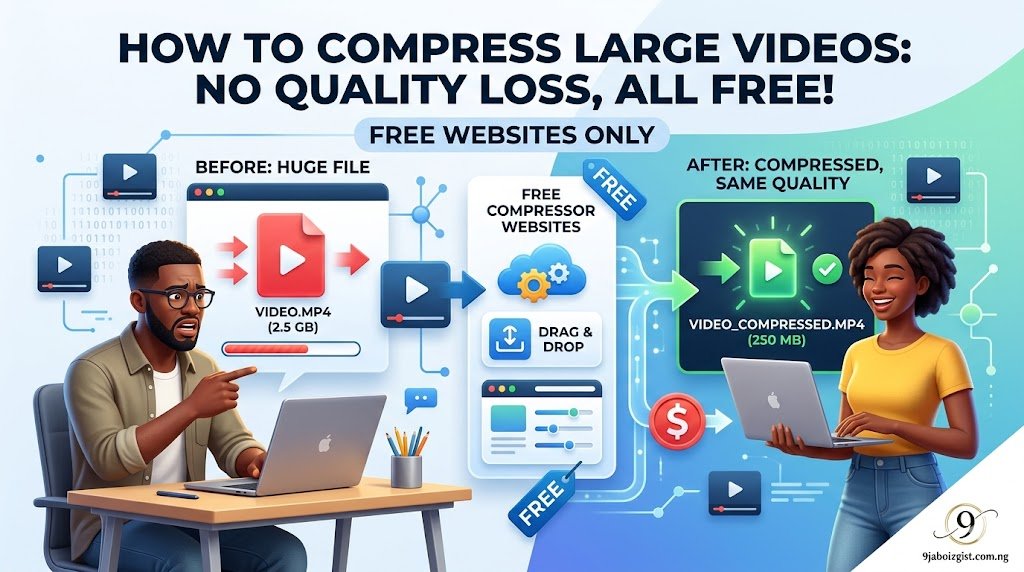
Your video is 800 MB and Gmail will not accept anything over 25 MB. Or WhatsApp is refusing to send the clip. Or your file is sitting on your phone taking up two gigabytes of storage you cannot afford to lose. The obvious solution is to compress it. The frustrating reality is that most free online tools either slap a watermark on your video, cap uploads at 200 MB, or quietly reduce quality so much that the result looks like it was filmed through a foggy window.
In 2026, there are free tools that genuinely work without watermarks, without subscriptions, and without destroying what your video looks like. This guide shows you exactly which ones to use, how to use them, and how to get the smallest file size without your video turning blurry.
What “Without Losing Quality” Actually Means (Read This First)
This phrase is used on almost every free video compression website and it is almost always misleading. True lossless compression, meaning the output file is byte-for-byte identical to the original, barely reduces file size at all. It is not what you need and not what free tools offer.
What you actually want is called visually lossless compression. This means the output looks essentially the same to your eyes but the file is significantly smaller because the tool uses smarter, more efficient encoding to store the same visual information.
Three things control how large a video file is:
Resolution is the size of the image, such as 1920×1080 pixels for full HD. A 4K video at the same length as a 1080p video is roughly four times the file size. Reducing resolution reduces file size substantially.
Bitrate is how much data is used per second of video. Higher bitrate means more data, which means more detail and larger files. Lowering bitrate reduces file size but can cause visual quality to drop if taken too far.
Codec is the method used to encode and compress the video. H.265, also called HEVC, stores the same visual quality as the older H.264 codec at roughly half the file size. Switching codec is the most effective single change you can make for free.
Understanding these three levers helps you make smarter choices in any free tool and explains exactly why some compressed videos come out blurry while others look great at a much smaller size.
The Best Free Online Tool With No Watermark: Freeconvert
Freeconvert.com is the most capable free online video compressor available in 2026 without a sign up or watermark requirement. It handles files up to 1 GB on the free tier, supports MP4, MOV, MKV, AVI, and most other common formats, and lets you choose either a compression level or a specific target file size.
Here is exactly how to use it:
- Go to freeconvert.com/video-compressor in any browser
- Click “Choose Files” and upload your video, or drag it directly onto the page
- Under compression settings, choose your approach:
- Select a compression level (low, medium, high) if you want simplicity
- Or enter a target file size in MB if you need to hit a specific limit (like 25 MB for email)
- Leave the output format as MP4 for the widest compatibility
- Click “Compress Now” and wait for the process to finish
- Click “Download” to save the compressed file to your computer
Recommended settings for common use cases:
- Email (under 25 MB): set target size to 23 MB to leave a small margin
- WhatsApp (under 16 MB): set target size to 15 MB
- General sharing with good quality: use medium compression level
Limitation to know: files over 1 GB cannot be uploaded on the free tier. For anything larger, skip ahead to the HandBrake section below. Processing time also depends on your internet connection since the file uploads to Freeconvert’s servers before compression begins.
Compress to an Exact Size for Free: 8mb.video
8mb.video is a brilliantly simple free tool built for one specific job: compressing your video to a precise target file size. You tell it how big the output should be, it handles everything else. No account, no watermark, no subscription.
This is the ideal tool when you have a hard file size limit to hit, like 25 MB for a Gmail attachment, 16 MB for a WhatsApp video, or 8 MB for Discord on the free tier.
Here is how to use it:
- Go to 8mb.video in your browser
- Click the upload area and select your video
- Use the slider or input box to set your target output size in MB
- Click “Compress” and wait for the process to complete
- Download the compressed file directly to your device
The tool works by calculating the bitrate required to hit your target file size and re-encodes accordingly. This means that if you set an extremely aggressive target (trying to take a two-hour 4K video down to 25 MB), the quality will suffer significantly. The smaller the target relative to the original, the more quality trade-off is required. Set a realistic target and the results are clean and sharp.
Best use cases: email attachments, WhatsApp videos, Discord uploads, compressing a clip that just barely exceeds a platform limit.
Compressing Video Directly From Your Phone — No App Download
If you are working from a mobile device and do not want to download a dedicated app, Clideo works in a mobile browser and handles the full process from your camera roll.
Go to clideo.com/compress-video in your phone’s browser. Tap “Choose File” and select your video from your camera roll or files. Clideo will upload and compress it automatically, then provide a download link.
Important note about Clideo’s free tier: the free version adds a watermark to the output video. To remove it, you would need to subscribe. However, there is a legitimate workaround for situations where the watermark is placed only on a corner of the video: if you are compressing a video for personal use (saving storage, sending to yourself, archiving), the watermark does not affect function. For sharing, use Freeconvert or 8mb.video instead since both are genuinely watermark-free.
Clideo’s free tier also caps uploads at 500 MB. For larger files on mobile, your best option is HandBrake on a desktop or the Clipchamp method on Windows 11.
Already on Windows 11? Clipchamp Is Already Installed and Free
Clipchamp is a free video editor that comes pre-installed on Windows 11. Most people use it as a basic editor but it is also a practical free video compression tool because it lets you export at a reduced quality setting, which significantly reduces file size.
Here is how to use it for compression:
- Click the Start menu and search for Clipchamp, then open it
- Click “Create a new video”
- Click the “+” icon to import your video file
- Drag the video onto the timeline at the bottom
- Click “Export” in the top right corner
- Choose a lower quality setting from the dropdown:
- 480p: smallest file size, noticeable quality reduction
- 720p: good balance of quality and size for most sharing needs
- 1080p: original quality, less size reduction
- Click “Save to this PC” and wait for the export to complete
Clipchamp processes the video locally on your computer, meaning nothing is uploaded to the internet. This makes it a good choice when privacy matters. It is not a dedicated compressor but for moderate file size reduction, it works well and costs nothing beyond what is already on your PC.
If you want to understand more about free built-in Windows tools, our guide on how to record your screen on Windows 11 for free without installing any extra software covers more hidden built-in tools worth knowing about.
When Online Tools Are Not Enough: HandBrake
If your video is over 1 GB, is shot in 4K, or you need to compress multiple files at once, free online tools will either reject it or take so long to upload and process that it becomes impractical. HandBrake is the solution.
HandBrake is completely free, open-source, has no watermark, no file size limit, and works entirely offline. Download it from handbrake.fr. It is available for Windows, Mac, and Linux.
Here is a beginner-friendly setup for compressing a video in HandBrake:
- Download and open HandBrake
- Click “Open Source” and select your video file
- Under “Preset,” choose Fast 1080p30 for a good quality and speed balance (or Fast 720p30 for a smaller output)
- In the “Video” tab, change the following settings for the best results:
- Video Codec: set to H.265 (HEVC) for the smallest file size at the same quality
- Quality (RF): the default is RF 22. Lower numbers mean higher quality and larger files. Higher numbers mean smaller files and lower quality. RF 24 to 26 is a good range for noticeably smaller files that still look sharp
- In the “Summary” tab, make sure the output format is set to MP4
- Click “Browse” at the bottom to choose where the output file will save
- Click “Start Encode” and wait for the process to finish
HandBrake is the most powerful free option available. Switching from H.264 to H.265 alone often reduces file size by 40 to 50 percent at identical visual quality. It takes a few minutes to learn but the results consistently outperform any free online tool for large files.
Why Your Compressed Video Looks Blurry (And How to Fix It)
This is one of the most common complaints after using a free video compressor and it has three specific causes, each with a direct fix.
Over-aggressive target size. If you try to compress a 2 GB video to 20 MB, no tool can do that without destroying the image. The solution is to set a more realistic target. As a rough guide, a one-minute 1080p video at good quality should be around 50 to 100 MB. If your target is far below that, quality will suffer visibly.
Resolution reduction without realising it. Some free tools automatically reduce the video resolution (for example, from 1080p to 480p) to hit a small target size. Check the output settings before compressing and make sure the resolution is not being changed unless you specifically want that.
Wrong codec at low bitrate. H.264 at a low bitrate looks significantly worse than H.265 at the same bitrate. If your free tool offers a codec choice, always select H.265 for better quality at smaller sizes.
The fix in simple terms: use H.265 codec, keep resolution the same as the original, and set a realistic target file size. On HandBrake, use RF 24 to 26 with H.265 and you will get noticeably smaller files that still look sharp on any screen.
Quick Reference: Compression Targets by Use Case
| Platform or Purpose | File Size Limit | Recommended Tool |
|---|---|---|
| Gmail attachment | 25 MB | 8mb.video (set to 23 MB) |
| WhatsApp video message | 16 MB | 8mb.video (set to 15 MB) |
| WhatsApp document share | Up to 2 GB | Freeconvert (medium compression) |
| Discord (free account) | 25 MB | 8mb.video (set to 23 MB) |
| Instagram Reels | 100 MB recommended | Freeconvert (low compression) |
| YouTube upload | Up to 256 GB | HandBrake (H.265, RF 24) |
| Google Drive sharing | No hard limit | HandBrake or Freeconvert |
| Storage saving on phone | As small as acceptable | Clideo or 8mb.video |
| Large file over 1 GB | No online limit | HandBrake (desktop, free) |
What Free Tools Cannot Do
Being honest about limitations saves time and prevents frustration. Here is what no free compression tool can reliably deliver:
True lossless compression at meaningful size reductions is not possible. All significant file size reduction involves some data loss. The goal is to make that loss invisible to the human eye, which good free tools achieve, but the data is still technically changed.
Batch compression without desktop software is not available on free online tools. To compress 20 videos at once, HandBrake is the only practical free option.
4K to 4K with no quality trade-off at a dramatically smaller file size is not achievable. 4K video contains a lot of data. Some reduction is always required. H.265 in HandBrake gives you the best possible result at 4K but a trade-off still exists.
Fast processing of very large files over slow internet is a physical constraint of cloud-based tools. A 2 GB video on a slow connection can take an hour to upload before compression even starts. HandBrake avoids this entirely since everything happens on your own computer.
If you find that your storage keeps filling up with large video files, our guide on why your phone storage says full when you have barely anything saved explains what is actually taking up space and how to clear it without deleting anything important.
Frequently Asked Questions
How do I compress a large video file for free without losing quality?
Use Freeconvert.com for files up to 1 GB with no watermark and no sign up. Choose the medium compression level and output as MP4. For files over 1 GB, use HandBrake on desktop with H.265 codec and RF 24 to 26 for the best free quality-to-size ratio available.
What is the best free online video compressor in 2026 with no watermark?
Freeconvert.com and 8mb.video are the top two free options with no watermark and no account required. Freeconvert handles up to 1 GB and offers more control over settings. 8mb.video is better when you need to hit a specific file size target like 25 MB or 16 MB.
Does compressing a video always reduce quality?
All meaningful compression involves some data change, but good tools using modern codecs like H.265 make the quality reduction invisible at normal viewing. If the compressed video looks noticeably worse, the target size was set too aggressively or the tool used an outdated codec. Use H.265 and a realistic target size for visually lossless results.
How do I compress a video to under 25 MB for email free?
Go to 8mb.video, upload your video, set the target size to 23 MB (leaving a small safety margin), and download the result. This works for Gmail (25 MB limit) and most email platforms. No account or watermark involved.
How do I make a video small enough for WhatsApp free?
WhatsApp limits standard video messages to 16 MB. Go to 8mb.video, upload your video, and set the target to 15 MB. Alternatively, send the video as a document in WhatsApp which allows files up to 2 GB, bypassing the video size limit entirely without any compression needed.
Is HandBrake completely free with no watermark or file size limit?
Yes. HandBrake is open-source software that is completely free, has no watermark on output files, has no file size limit, and works entirely offline. It is the best free desktop option for compressing videos over 1 GB or for batch compressing multiple files at once. Download it from handbrake.fr.
Why does my compressed video look blurry after using a free tool?
This happens for three reasons: the target file size was too small relative to the original, the tool reduced the video resolution without you realising, or the tool used H.264 at a very low bitrate. Fix it by setting a more realistic target size, keeping the resolution unchanged, and selecting H.265 as your codec if the tool offers that choice.
Can I compress a video on my phone for free without downloading an app?
Yes. Open your phone’s browser and go to clideo.com or freeconvert.com. Both work in a mobile browser. Upload your video from your camera roll, compress, and download. Note that Clideo’s free tier adds a watermark. Freeconvert does not add a watermark and is the better choice for sharing.
What video format is the smallest file size?
MP4 with H.265 (HEVC) encoding produces the smallest file size at equivalent visual quality compared to older formats. MKV with H.265 is similar in size but less compatible with some devices and platforms. Avoid AVI and older MOV formats as they are significantly larger for the same quality.
How do I compress a 4K video for free?
Use HandBrake. Set the codec to H.265, choose a preset like “Fast 1080p30” if you are happy to reduce to 1080p, or keep 4K resolution and set RF to 24 to 26 for a noticeable size reduction while keeping 4K quality. Online tools generally cannot handle 4K files well on the free tier due to their upload size limits.
For more guides on getting things done without paying for premium software, explore our articles on how to edit a PDF file and save changes for free without Adobe Acrobat and how to convert a photo of handwritten notes into typed text for free online.