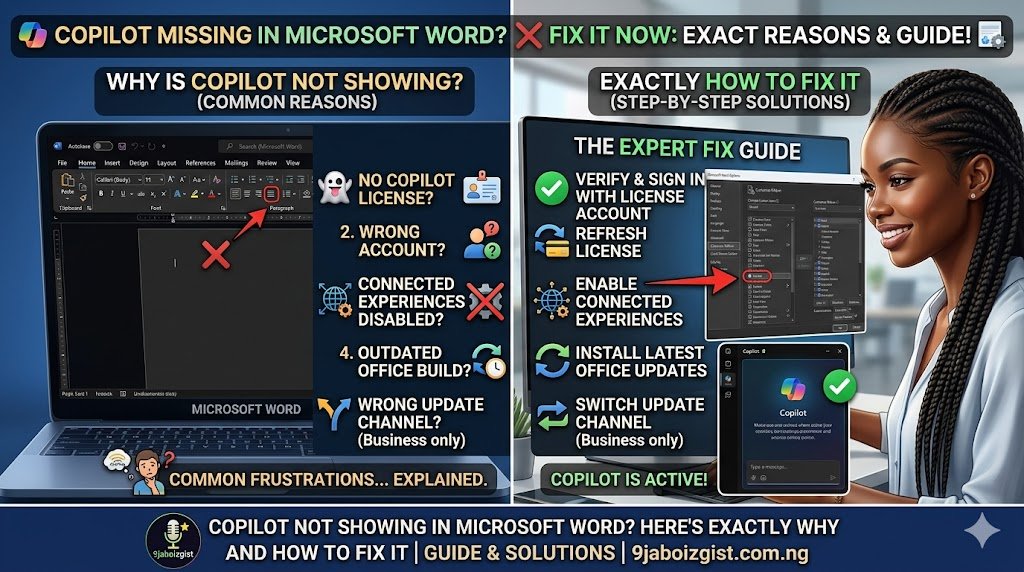
You opened Microsoft Word expecting to find Copilot. Maybe you saw it in a colleague’s installation, watched a tutorial, or noticed Microsoft promoting it everywhere. But your ribbon looks the same as it always has. No Copilot button. No AI pane. Nothing.
This is one of the most common frustrations among Microsoft 365 users right now, and it makes sense that it is confusing. Microsoft has rolled out Copilot across its products in waves, with different requirements for different apps and plans. The gap between what is advertised and what is actually available to most users is wider than Microsoft’s marketing suggests.
This guide explains every reason Copilot might be missing from your Word installation, organized so you can quickly find which cause applies to your situation, with specific fixes for each one.
Before You Troubleshoot: There Are Several Different Products Called Copilot
This is the first and most important thing to clarify, because it is the source of enormous confusion and most articles skip right past it.
Microsoft uses the name “Copilot” for multiple distinct products that work differently, live in different places, and have completely different requirements. Seeing Copilot somewhere does not mean you have Copilot everywhere.
Copilot in Windows is a sidebar assistant built into Windows 11, accessible from the taskbar. It is free and comes with Windows 11 automatically.
Copilot in Microsoft Edge is an AI panel inside the Edge browser. It is also free and available to anyone using Edge.
Copilot on the web is the free AI chatbot available at copilot.microsoft.com. You can use it without any Microsoft 365 subscription.
Copilot in Microsoft Word is what this article is about. It is an AI writing assistant embedded directly inside the Word application, accessible from the Home tab in the ribbon and as a floating button within your document. It is the only version that requires a paid subscription beyond what most users already have.
The fact that you can access Copilot in Windows, Edge, or the web does not mean you have Copilot in Word. They are separate products with separate access requirements. If you came here because Copilot works on the web but not inside Word itself, that is completely normal and expected. You are in the right place.
Which Microsoft 365 Plans Actually Include Copilot in Word
This is where most users find their answer, and most articles are frustratingly vague about it. The short version is that Copilot in Word is not included in most standard Microsoft 365 plans. It requires either an additional paid add-on or a specific higher-tier plan.
If you have Microsoft 365 Personal or Family, Copilot in Word is available but only if you also subscribe to Copilot Pro, which is a separate monthly add-on. Copilot Pro is available to individual and family Microsoft 365 subscribers and adds Copilot features inside Word, Excel, PowerPoint, Outlook, and OneNote on top of the existing subscription cost.
If you have a Microsoft 365 Business plan, Copilot in Word requires the Microsoft 365 Copilot add-on license, which must be purchased and assigned separately for each user. It does not come bundled with Business Basic, Business Standard, or Business Premium automatically.
If you have a Microsoft 365 Enterprise plan (E3 or E5), the same applies. The Copilot add-on must be purchased and assigned. E3 or E5 alone does not include Copilot in Word.
Office 2019 and Office 2021 perpetual licenses do not support Copilot at all, regardless of any subscription. Copilot in Word is exclusive to the cloud-connected Microsoft 365 subscription versions.
Free web versions of Word accessed through the browser without a paid subscription also do not include Copilot.
To check what your current plan includes, go to account.microsoft.com, sign in, and look at your active subscriptions. If you see “Copilot Pro” or “Microsoft 365 Copilot” listed, your plan includes it. If you see only “Microsoft 365 Personal,” “Microsoft 365 Family,” or a business plan name without a Copilot add-on, that is the reason it is missing.
Your Diagnostic Checklist: Find Your Specific Cause Before Trying Any Fix
Different causes require completely different fixes. Working through this checklist in order will save you time and frustration.
- Does your Microsoft 365 plan include Copilot? (Check account.microsoft.com as described above.)
- Is Microsoft Word updated to a recent build?
- Are you signed into Word with the correct account that holds the Copilot license?
- Is your device connected to the internet?
- Is your account managed by an IT administrator at a workplace or school?
- Are connected experiences enabled in Word’s privacy settings?
- Is your Microsoft 365 update channel current, or is it on a slower enterprise update cycle?
Most users find their answer at step one or step five. The sections below provide the specific fix for each cause on the list.
How to Update Microsoft Word to a Version That Supports Copilot
If your plan does include Copilot but you still cannot see it, the next most common cause is an outdated installation.
Copilot in Word requires a recent build of Microsoft 365. Microsoft delivers updates to Microsoft 365 apps through different update channels, and depending on which channel your installation uses, your version of Word may not yet include Copilot.
The Current Channel receives updates most frequently and was among the first to receive Copilot features. The Monthly Enterprise Channel receives updates on a slower schedule. The Semi-Annual Enterprise Channel receives major updates only twice per year and often lags significantly on new features.
To check your current Word version, open Word, go to File, then Account, then click About Word. The version and build number are displayed there.
To manually trigger an update, go to File, then Account, then Update Options, and click Update Now. Word will check for and install any available updates. Close and reopen Word after the update completes.
For users on work-managed devices, the update channel may be controlled by your IT department and cannot be changed individually. If Update Options is grayed out or the update channel shows Semi-Annual Enterprise Channel, the update schedule is managed by your organization. In this case, contact your IT team.
The IT Admin Blocker: The Most Common Cause for Work and School Users
This is the cause most likely to affect corporate employees, government workers, and students, and it is almost never mentioned in articles about this issue.
Microsoft 365 for business and education is managed through the Microsoft 365 admin center. IT administrators have full control over which features are enabled, which users have access to specific licenses, and whether Copilot appears in applications for their organization.
Even if your organization has purchased Microsoft 365 Copilot licenses, the administrator must assign that license to your specific user account before it will activate. Purchasing the licenses at the organizational level and assigning them are two separate actions, and in many deployments there is a delay between the two.
Additionally, some organizations choose to delay or restrict Copilot rollout as part of data governance, compliance, or security reviews. In those cases, the feature is intentionally not enabled for users, and no amount of individual troubleshooting will change that.
The clear signs that an admin policy is your issue: you are using a work or school email address to sign into Word rather than a personal Microsoft account, and colleagues in the same organization also do not have Copilot visible. If that matches your situation, the solution is to contact your IT help desk or Microsoft 365 administrator and ask two specific questions. First, has a Microsoft 365 Copilot license been assigned to your user account? Second, has Copilot been enabled in the admin center for your user group?
For students at educational institutions, access to Copilot depends entirely on whether the institution has purchased Copilot for Education licenses and deployed them. Individual student subscriptions to Microsoft 365 do not override institutional IT settings.
Connected Experiences: A Hidden Setting That Silently Blocks Copilot
If your plan qualifies, your Word is updated, you are on the right account, and Copilot is still not appearing, there is one more setting worth checking that almost no troubleshooting guide mentions.
Microsoft Word has a privacy option called “connected experiences” that controls whether features requiring an internet connection are allowed to function. This includes AI-powered features like Copilot. If this setting is turned off, Copilot will not appear even when everything else is correctly configured.
Here is how to check and enable it. Open Microsoft Word. Go to File, then Options. In the Word Options window, select Trust Center from the left panel, then click Trust Center Settings. Inside Trust Center Settings, click Privacy Options from the left panel. Scroll down until you see the section labeled “Connected Experiences.” Make sure the checkbox for “Turn on optional connected experiences” is selected. Click OK to close both windows and then restart Word completely.
After restarting, check whether the Copilot icon has appeared in the Home tab of your ribbon.
One important note for managed work accounts: this setting may be enforced by group policy and will appear grayed out if so. If you cannot change it yourself, this is another instance where your IT administrator controls the setting and is the right person to contact.
Signing Into the Right Account: A Simple Check With a Fast Fix
Microsoft 365 users often have more than one Microsoft account. It is common to have a personal account and a work or school account. Word remembers which account it is signed into, and if it is signed into the account that does not hold the Copilot license, the feature will not appear.
To check which account Word is using, go to File, then Account. The account currently signed into Office appears at the top of the page under “User Information.”
Confirm that this account matches the one where your Copilot subscription is active. For personal users with Copilot Pro, this should be your personal Microsoft account linked to the Copilot Pro subscription. For business users, this should be your work account to which the Copilot license has been assigned.
If the wrong account is signed in, click Sign Out and then sign back in with the correct account. Give Word a moment to sync the license status and then check the Home tab for the Copilot icon.
How to Enable Copilot in Word Once All Requirements Are Met
Once your subscription is confirmed, Word is updated, the correct account is signed in, and connected experiences are enabled, Copilot should appear automatically. Here is what to look for and how to access it.
The Copilot icon appears in the Home tab of the Word ribbon, typically toward the right side. It is represented by a small colored sparkle icon labeled “Copilot.” Clicking it opens the Copilot pane on the right side of your document.
A floating Copilot button may also appear in the left margin of your document when you click to position your cursor on a blank line. Clicking this floating button opens the Draft with Copilot prompt box directly in the document.
If you have confirmed every requirement but still do not see the icon, try the following: close Word completely, open Task Manager (Ctrl+Shift+Esc on Windows), end any remaining WINWORD.EXE processes, and reopen Word. In some cases, a full process restart rather than a simple window close is needed for license status changes to take effect.
If it still does not appear, signing out of Word and signing back in forces a fresh license validation and often resolves residual display issues.
What You Can Do in Word Once Copilot Is Working
For users still in the process of troubleshooting, it helps to know exactly what you are working toward. Copilot in Word is not a cosmetic feature. The capabilities it adds are genuinely useful for anyone who writes regularly.
You can prompt Copilot to draft a section of a document from a short description, saving the time of writing a first draft from scratch. You can highlight any block of text and ask Copilot to rewrite it with a different tone, make it shorter, expand it with more detail, or simplify the language. You can ask Copilot to summarize a long document and extract the key points. You can ask questions about the document you are working in and get answers grounded in that document’s content. On business plans, you can also reference other files from your Microsoft 365 environment directly within Word.
All of this happens without leaving Word or switching to a separate browser tab. That integration into the writing workflow is what makes it different from using an external AI tool alongside Word.
Practical Alternatives If Copilot Is Not Available to You
Not every user can or will access Copilot in Word, whether due to budget constraints, plan limitations, or IT policy restrictions. If that applies to you, there are legitimate alternatives that provide similar writing assistance.
Free Copilot on the web at copilot.microsoft.com gives you access to the same underlying AI model at no cost. It is not integrated into Word, but you can paste your text into the web interface, request drafts or rewrites, copy the result, and paste it back into your Word document. The workflow is less seamless but the capability is largely the same.
ChatGPT alongside Word is a widely used approach. Keep a browser window with ChatGPT open alongside Word, paste text when you need writing assistance, and work between the two tools. For users who want ChatGPT to remember their writing preferences consistently across sessions, the guide on how to make ChatGPT remember your writing style without paying for Plus covers exactly how to set that up.
Claude AI is another strong external option, particularly for longer documents and nuanced writing tasks. Claude handles extended document work well, though like all AI tools it has usage limits on the free tier. The guide on Claude AI usage limits and how to manage them explains what to do when you hit those limits.
For researchers and students using Word to write papers based on source documents, Google NotebookLM offers a free tool that reads your PDFs and helps you extract and structure information for writing, which pairs well with Word as your drafting environment.
The underlying principle for all of these alternatives is the same: the AI writing assistance happens outside Word, but the document is still produced inside Word. It is a slightly less integrated workflow, but for users who write regularly it is more than adequate.
Frequently Asked Questions
Why is Copilot not showing up in Microsoft Word?
The most common reason is that your Microsoft 365 plan does not include Copilot in Word. Standard Microsoft 365 Personal, Family, and Business plans do not include it by default. You need either Copilot Pro (for personal plans) or the Microsoft 365 Copilot add-on (for business plans). Other causes include an outdated Word installation, connected experiences being disabled, or an IT administrator blocking the feature on work and school accounts.
How do I enable Copilot in Microsoft Word?
Copilot activates automatically once the requirements are met. Confirm your plan includes Copilot (check account.microsoft.com), update Word via File then Account then Update Options, sign in with the account that holds the Copilot license, and ensure connected experiences are enabled in Trust Center Settings. After restarting Word, the Copilot icon should appear in the Home tab ribbon.
Do I need a paid subscription to use Copilot in Word?
Yes. Copilot in Microsoft Word requires either Copilot Pro (for personal Microsoft 365 subscribers) or the Microsoft 365 Copilot add-on license (for business and enterprise accounts). There is no free version of Copilot embedded inside the Word application. However, Copilot is available for free on the web at copilot.microsoft.com as a separate product.
Why is the Copilot button grayed out in Word?
A grayed-out Copilot button usually indicates that connected experiences are disabled in Word’s privacy settings, or that the feature is available but restricted by your IT administrator through group policy. Check the connected experiences setting in File then Options then Trust Center then Trust Center Settings. If the option is grayed out itself, your IT administrator controls that setting.
Is Copilot in Word available for Microsoft 365 Personal?
Yes, but only with the Copilot Pro add-on subscription. Microsoft 365 Personal alone does not include Copilot in Word. You need to add Copilot Pro to your existing Microsoft 365 Personal or Family subscription.
Can my IT admin block Copilot in Microsoft Word?
Yes. IT administrators managing Microsoft 365 for organizations can disable Copilot through the Microsoft 365 admin center or group policy. Even if your organization has purchased Copilot licenses, the administrator must assign the license to your specific user account before it activates. Contact your IT help desk to confirm whether a Copilot license is assigned to your account.
What version of Microsoft Word includes Copilot?
Copilot is available in Microsoft 365 subscription versions of Word with sufficiently recent builds. It is not available in Office 2019, Office 2021, or any perpetual license version. To ensure your build supports it, go to File then Account then Update Options then Update Now and install all available updates.
Why did Copilot disappear from Word after an update?
Occasionally, a Word update can reset certain settings or trigger a re-authentication of license status. Try signing out of Word and signing back in with the correct Microsoft account, ensure connected experiences are still enabled in Trust Center Settings, and run another update check via File then Account then Update Options. If the issue persists on a work account, contact your IT administrator to confirm the license is still assigned.
Does Copilot in Word require an internet connection?
Yes. Copilot in Word is a cloud-based AI feature. It requires an active internet connection to function. If you are working offline, Copilot will not be available even if all other requirements are met.
What can Copilot do inside Microsoft Word?
Copilot in Word can draft new content from a prompt, rewrite or refine selected text, summarize long documents, answer questions about document content, adjust tone and length of existing writing, and on business plans it can reference other documents from your Microsoft 365 environment. All of these features work directly inside the Word interface.
Start With the Subscription Check, Then Work Down the List
Copilot not showing in Microsoft Word is almost always one of a handful of specific causes. The subscription and license requirement explains the absence for the majority of users. The IT admin policy explains it for most of the rest.
The clear first action is to open account.microsoft.com and look at your active subscriptions. If Copilot Pro or Microsoft 365 Copilot is not listed, that is your answer. Decide whether the upgrade makes sense for how much you would use it, or choose one of the free external alternatives that deliver similar writing assistance without the subscription cost.
If your plan does include Copilot and it still is not appearing, work through the diagnostic checklist in order. Update Word, confirm the correct account is signed in, check the connected experiences setting, and if you are on a work or school account, contact your IT administrator. One of those steps will resolve it.
Copilot in Word is a genuinely useful tool once it is running. Getting there requires clearing a few access hurdles that Microsoft has not made particularly transparent, but none of them are difficult once you know what to look for.