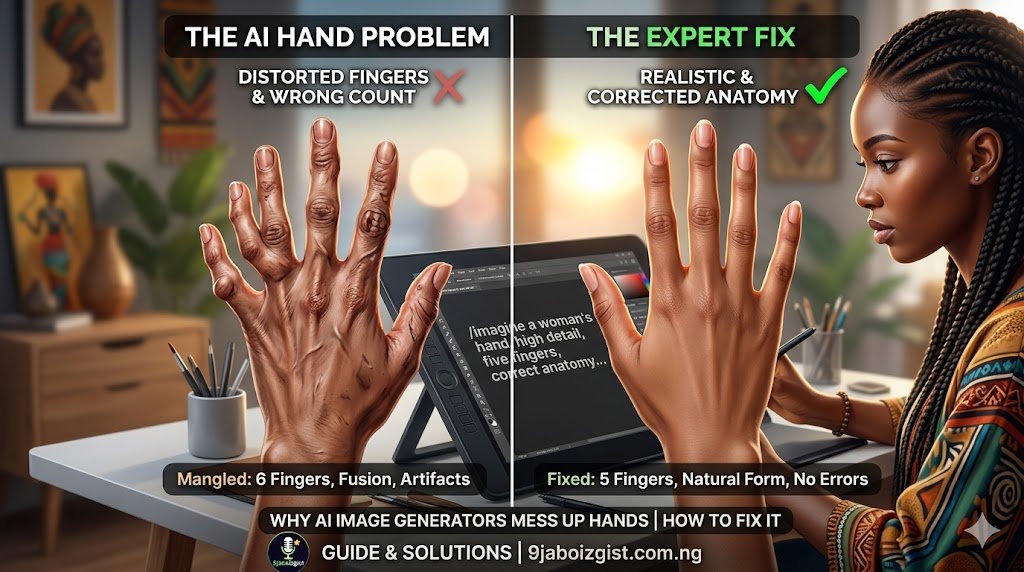
You generate the perfect image. Great lighting, the right mood, a composition you are genuinely happy with. Then you look at the hand. Seven fingers. Two thumbs growing from the same knuckle. A wrist that bends sideways in a direction that does not exist in human anatomy.
This is the most consistent frustration in AI image generation. It does not matter which tool you use. Midjourney, Stable Diffusion, DALL-E 3, Adobe Firefly. They all do it. Some do it less often than others, but none of them have fully solved it.
The good news is that this problem is much more manageable than most users realize. There are prompt-level techniques that prevent the worst of it before you even generate. There are settings and tool-specific tricks that improve hand quality significantly. And when a bad hand sneaks through anyway, there are post-processing methods that can repair it without touching the rest of your image.
This guide covers all of it, from the root cause to the repair, in a logical order that builds on itself. By the end, you will have a complete toolkit for handling hands in AI-generated images across every major tool.
The Actual Reason AI Gets Hands Wrong Every Time
To fix a problem effectively, you need to understand what is causing it. Most guides skip this part. They hand you a list of prompt words and move on. That is fine until the tips stop working and you have no idea why.
Here is the honest explanation.
AI image generators like Midjourney and Stable Diffusion learn to create images by training on billions of photographs and illustrations scraped from the internet. The model learns visual patterns from this data. For a face, the training data is remarkably consistent. Billions of headshots, portraits, and profile pictures taken at roughly the same angle, in similar lighting, with faces clearly visible and in sharp focus. The model has a strong, reliable pattern to draw from.
Hands are completely different. In the real world, hands appear in images in an enormous variety of states. Partially hidden behind objects, blurred with motion, tucked into pockets, holding things that obscure the fingers, shown from unusual foreshortened angles, stylized in illustrations, gloved, or barely visible at the edge of the frame. The training data for hands is noisy, inconsistent, and ambiguous.
The model did not learn “a hand has exactly five fingers arranged in this precise structure.” It learned a statistical cloud of patterns that roughly resembles hands across millions of inconsistent examples. When it generates a hand, it assembles fragments from that learned cloud. Sometimes those fragments combine coherently. Often they do not.
This is not a software bug that will be fixed in a patch. It is a structural consequence of how these models are trained. The more clearly you signal correct hand anatomy in your prompts, and the less ambiguity you leave for the model to fill in, the better the assembled result. That principle is the foundation of every fix in this guide.
How to Prevent Bad Hands Before You Generate
Prompt engineering is the first and most important layer. Getting hand anatomy right in the prompt means less reliance on post-processing later.
The Prompt Language That Changes Hand Quality
Most users either do not mention hands at all or add a vague descriptor that does not do much. The difference between a generic prompt and one that consistently produces better hands is specificity.
These phrases reliably improve hand quality across most tools. Add them directly to your positive prompt:
anatomically correct hands, five fingers, detailed fingers, realistic hand anatomy, sharp focus on hands, hyperrealistic skin texture
Each of these phrases pulls the model toward training examples where hands were photographed clearly, in sharp focus, and with normal anatomy. They signal to the model that this image belongs to a category where hand quality matters. That small signal shifts the probability distribution toward cleaner outputs.
Placement matters too. In most diffusion-based tools, terms that appear earlier in the prompt carry more weight. If hands are important to your image, put your hand quality terms near the front rather than tacking them on at the end.
Specifying what the hands are doing is equally important. A prompt that says “a woman standing in a park” leaves the model to decide hand placement and position freely, which is high-risk. A prompt that says “a woman standing in a park, hands clasped in front of her, fingers interlaced” gives the model a specific, coherent task. Coherent tasks produce more coherent anatomy.
Similarly, specifying a single hand at a time in complex images tends to produce better results than asking for both hands simultaneously. If you need both hands visible, consider generating the image and then using inpainting to address each hand region separately.
Reference Style Quality to Pull From Better Training Data
The quality of training images that correspond to your prompt matters. Prompting toward high-quality, professionally shot content pushes the model toward training examples where hands were well-lit, in focus, and photographed carefully.
Phrases like editorial photography, professional portrait, studio lighting, award-winning photograph, and shot on medium format film all signal professional-grade source material. These images, statistically, have cleaner hand anatomy than casual snapshots, stylized illustrations, or low-resolution stock photos.
This does not guarantee perfect hands. But it meaningfully shifts the odds in your favor before generation even begins.
Negative Prompts: What to Exclude and Why the Terms Work
Negative prompts are just as important as positive prompts for hand quality, and they are almost universally misunderstood. Most users copy-paste a long string of terms they found somewhere online without knowing what any of them actually do. Understanding the logic makes you dramatically more effective at using them.
Negative prompts work by telling the model which visual patterns to move away from during generation. They reduce the probability that those patterns appear in the output. For hands, you want to reduce the probability of two main categories of problems: wrong finger counts and deformed anatomy.
For finger count problems, use: extra fingers, six fingers, too many fingers, missing fingers, extra digits, duplicate fingers
These terms directly target the most common hand defect. When you include them in your negative prompt, the model de-emphasizes learned patterns where finger counts were ambiguous or wrong.
For anatomical deformity, use: deformed hands, malformed hands, mutated hands, bad anatomy, poorly drawn hands, ugly hands, fused fingers, melted hands
These target the fragmented, low-quality pattern fragments that produce the worst hand outputs. They push the model away from the noisiest parts of its training data.
For overall quality, include: low quality, blurry, out of focus, amateur photography, low resolution
Raising the quality floor globally also raises it for hands specifically. High-quality reference images, statistically, have more anatomically correct hands than low-quality ones.
For Stable Diffusion users, negative prompts are a dedicated input field. For Midjourney, use the --no parameter followed by your exclusionary terms. DALL-E 3 does not support formal negative prompts, but you can include exclusionary language directly in your prompt text. Something like “The subject’s hands are natural, normal, and anatomically correct with exactly five fingers. The hands are not deformed, distorted, or malformed.”
Redesigning Your Composition to Avoid the Problem Entirely
This is the approach almost nobody talks about, and it is arguably the most reliable fix of all.
If your image does not require visible hands, redesign the composition so the hands are not there. This is not a limitation or a compromise. It is a deliberate compositional decision that professional photographers, illustrators, and directors make constantly. Knowing when to hide hands is a skill, not a defeat.
A portrait cropped at the chest or waist eliminates hands entirely. A subject holding a bag, a book, a coffee cup, or a bunch of flowers has hands that are naturally obscured or only partially visible, which is far more forgiving than a fully exposed palm with spread fingers. A seated figure with hands in their lap or resting on a surface, partially visible, gives the model a much simpler task than hands fully extended toward the camera.
Shallow depth of field is another powerful tool. Prompting for shallow depth of field or subject sharply in focus, background and foreground softly blurred can place hands in the softly blurred foreground in a way that reads as a deliberate artistic choice. Blurred fingers are not wrong fingers.
Phrasing like hands in pockets, arms crossed, hands behind back, or hands at sides, not in focus gives the model specific compositional guidance that minimizes hand exposure. Less hand visibility means less opportunity for the model’s anatomical fragmentation to show.
And after generation, cropping is always available. If you generated a three-quarter body shot with a beautiful face and terrible hands, a well-chosen crop to the shoulders produces a strong portrait without any repair work needed.
Tool-Specific Tips That Actually Make a Difference
The general techniques above apply everywhere. But each major tool also has specific features, settings, and quirks worth knowing about.
Midjourney
Midjourney V6 and later represent a significant improvement over V5 and earlier in anatomical accuracy. If you are not already on the latest version, switch. The jump in hand quality between V5 and V6 is noticeable and requires no other changes on your part.
For photorealistic images, add --style raw to your prompt. This reduces Midjourney’s tendency toward stylized, aesthetically embellished outputs and leans toward more accurate representation of the reference material, which tends to improve anatomical accuracy.
Use --no extra fingers, deformed hands, bad anatomy, malformed hands as your negative parameter on every generation involving people.
When you have a good base image with a problematic hand, use the Vary (Region) feature. Click the V4 button under your generated image, select the region covering the bad hand, and add your hand anatomy positive prompt to the regeneration. Midjourney will regenerate only that region while preserving the rest of the image. This is Midjourney’s inpainting tool and it is genuinely effective for hand repair.
DALL-E 3
DALL-E 3, accessed through ChatGPT, has better hand generation than its predecessors but still produces errors, particularly with complex hand poses and multiple hands in the same frame.
Since DALL-E 3 does not support formal negative prompting, your exclusionary language goes directly into the prompt itself. Be explicit and specific: “The subject has two natural human hands. Each hand has exactly five fingers. The hands are anatomically correct and not deformed in any way. Show the left hand resting on her knee with fingers relaxed.”
For repair, use the image editing function in ChatGPT. Select the image, click edit, draw a selection around the bad hand region, and describe what you want in that area. DALL-E 3 will regenerate the selected region with the surrounding context as a guide. Running two to three variations and choosing the best one is usually enough to find a usable result.
Stable Diffusion
Stable Diffusion has the most extensive toolkit for hand correction, but it requires more familiarity with the interface. Start with the right model. SDXL and newer checkpoint-based models handle anatomy significantly better than the original 1.5-based models. If you are still generating on SD 1.5, upgrading your model alone will produce a visible improvement in hand quality.
Install the ADetailer extension if you have not already. ADetailer runs an automatic second-pass detection and refinement on specific body parts after the main generation. When you enable it and set the detection target to hands or the body, it automatically identifies hand regions in the output and runs a focused refinement pass, dramatically improving hand detail and anatomy without any extra manual steps from you.
For inpainting repair, use the img2img workflow. Mask the hand region, keep your denoising strength between 0.4 and 0.6, and use your original prompt plus the hand anatomy phrases from Section 2. Too high a denoising strength will change the surrounding image. Too low will not fix the hand. The middle range gives you enough freedom to repair without disrupting the rest of the generation.
Adobe Firefly
Adobe Firefly, particularly within Photoshop, has one of the most user-friendly hand repair workflows available. You do not need technical knowledge to use it effectively.
For post-generation repair, open your image in Photoshop, select the bad hand area with the Lasso tool, activate Generative Fill, and type a natural description of the hand you want: “a natural human hand with five fingers, palm facing down, resting on a wooden table.” Photoshop will generate several variations and let you choose the best one. The surrounding context guides the generation so the repaired hand blends with the rest of the image.
Firefly’s overall hand quality in direct generation has also improved in recent model updates. For users who want a simple, accessible tool without a complex technical setup, Firefly is one of the stronger options available right now for anatomy-sensitive work.
Repairing Bad Hands After Generation: The Complete Workflow
Even with the best prompting and settings, bad hands will occasionally make it through. Having a reliable repair workflow means a problematic generation is a minor inconvenience rather than a discarded result.
The core technique is inpainting. All major tools support some version of it. The concept is consistent across all of them: mask the problem region, describe the correct version, regenerate only that area, and let the surrounding context guide the result.
For Midjourney, that is Vary (Region). For DALL-E 3, it is the image editing selection tool in ChatGPT. For Stable Diffusion, it is the img2img inpainting workflow. For Adobe Firefly, it is Generative Fill in Photoshop. The interface is different in each case. The underlying logic is identical.
When describing the hand in your inpaint prompt, be as specific as your original prompt was. Include the position, orientation, what the hand is doing, and your standard hand anatomy phrases. “Natural human hand, five fingers, palm facing forward, fingers slightly relaxed, detailed skin texture” gives the regeneration clear guidance.
Run multiple variations. Inpainting is not deterministic. The same prompt on the same image produces slightly different results each time. Generate three to five variations and choose the best one rather than accepting the first result. For particularly difficult hand positions, combining a strong inpaint result with some manual touchup in Photoshop, cleaning up a stray finger or softening an odd joint, produces the cleanest final output.
ControlNet: The Most Powerful Fix for Stable Diffusion Users
If you use Stable Diffusion and you regularly need accurate hand anatomy, ControlNet with an OpenPose reference is the most effective tool available anywhere for this problem.
ControlNet is a free extension for Stable Diffusion that feeds a reference image or structural skeleton directly into the generation process. Instead of relying purely on prompt text to guide anatomy, you provide a visual reference that the model follows for structure, position, and proportions.
For hands, the OpenPose preprocessor extracts a skeletal map from a reference image and uses it to guide where joints, fingers, and wrists appear in the output. The model follows the structural template of the reference while applying your style and prompt over it.
In practice, this means finding or photographing a hand in the specific pose you want. Stock photo sites, your own phone camera, or reference image databases all work. Load this reference image into the ControlNet panel in Stable Diffusion, select OpenPose as the preprocessor, and generate. The model will follow the structural skeleton of your reference hand while applying the style, lighting, and visual qualities from your main prompt.
This approach produces anatomically accurate hands more reliably than any prompt-only technique. It is the professional-level solution for users who generate hands frequently and need consistent results. The setup takes a few minutes the first time, but once you understand the workflow, it becomes a repeatable part of your generation process.
Which AI Tool Handles Hands Best Right Now?
This is the question users want answered directly, and an honest current comparison is more useful than generic praise for all tools.
| Tool | Out-of-the-Box Hand Quality | Repair Capability | Best For |
|---|---|---|---|
| Midjourney V6+ | Good with correct prompting | Vary (Region) is solid | Portrait and character work |
| DALL-E 3 | Improved but inconsistent | ChatGPT editing works | Quick use, casual generation |
| Stable Diffusion (SDXL) | Moderate without extensions | Best repair toolkit available | Advanced users, full control |
| Adobe Firefly | Good overall | Generative Fill is excellent | Non-technical post-processing |
| Ideogram AI | Competitive, still improving | Limited repair tools | Concept art, text-heavy images |
The honest summary: no tool generates correct hands on every attempt without some prompting effort. Midjourney V6 and Adobe Firefly produce the most reliable results for general users who want good hands without a technical setup. Stable Diffusion with ControlNet and ADetailer gives the most control and the most consistent anatomy for users willing to invest time in the workflow. DALL-E 3 has improved but remains less reliable for complex hand positions.
If reducing AI-related frustrations across your workflow matters to you, the principles here connect directly to other challenges in AI tool use. Understanding why tools fail, and how to work with their limitations rather than against them, applies whether you are dealing with image generation or tools like text AI, as explored in guides like why Gemini gives wrong answers and how to stop ChatGPT from cutting off mid-response.
Frequently Asked Questions
Why do AI image generators always get hands wrong?
AI image generators learn from billions of training images where hands appear in inconsistent, ambiguous, and partially hidden states far more often than faces do. The model assembles hand anatomy from fragmented learned patterns rather than a clear structural rule, which produces anatomically impossible results. The problem is structural, not a simple software bug.
What prompts fix hands in AI-generated images?
The most consistently effective phrases are anatomically correct hands, five fingers, detailed fingers, realistic hand anatomy, and sharp focus on hands. Specifying exactly what the hand is doing also helps significantly. Adding these terms near the beginning of your prompt carries the most weight in most tools.
How do I use negative prompts to fix AI hands?
Add these terms to your negative prompt: extra fingers, six fingers, missing fingers, fused fingers, deformed hands, malformed hands, mutated hands, bad anatomy, ugly hands. These reduce the probability of the most common defects by steering the model away from the fragmented low-quality patterns that produce them.
Which AI image generator is best at drawing hands?
As of 2025 and into 2026, Midjourney V6 and Adobe Firefly produce the strongest results for most users out of the box. Stable Diffusion with ControlNet and ADetailer installed gives the most anatomical control of any tool but requires more technical setup.
What is inpainting and how does it fix bad AI hands?
Inpainting means masking a specific region of an existing image and regenerating only that area while the rest stays intact. For bad hands, you mask the problem area, describe a correct hand in the prompt, and regenerate just that region. The surrounding image guides the generation so the result blends naturally. All major AI tools support some version of this.
Does ControlNet help with hand problems in Stable Diffusion?
Yes, and it is the most powerful solution available. ControlNet with the OpenPose preprocessor lets you feed a skeletal reference of a real hand in the pose you want directly into the generation process. The model follows that structural template for anatomy while applying your style and prompt. It produces more consistent hand anatomy than any prompt-only approach.
Can I fix AI hands in Photoshop?
Yes. Adobe Photoshop’s Generative Fill tool, powered by Adobe Firefly, is one of the cleanest hand repair options available. Select the bad hand area with the Lasso tool, activate Generative Fill, describe the correct hand, and generate. Photoshop produces several variations and lets you choose the best result.
Is there a way to avoid hands in AI images entirely?
Yes, and it is often the smartest approach. Cropping at the chest or waist, having the subject hold an object that obscures the hands, using shallow depth of field to blur the foreground, or specifying poses like hands in pockets or arms crossed all reduce or eliminate hand visibility. This is a legitimate compositional strategy, not a limitation.
Does DALL-E 3 have the hand problem?
Yes, though less severely than earlier versions. DALL-E 3 has improved its anatomical handling but still produces errors with complex hand poses or multiple hands in the same frame. Since DALL-E 3 does not support formal negative prompts, explicit anatomy instructions go directly in the main prompt text.
Is the AI hand problem getting better over time?
Yes, meaningfully so. Newer model generations across all major tools produce better hand anatomy than versions from two or three years ago. The improvement is continuous but not complete. Correct prompting, negative prompts, and post-processing repair are still necessary for reliable results in any current tool.
A Layered Problem Needs a Layered Approach
No single tip eliminates bad hands from AI image generation entirely. That is the honest reality. But a layered approach, prevention through prompting, reduction through negative prompts, creative avoidance through composition, tool-specific settings, and repair through inpainting when needed, reduces the problem dramatically for the vast majority of images you generate.
Start with the prompt-level fixes. Add the anatomy terms, specify what the hands are doing, and build a negative prompt string you reuse on every generation involving people. Those changes alone will produce a visible improvement immediately.
When you have an image you love except for the hands, go straight to inpainting. Mask the bad region, describe the correct hand, run a few variations. That workflow will salvage more images than you expect.
And when the composition allows it, redesign so hands are hidden, softened, or outside the frame entirely. The cleanest hand in AI art is often the one that is not there.