Camtasia costs nearly $300. Loom wants a monthly subscription for anything beyond short clips. Snagit is another annual fee you did not budget for. And all you need to do is record what is happening on your screen.
Here is something most people do not realize: Windows 11 already has free screen recording tools built right into it. You do not need to download anything, sign up for anything, or hand over a credit card. Two of these tools come installed with Windows 11 by default. One is hidden inside an app you have probably already used. And if none of them fit your needs, there is one genuinely free, no-watermark option that takes five minutes to set up.
This guide covers all of them, honestly, with exact steps and clear notes on what each one cannot do.
What Windows 11 Already Has Installed for Free
Most people know about Xbox Game Bar, but very few know that Windows 11 also includes screen recording inside the Snipping Tool. These are two completely separate built-in tools with different strengths. Knowing which one to use for which situation saves a lot of frustration.
Here is a quick summary before diving in:
- Xbox Game Bar records apps, games, and browser windows with audio but cannot record the desktop or File Explorer
- Snipping Tool records any area of the screen including the desktop but currently does not capture audio
- PowerPoint (free if you have a Microsoft account) records any screen area with full audio and exports as MP4
- OBS Studio is the free, open-source upgrade when you need more power, no limits, and no watermark
The Fastest Method Right Now: Xbox Game Bar
Xbox Game Bar is built into every Windows 11 PC. You do not need to install it, activate it, or pay for anything. It records video directly to your hard drive with no watermark and no time limit.
The keyboard shortcut to open it is Windows key + G.
Here is how to use it step by step:
- Open the app, game, or browser window you want to record
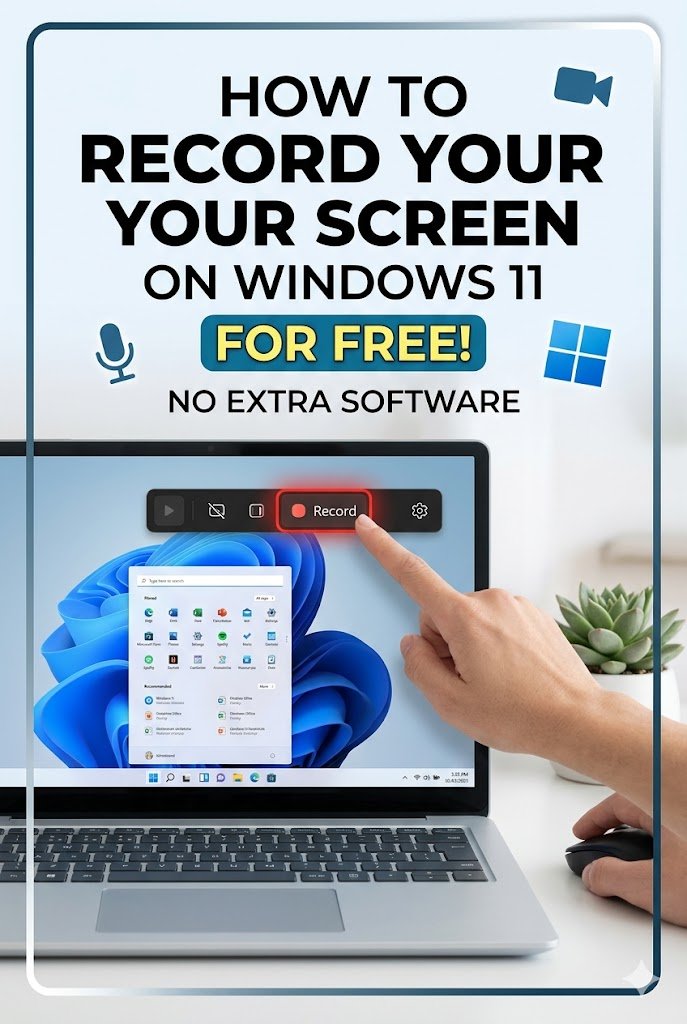
- Press Windows key + G to open the Game Bar overlay
- Click the capture button (the small camera icon) or press Windows key + Alt + R to start recording immediately
- A small recording timer will appear in the top right corner of your screen
- Press Windows key + Alt + R again to stop the recording when you are done
Your recording saves automatically to This PC > Videos > Captures. You can also find it by opening Xbox Game Bar, clicking the Gallery widget, and viewing your recent recordings there.
How to record with audio: Inside Xbox Game Bar, click the settings gear icon, then go to “Capturing.” Here you can choose to record system audio (the sound playing on your screen) and microphone audio (your voice). You can turn each one on or off independently.
Alternatively, click the microphone icon on the recording toolbar while recording to toggle your microphone on or off mid-session.
The important limitation to know: Xbox Game Bar cannot record the Windows desktop, File Explorer, or certain system windows. If you try to open it while the desktop is focused, the record button will be greyed out. The workaround is simple: click into an open application window first, then press Windows key + G. If you specifically need to record the desktop or File Explorer, skip ahead to the Snipping Tool section below.
Xbox Game Bar is Greyed Out or Not Opening: How to Fix It
If the recording button appears greyed out or Xbox Game Bar does not open at all, the feature may have been turned off.
To fix it:
- Click the Start menu and open Settings
- Go to Gaming then Xbox Game Bar
- Make sure the toggle at the top is switched on
- Also go to Gaming then Captures and confirm that background recording settings are enabled
If you are on a work or school PC, your administrator may have restricted Game Bar. In that case, skip to the Snipping Tool or PowerPoint methods below.
The Built-In Tool Almost Nobody Uses: Snipping Tool Screen Recording
Most people think the Snipping Tool only takes screenshots. Since a Windows 11 update, it also records video of your screen. This is genuinely useful because it records any area of the screen including the desktop, File Explorer, and system windows that Xbox Game Bar cannot capture.
Here is how to use it:
- Click the Start menu and search for Snipping Tool, then open it
- At the top of the Snipping Tool window, click the video camera icon to switch to recording mode
- Click “New” and your cursor will change to a crosshair
- Click and drag to select the area of the screen you want to record
- Click “Start” in the toolbar that appears
- A three-second countdown will begin, then recording starts
- Click “Stop” in the toolbar when you are done
After stopping, Snipping Tool shows a preview of your recording. You can then save it to any folder on your computer as an MP4 file.
What Snipping Tool can do that Game Bar cannot: record the desktop, taskbar, File Explorer, and any system window.
The current limitation: Snipping Tool screen recording does not capture audio in the current Windows 11 version. It is a silent recording only. If you need audio with your screen recording and the desktop must be in frame, the PowerPoint method below is your best free option.
Tip: Snipping Tool is best for creating silent walkthroughs, demonstrating software UI, or capturing anything happening on your desktop that Game Bar refuses to touch.
The Underrated Free Option: Microsoft PowerPoint Screen Recording
If you have Microsoft 365 or access to the free version through a school or university account, PowerPoint has a built-in screen recorder that most people have never noticed. It records any area of your screen with both system audio and microphone, and it exports directly as an MP4 file.
If you do not have Microsoft 365 installed, check out our guide on how to use Microsoft Word and Office for free in 2026 before continuing. The free Microsoft 365 Education plan includes PowerPoint for students and teachers at no cost.
Here is how to use PowerPoint to record your screen:
- Open PowerPoint and create a blank presentation (or open any existing one)
- Click the Insert tab in the top menu
- Click Screen Recording on the right side of the toolbar
- Your screen will dim and a small control bar will appear at the top
- Click Select Area and drag to choose the portion of the screen you want to record
- Toggle the audio options to include microphone, system sound, or both
- Click the red Record button to start
- Click Stop in the toolbar when you are done
- The recording will embed into your PowerPoint slide automatically
- Right-click the video on the slide and choose Save Media As to export it as an MP4 file to your computer
PowerPoint screen recording is excellent for tutorials, walkthroughs, online class recordings, and training videos. It records the full desktop, works silently or with full audio, and saves in a widely compatible format. No watermark, no subscription, no sign up.
When Built-In Tools Are Not Enough: OBS Studio (Free, No Limits, No Watermark)
If you need to record your full desktop continuously, stream to YouTube, record with a webcam overlay, or produce longer professional recordings, the built-in tools will eventually feel limited. OBS Studio is the answer.
OBS Studio is completely free and open-source. There is no watermark on your recordings, no time limit, no sign up required, and no paid tier. It is the same tool used by professional streamers and content creators worldwide. Download it at obsproject.com.
Basic setup for Windows 11 screen recording in OBS:
- Download and install OBS Studio from obsproject.com
- Open OBS and click the plus icon under “Sources”
- Choose Display Capture from the list
- Select your monitor and click OK
- Under “Audio Mixer,” confirm your microphone and desktop audio are both visible
- Click Start Recording at the bottom right
- Click Stop Recording when done
Recordings save to your Videos folder by default. You can change this in Settings > Output > Recording Path.
OBS does have a slightly steeper learning curve than Game Bar or Snipping Tool. But for anyone who needs full desktop recording, no limits, and absolutely no watermark, it is the best completely free option available in 2026.
Getting Audio Right in Your Free Screen Recordings
One of the most frustrating parts of free screen recording is setting up audio correctly. Here is exactly how it works:
System audio is the sound coming from your PC, meaning music, video playback, notification sounds, and anything playing through your speakers. In Xbox Game Bar, this is captured automatically when audio is enabled in settings.
Microphone audio is your voice recorded through a connected microphone or built-in laptop mic. In Xbox Game Bar, click the microphone icon on the recording bar to toggle it on.
If your recording has no audio at all, check these things:
- Go to Settings > Privacy and Security > Microphone and make sure apps are allowed to access the microphone
- In Xbox Game Bar settings under “Capturing,” confirm audio capture is not set to “off”
- Right-click the speaker icon in your taskbar, go to Sound Settings, and confirm your microphone is set as the default input device
In Snipping Tool, audio is not yet supported regardless of settings. Use Game Bar or PowerPoint if audio is required.
Where Your Recordings Are Saved
| Tool | Save Location |
|---|---|
| Xbox Game Bar | This PC > Videos > Captures |
| Snipping Tool | Prompts you to choose a location after stopping |
| PowerPoint | Embedded in slide, then export via right-click > Save Media As |
| OBS Studio | Videos folder by default, configurable in Settings |
To change where Xbox Game Bar saves recordings, open Settings > Gaming > Captures and update the “Captures Location” field to any folder you prefer.
Which Free Method Is Right for Your Situation?
| Your Need | Best Free Tool |
|---|---|
| Record a game or app window quickly | Xbox Game Bar (Win + G) |
| Record the desktop or File Explorer | Snipping Tool |
| Record a tutorial with full audio | PowerPoint Screen Recording |
| Record full desktop with no limits | OBS Studio |
| Webcam overlay while recording | OBS Studio |
| Record a Zoom call or video call | PowerPoint or OBS Studio |
| Longest recording time with no limit | OBS Studio |
| Fastest one-click recording | Xbox Game Bar (Win + Alt + R) |
All of these tools are free. All of them save recordings locally to your computer. None of them upload your screen content to any cloud server or require any account linked to a paid subscription.
If your computer is running slow during recordings, lower the recording quality in Xbox Game Bar settings (go to Settings > Gaming > Captures and reduce video quality from high to standard), or use the Snipping Tool which puts less strain on low-spec hardware.
Frequently Asked Questions
Does Windows 11 have a built-in screen recorder?
Yes. Windows 11 has two built-in screen recording tools: Xbox Game Bar (Windows key + G) and the Snipping Tool video recording feature. Both are free, require no download, and save recordings directly to your computer with no watermark.
What is the keyboard shortcut to record my screen on Windows 11?
Press Windows key + Alt + R to start and stop recording instantly using Xbox Game Bar without even opening the full overlay. To open the full Game Bar interface, press Windows key + G first.
Why can Xbox Game Bar not record my desktop?
Xbox Game Bar was designed primarily for recording games and applications. It cannot record the Windows desktop, File Explorer, the Start menu, or certain system windows. To record those areas, use the Snipping Tool screen recording feature or OBS Studio instead.
Where are my screen recordings saved on Windows 11?
Xbox Game Bar saves recordings to This PC > Videos > Captures automatically. Snipping Tool asks you to choose a save location after you stop recording. You can change the Xbox Game Bar save location in Settings > Gaming > Captures.
Does Windows 11 screen recording add a watermark?
No. Neither Xbox Game Bar, Snipping Tool, PowerPoint, nor OBS Studio adds a watermark to your screen recordings. All are completely free and watermark-free.
Can I record my screen with audio on Windows 11 for free?
Yes. Xbox Game Bar records both system audio and microphone audio. You can toggle each independently from the recording toolbar or from Settings > Gaming > Captures. PowerPoint Screen Recording also captures both audio sources. Snipping Tool does not currently support audio recording.
How do I record the full desktop including the taskbar on Windows 11 for free?
Use the Snipping Tool screen recording feature. Select the full screen area including the taskbar during the selection step. Alternatively, use OBS Studio with a Display Capture source, which records your entire monitor including all visible elements.
Can I use OBS Studio for free with no watermark or time limit?
Yes. OBS Studio is completely free and open-source. It has no watermark, no recording time limit, and no paid tier. Download it from obsproject.com.
Why is my screen recording black on Windows 11?
A black recording is usually caused by a GPU capture conflict. In OBS Studio, go to Settings > Advanced and switch the Renderer from DirectX 11 to DirectX 12, or try switching the Display Capture method from Automatic to Windows 10 (1903 and up). In Xbox Game Bar, this can sometimes be fixed by updating your graphics driver through Device Manager.
Can I record a Zoom call or video meeting on Windows 11 for free?
Yes. Open Zoom or your video meeting app, then press Windows key + Alt + R to start recording with Xbox Game Bar. The app window will be captured with audio. Alternatively, use PowerPoint Screen Recording or OBS Studio to record the full screen including the meeting window.
For more free workarounds that help you get more done on Windows 11 without paying for extra software, check out our guides on how to stop Windows 11 from updating automatically at the worst possible times and why Google Chrome uses so much RAM and how to reduce it without installing extensions.