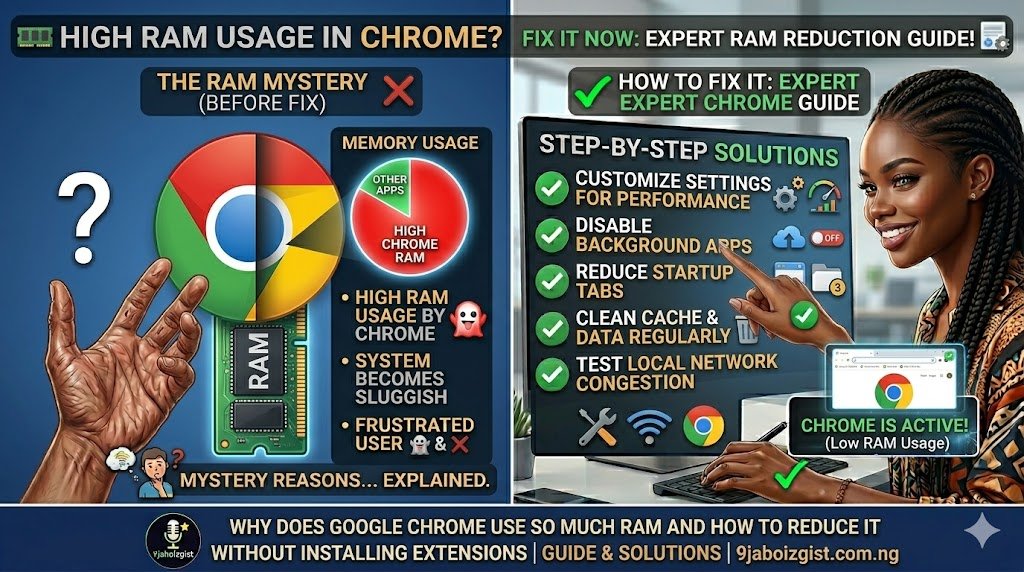
You open Chrome, load a few tabs, and suddenly your laptop fan kicks into high gear. Task Manager shows Chrome eating 2GB, 3GB, sometimes more. Everything slows down. Other apps start stuttering. And the frustrating part is that you might only have four or five tabs open.
This is not a bug. It is by design. But that doesn’t mean you have to live with it. Chrome’s RAM hunger is one of the most searched tech complaints in the world, and there are several genuinely effective ways to bring it under control without downloading a single extension.
This guide explains exactly why Chrome behaves this way and gives you practical, built-in fixes you can apply right now.
Why Chrome Consumes So Much Memory in the First Place
Chrome’s heavy RAM usage isn’t accidental. It is the result of a deliberate architectural choice that Google made years ago and has stuck with ever since.
Chrome runs each tab, each extension, and each plugin as a completely separate process in your operating system. This is called a multi-process architecture. The idea behind it is smart: if one tab crashes, it doesn’t take down your entire browser. Each process runs in isolation. The problem is that every individual process carries its own memory overhead, and those costs add up fast.
On top of that, Chrome preloads resources it thinks you’re about to need. It speculatively renders pages before you even click a link, keeps background processes running for web apps like Gmail, and caches images, scripts, and other assets in memory to make future loads faster. All of that takes RAM.
Hardware acceleration is another factor. Chrome offloads visual rendering tasks to your GPU by default. This helps with smooth scrolling and video playback, but it also means Chrome claims a portion of your system memory for graphics-related work.
Extensions compound everything. Each extension you’ve installed runs as its own process. Even if you never think about them, they are sitting in memory at all times, consuming resources.
The result is a browser that performs exceptionally well when your system has plenty of RAM but becomes a serious bottleneck on machines with 4GB or 8GB of memory.
Check Chrome’s Own Task Manager First
Before applying any fixes, spend thirty seconds understanding exactly what is eating your RAM inside Chrome. Most people don’t realize Chrome has its own built-in task manager that breaks down memory usage by tab, extension, and process.
Press Shift + Esc while Chrome is open, or go to the three-dot menu in the top right, select More Tools, then Task Manager. A window will appear showing every Chrome process and how much memory, CPU, and network each one is using.
Look for tabs using unusually high memory. News sites, social media platforms, video streaming pages, and web apps like Figma or Google Docs are frequent offenders. Also look at what’s listed under extensions. You might find that an extension you barely use is sitting there consuming hundreds of megabytes.
This gives you a clear picture of where to focus your effort.
Enable Memory Saver to Automatically Free Up RAM
Google added a feature called Memory Saver to Chrome that does something genuinely useful. It automatically puts inactive tabs to sleep when you haven’t used them for a while, freeing up the memory they were consuming. The tab stays in your tab bar and reloads when you click on it.
To turn it on, click the three-dot menu in the top right corner of Chrome and select Settings. On the left side, choose Performance. You will see a toggle labeled Memory Saver. Turn it on.
Below that toggle, you can add exceptions for sites you want to stay active even when you’re not looking at them, things like music players, messaging apps, or live dashboards. Everything else gets paused when idle.
This single setting can make a meaningful difference on machines with limited RAM, and it requires zero ongoing effort from you after the initial setup.
Enable Energy Saver if You’re on a Laptop
Right below Memory Saver in the same Performance settings panel, you’ll find Energy Saver. This mode reduces background activity and limits visual effects when your battery drops below a certain level or when your laptop is unplugged.
While Energy Saver is primarily about battery life, it also reduces Chrome’s overall resource consumption. Lowering background CPU and rendering activity means less memory pressure as well. If you’re on a laptop and haven’t turned this on, it’s worth enabling.
Reduce the Number of Open Tabs Deliberately
This sounds obvious, but the psychology of tab hoarding is real. Many people keep dozens of tabs open as a to-do list or reference system, and each one is consuming memory whether they are actively using it or not.
Even with Memory Saver enabled, freshly opened tabs that haven’t been idle long enough are still running in full. The most direct way to reduce Chrome’s RAM usage is to close tabs you aren’t actively using right now.
For saving tabs you want to return to later, Chrome’s built-in Reading List is a clean solution. Click the bookmark icon in the address bar and choose Add to Reading List. Your tab gets saved without staying open in memory. You can access your reading list from the side panel icon on the right side of Chrome’s toolbar.
Bookmarking tab groups is another option. Right-click on a tab group, select Save Group, and Chrome will store the entire group as a bookmark folder so you can close those tabs and reopen them anytime.
Disable or Remove Extensions You Don’t Actually Use
Extensions were mentioned as a significant RAM contributor, and dealing with them doesn’t require downloading anything. It only requires a bit of housekeeping inside Chrome.
Type chrome://extensions into your address bar and press Enter. You’ll see every extension you have installed. Go through the list honestly. Any extension you haven’t used in the past two weeks is a candidate for removal. Removing it entirely frees more memory than simply disabling it, but disabling is fine for extensions you want to keep available without running all the time.
Pay particular attention to ad blockers, download managers, screenshot tools, and productivity extensions. These categories tend to be among the heavier ones in terms of memory usage.
After cleaning up your extensions, restart Chrome and check your memory usage again. The improvement is often noticeable right away.
Turn Off Hardware Acceleration if Chrome Still Feels Sluggish
Hardware acceleration is meant to make Chrome faster by using your GPU for rendering tasks, but on some machines, it creates conflicts that actually waste memory and cause instability.
To disable it, open Settings from the three-dot menu. At the bottom of the Settings page, click Advanced to expand additional options. Under the System section, you will find a toggle labeled Use hardware acceleration when available. Turn it off and then click the Relaunch button that appears.
After Chrome restarts, check your RAM usage again. On laptops with older or integrated graphics, disabling hardware acceleration can noticeably reduce memory consumption. On newer machines with dedicated GPUs, the effect may be minimal, but it’s worth testing.
Stop Chrome From Running in the Background After You Close It
Many people close Chrome and assume it stops running. On Windows, that is often not the case. Chrome has a setting that keeps it running in the background to stay connected to web apps and deliver notifications even when no browser window is open.
This means Chrome is sitting in memory all day even when you think you’ve closed it. To stop this, go to Settings, scroll down to the System section, and look for the toggle labeled Continue running background apps when Google Chrome is closed. Turn it off.
After disabling this, Chrome will fully stop all processes when you close the last window. Your system reclaims that memory immediately.
Adjust Chrome’s Site Isolation Settings for Lower RAM Use
Chrome uses a feature called Site Isolation that runs each website in its own process for security reasons. It’s effective at protecting against certain types of web attacks, but it multiplies the number of processes running at any given time, which directly increases RAM usage.
On personal computers that you use privately, you can reduce the strictness of this setting to lower memory overhead. Type chrome://flags into your address bar. In the search box at the top, search for Strict Origin Isolation. Change the dropdown next to it from Default to Disabled. Click the Relaunch button at the bottom of the screen.
This is a moderate change. It reduces the process count without eliminating all of Chrome’s security protections. For most personal users on a private machine, the trade-off is reasonable. If you work with sensitive information or use shared computers, leave this setting at its default.
Clear Chrome’s Cache and Browsing Data Regularly
Chrome accumulates cached files, cookies, and browsing history over time. While cache exists to speed up page loads, an oversized or corrupted cache can actually slow Chrome down and contribute to high memory consumption.
Press Ctrl + Shift + Delete to open the Clear Browsing Data panel. Switch to the Advanced tab for more control. Select a time range of at least the past month or go with All Time for a full clean. Check the boxes for Cached Images and Files, Cookies and Other Site Data, and Browsing History. Then click Clear Data.
This does not delete your bookmarks or passwords. It simply removes the stored web data that Chrome has been accumulating. After clearing, restart Chrome and give it a few minutes to reload before judging the impact.
Reset Chrome to Default Settings if Problems Persist
If Chrome has been slow and memory-heavy for a long time, it may have accumulated a significant amount of broken or conflicting data across settings, extensions, and site permissions. A full settings reset clears all of that without uninstalling Chrome or losing your bookmarks and saved passwords.
Go to Settings, click Advanced at the bottom, then scroll down to the Reset and Clean Up section. Select Restore Settings to Their Original Defaults and confirm. Chrome will revert to factory settings, disable all extensions (without deleting them), and clear session cookies.
After the reset, only re-enable the extensions you actually use regularly. Starting fresh this way often produces a browser that feels noticeably snappier with much lower baseline RAM usage.
Keep Chrome Updated to Benefit From Memory Improvements
Google actively works on Chrome’s memory efficiency. Newer versions include optimizations that weren’t present a year ago, and staying on an outdated version means you’re missing performance improvements that might directly reduce your RAM usage.
Chrome generally updates itself automatically, but it won’t apply the update until you restart the browser. If Chrome has been running for several days without a restart, there may be an update sitting ready to install.
To check, click the three-dot menu and look at the top of the dropdown. If Chrome is up to date, you’ll see no message. If an update is ready, you’ll see a colored circular arrow icon. Click Update Google Chrome and then Relaunch. Keeping Chrome current is one of the easiest maintenance habits you can build.
Consider Whether Your RAM Is the Actual Bottleneck
Sometimes the issue is not Chrome specifically but the total amount of RAM in your machine relative to your usage habits. Chrome is a resource-intensive application by nature. If your system has 4GB of RAM and you regularly open ten or more tabs alongside other applications, Chrome will always feel heavy regardless of the settings you adjust.
Checking how much RAM your system has and how much is typically in use helps put things in perspective. On Windows, press Ctrl + Shift + Esc to open Task Manager and click the Performance tab. Look at the Memory section to see your total RAM and how much is being used on average. If you are regularly sitting above 80 to 90 percent usage, upgrading your RAM is the most impactful long-term solution.
If you’re also dealing with slow page loads, buffering videos, or generally sluggish online experiences even after reducing Chrome’s RAM footprint, the connection between your device and the internet might be a separate issue worth addressing. This breakdown of why your internet speed seems fast but pages still load slowly explains what’s actually happening at the network level and how to fix it.
Frequently Asked Questions
Is it normal for Chrome to use 1GB or more of RAM?
Yes, it is completely normal, especially if you have multiple tabs open. Chrome’s multi-process design means each tab carries its own memory overhead. On a machine with 8GB or more of RAM, this usually isn’t a problem. On systems with 4GB, it can become a real bottleneck quickly.
Does Chrome use more RAM than other browsers?
Chrome typically uses more RAM than Firefox and Microsoft Edge in comparable usage scenarios. Edge in particular has made significant efficiency gains in recent versions and uses noticeably less memory than Chrome on the same set of tabs. If RAM is consistently a problem for you, switching to Edge is worth considering.
Why does Chrome still use RAM when all my tabs are closed?
Chrome runs background processes even with no tabs open, including extension processes, background app connections, and update services. Disabling the setting that allows Chrome to run in the background after closing, as described above, will stop this behavior.
Does closing tabs actually free up RAM immediately?
Yes. Chrome releases the memory associated with a tab fairly quickly after it’s closed. You can verify this by watching Task Manager before and after closing a heavy tab. The process associated with that tab disappears from the list within a few seconds.
Will disabling hardware acceleration slow down Chrome?
It depends on your hardware. On machines with a strong dedicated GPU, you may notice slightly less smooth scrolling or video playback. On machines with weak integrated graphics, disabling it can actually improve performance because it stops Chrome from fighting for limited GPU resources. Test it both ways and see what works better for your machine.
Why do some websites use far more Chrome RAM than others?
Sites that run complex JavaScript, load large images, stream video, show animated ads, or function as full web apps consume significantly more memory than simple text-based pages. Social media platforms, video sites, and rich web apps like Google Docs or Figma are consistently among the highest memory consumers per tab.
Does restarting Chrome regularly actually help with memory usage?
Yes, it does. Over time, Chrome can develop memory leaks, which is a technical term for situations where memory that should be released after a task is done stays claimed instead. Restarting Chrome clears all of that accumulated waste and returns Chrome to a clean baseline. A daily restart is a simple habit that keeps Chrome running efficiently.
Can a slow computer cause Chrome to appear to use more RAM than it actually does?
Not exactly, but a machine that is close to its total RAM capacity will feel dramatically slower because it starts using disk storage as overflow memory, which is called virtual memory or a page file. When this happens, everything slows down significantly, and Chrome often gets the blame even though the root cause is insufficient total RAM.
How much RAM does Chrome need to run comfortably?
For basic browsing with five to ten tabs open, 8GB of total system RAM is the comfortable minimum today. If you regularly run more than ten tabs, use Google Docs or other web apps, or keep Chrome open alongside demanding software, 16GB makes a meaningful difference in day-to-day smoothness.
Does the Memory Saver feature affect tab loading speed?
When a tab has been put to sleep by Memory Saver, clicking it will trigger a reload rather than instantly resuming. For most sites this takes one to three seconds, which is barely noticeable. The trade-off of freeing up hundreds of megabytes of RAM for every sleeping tab is well worth that minor delay for most users.
The Bottom Line
Chrome uses a lot of RAM because it is built that way, prioritizing speed, stability, and security over memory efficiency. Every tab, extension, and background process runs separately so that one failure doesn’t cascade into others. That design works well on modern hardware but creates real problems on machines with limited memory.
The good news is that Chrome gives you enough built-in controls to significantly reduce its memory footprint without touching a single extension or third-party tool. Start by enabling Memory Saver and disabling background running. Then clean up unused extensions, clear your cache, and turn off hardware acceleration if your machine is struggling. Those changes alone are enough to produce a noticeably lighter browser for most users.
If performance issues go deeper than just Chrome, hardware problems can sometimes look like software problems. A black screen during Windows 11 startup is one example of a system-level issue that often gets misdiagnosed. Keeping your entire system in good shape, not just your browser settings, is what makes everything run the way it should.