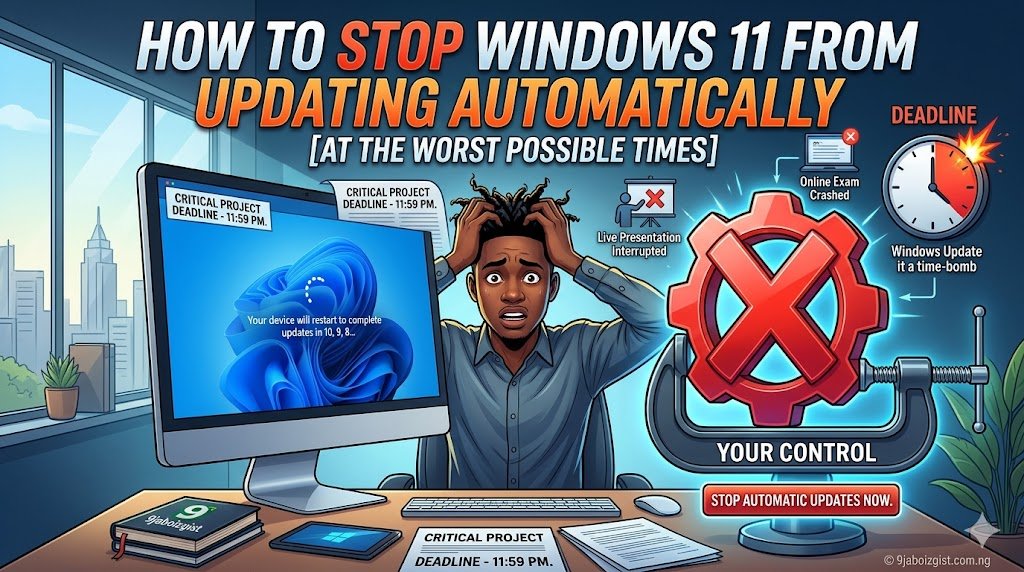
You’re thirty minutes into a presentation. Everything is going smoothly. Then Windows 11 decides it’s the perfect moment to restart for an update you never asked for. Or you wake up to find your laptop rebooted overnight, every open tab gone, unsaved work lost, and a fresh update sitting there like it did you a favor.
Windows 11 handles automatic updates more aggressively than any previous version of Windows. Microsoft designed it this way to keep systems secure and current, and that reasoning is legitimate. But the execution often feels completely indifferent to what you’re actually doing on your computer.
The good news is that you have more control over this than most people realize. You can’t permanently disable updates in Windows 11 without jumping through some serious hoops, and honestly you shouldn’t want to since security patches matter. But you can absolutely stop updates from installing and restarting at the worst possible times. This guide shows you exactly how.
Start Here: Set Your Active Hours So Windows Stops Rebooting While You Work
This is the first thing you should configure, and it takes about sixty seconds. Windows 11 has a feature called Active Hours that tells the system when you’re typically using your computer. During those hours, Windows will not automatically restart to apply updates.
Go to Settings, then Windows Update, then Advanced Options, and scroll down to Active Hours. By default it may already be enabled, but check what hours are set. You want this range to cover your actual working hours.
Windows 11 gives you the option to let it automatically detect your active hours based on your usage patterns, or you can set them manually. The automatic option works surprisingly well if your schedule is consistent. If you prefer control, choose Manually and set a range that covers your typical day, for example 8 AM to 11 PM.
One limitation worth knowing: Active Hours only covers a maximum 18-hour window. You cannot set it to 24 hours. That means Windows will still have a window to restart your machine, but you can push that window into the middle of the night when you’re unlikely to care.
Pause Updates Entirely for Up to Five Weeks
If you have something critical coming up, like a presentation, a deadline, a trip, or any period where you absolutely cannot afford unexpected restarts or performance slowdowns, Windows 11 lets you pause updates completely for up to five weeks at a time.
Go to Settings, then Windows Update. Near the top of the page you’ll see a Pause Updates option with a dropdown menu. Click it and select how long you want to pause, anywhere from one week to five weeks. The pause takes effect immediately.
During this period, Windows will not download or install any updates at all. No background bandwidth usage from update downloads, no pending restart notifications, nothing. When the pause period ends, Windows will resume its normal update behavior and will require you to install any accumulated updates before you can pause again.
This is a clean, built-in solution that requires no technical knowledge and works reliably. For most people dealing with update interruptions, rotating pauses combined with properly configured Active Hours is all they need.
Use a Metered Connection to Slow Down Update Downloads
Marking your internet connection as metered tells Windows that you have limited data and that it should be conservative about background downloads. Windows 11 respects this setting by default and will not automatically download large update files over a metered connection.
For a Wi-Fi connection, go to Settings, then Network and Internet, then Wi-Fi. Click your connected network name, and on the properties page toggle on the option labeled Metered Connection.
For an Ethernet connection, go to Settings, then Network and Internet, then Ethernet, click your connection name, and toggle Metered Connection on there.
With this active, Windows will still notify you that updates are available, but it won’t download them automatically in the background. You get to decide when to actually download and install them, which puts you back in control of the timing.
This method works particularly well if you’re on a laptop that frequently switches between home Wi-Fi and mobile hotspot. Setting both connection types as metered means updates wait for your permission regardless of which network you’re on.
Schedule Restarts Instead of Letting Windows Decide
When an update is already downloaded and waiting to be installed, Windows will eventually push a restart on you. But you don’t have to let it pick the time. Windows 11 lets you schedule exactly when that restart happens.
When you see the notification that a restart is pending, instead of dismissing it, click the option to Schedule the Restart. You’ll be able to pick a specific date and time, down to the hour, for when Windows will restart to apply the update.
If you want to set this proactively rather than waiting for a notification, go to Settings, then Windows Update, and look for the Schedule the Restart option when an update is ready. Set it for a time you know you’ll be away from the computer, like early morning or a lunch break.
This approach means updates get applied on your terms. They still happen, keeping your system secure and current, but they happen at 3 AM on a Tuesday rather than in the middle of a video call.
Stop Automatic Restarts Using Group Policy Editor
For Windows 11 Pro users, the Group Policy Editor gives you more precise control over update behavior than the standard Settings app allows. This tool is not available on Windows 11 Home.
Press Windows + R to open the Run dialog, type gpedit.msc, and press Enter. Navigate through the left panel to Computer Configuration, then Administrative Templates, then Windows Components, and then Windows Update. Inside Windows Update, open the folder called Manage end user experience.
Look for a policy called No auto-restart with logged on users for scheduled automatic updates installations. Double-click it, set it to Enabled, and click OK. This tells Windows that if a user is currently logged in, it must not force a restart for updates. Instead it will wait until the computer is restarted voluntarily.
While you’re in this section, also look at the policy called Configure Automatic Updates. Setting this to Enabled and then choosing option 4 (Auto download and schedule the install) lets you specify both the day of the week and the time for update installations. Setting it to 3 AM on a day you’re unlikely to be working gives you complete scheduled control.
These Group Policy settings survive reboots and apply consistently without needing to be reconfigured.
Use the Registry Editor on Windows 11 Home
If you’re on Windows 11 Home, the Group Policy Editor isn’t available, but you can achieve similar results through the Registry Editor. This involves editing system settings directly, so follow these steps carefully and exactly as written.
Press Windows + R, type regedit, and press Enter. If prompted by User Account Control, click Yes. In the Registry Editor, navigate to this path by clicking through the folders in the left panel:
HKEY_LOCAL_MACHINE\SOFTWARE\Policies\Microsoft\Windows\WindowsUpdate\AU
If the WindowsUpdate or AU folders don’t exist, you’ll need to create them. Right-click on the Windows folder, select New, then Key, and name it WindowsUpdate. Then right-click WindowsUpdate, select New, then Key, and name it AU.
Inside the AU key, right-click in the empty right panel, select New, then DWORD (32-bit) Value. Name it NoAutoRebootWithLoggedOnUsers and set its value to 1. This tells Windows not to force restarts when a user is logged in, the same behavior as the Group Policy setting above.
To also control when updates install, create another DWORD value named AUOptions and set its value to 4. This enables the scheduled installation mode. Then create a DWORD named ScheduledInstallDay (0 for every day, 1 through 7 for specific days of the week) and ScheduledInstallTime (set to a number from 0 to 23 representing the hour in 24-hour format).
After making these changes, restart your computer for them to take effect. The Registry is a powerful system tool, so only edit the exact values mentioned here and nothing else unless you know what you’re doing.
Disable Windows Update Service Temporarily (Use Carefully)
Disabling the Windows Update service completely stops all update activity, including downloads, installations, and notifications. This is a heavier-handed approach and should only be used for short windows of time, like during an important project week, not as a permanent solution. Leaving updates disabled for months creates real security risks.
Press Windows + R, type services.msc, and press Enter. Scroll down in the Services list to find Windows Update. Right-click it and select Properties. Change the Startup Type dropdown from Automatic to Disabled, then click the Stop button to halt it immediately, and click OK.
To re-enable updates when you’re ready, go back to the same location, change the Startup Type back to Automatic (Delayed Start), click Start, and apply. Then go to Windows Update in Settings and click Check for Updates to catch up on anything you missed.
Some updates, particularly security patches, are genuinely important and shouldn’t be skipped indefinitely. Think of this method as hitting a hard pause button rather than a permanent solution.
Control How Windows Uses Bandwidth for Updates
Even when you’re not actively installing updates, Windows can silently use your internet connection to download them in the background. On a slow or limited connection, this can cause noticeable slowdowns while you’re trying to work or stream. If you’ve been wondering why your internet feels sluggish at certain times of day, background Windows Update downloads are a common culprit worth investigating alongside the other causes covered in this guide on why your internet speed feels fast but things still load slowly.
To control this, go to Settings, then Windows Update, then Advanced Options, and then Delivery Optimization. Click Advanced Options within Delivery Optimization. Here you can set absolute limits on how much bandwidth Windows Update uses for both downloading updates and uploading them to other devices.
Under Download Settings, enable the option to limit how much bandwidth is used for downloading updates in the background and set it to a low percentage like 10 to 20 percent of your available bandwidth. This allows updates to download passively without ever hogging your connection while you work.
Also check whether Upload Settings have peer-to-peer distribution enabled. By default, Windows 11 may upload update files to other computers on the internet to help distribute Microsoft’s update load. Limiting this or disabling it entirely is a reasonable choice if you want full control over your bandwidth usage.
Turn Off Update Notifications if They’re Interrupting Your Focus
Update notifications popping up at the wrong moment are their own kind of disruption, separate from the restarts themselves. Windows 11 lets you quiet these without affecting the underlying update behavior.
Go to Settings, then System, then Notifications. Scroll down to the list of apps and find Windows Update. Click on it and turn off any notification types that interrupt your work. You can disable banners and sounds while keeping the notification center badge active, so updates are noted silently rather than announced disruptively.
For complete focus sessions, Windows 11’s Focus feature (formerly called Focus Assist) suppresses most notifications automatically. You can enable it manually from the quick settings panel or set it to activate automatically during certain hours or when an app is running in full screen mode.
Keep Driver Updates Separate From System Updates
One often-overlooked source of unexpected restarts and system slowdowns is automatic driver updates arriving through Windows Update. These can be more unpredictable than regular system patches since driver quality varies significantly between manufacturers.
To stop Windows from automatically installing drivers through Windows Update, search for Change Device Installation Settings in the Start menu and open it. Select No and then Save Changes. This stops Windows from automatically pulling in driver updates during the normal update process.
You can still update drivers manually at any time through Device Manager or by visiting your hardware manufacturer’s website directly. This approach gives you the stability benefits of keeping drivers current without the risk of an automatic driver update causing an unexpected conflict or restart at a bad time. This is especially relevant if you’ve experienced issues like display problems after an update, which connects to problems like the ones covered in this walkthrough on fixing a laptop that shows a black screen before Windows 11 finishes loading.
Common Mistakes People Make When Managing Windows 11 Updates
A few patterns come up repeatedly that end up making the situation worse instead of better.
Clicking Restart Now without thinking is one of the most common. When Windows shows you that notification, there’s always an option to schedule the restart for later. Taking an extra ten seconds to schedule it for tonight instead of right now saves you from an interrupted workflow.
Pausing updates and then completely forgetting about them is another problem. When the pause expires, Windows typically requires you to install all pending updates before it lets you pause again. If you’ve let months of updates pile up, that catch-up process can take a long time and involve multiple restarts. Keeping the pause period to a few weeks at most keeps the backlog manageable.
Disabling updates permanently through aggressive third-party tools or service disabling and then never re-enabling them is genuinely risky. Security vulnerabilities in Windows get patched through updates. Running an unpatched system for months exposes you to threats that Microsoft has already fixed for everyone else. The goal is timing control, not permanent avoidance.
Finally, ignoring the bandwidth settings means Windows may be quietly consuming your internet connection throughout the day for update downloads you don’t even know about. Taking five minutes to configure the Delivery Optimization bandwidth limits described above is a simple fix that many people skip.
Frequently Asked Questions
Can I completely disable Windows 11 automatic updates permanently?
Technically yes, but it’s not advisable. You can disable the Windows Update service or use Group Policy to block updates entirely, but leaving your system unpatched for extended periods creates genuine security vulnerabilities. The better approach is controlling the timing through the methods above rather than blocking updates completely.
Why does Windows 11 update more aggressively than Windows 10?
Microsoft made a deliberate decision with Windows 11 to enforce more consistent update compliance across the user base. The reasoning is primarily security related since fragmentation in patch levels creates widespread vulnerabilities. The downside is that the default behavior gives users less control, which is exactly why knowing these settings matters.
Will pausing updates affect my security?
For short periods, pausing updates is generally fine. Critical zero-day patches are rare, and a pause of one to five weeks does not meaningfully increase your risk compared to the days or weeks that many users go between updates naturally. Leaving updates paused for months is a different matter and does increase your exposure over time.
Does setting a metered connection affect anything besides updates?
Yes, a few other things. Some apps also respect the metered connection flag and reduce their background data usage. OneDrive, for example, may limit automatic syncing. Microsoft Store app updates also slow down. For most users these side effects are acceptable or even welcome.
Can Windows 11 Home users use Group Policy to control updates?
Group Policy Editor (gpedit.msc) is not available on Windows 11 Home. Home users can use the Registry Editor method described above to achieve similar results, or stick with the built-in Settings options including Active Hours, Pause Updates, and metered connections, which cover most everyday needs without requiring registry edits.
What happens if I miss an important security update while paused?
When your pause period ends, Windows will download and install all pending updates including any critical ones. You can also end the pause early at any time by going to Settings and Windows Update and clicking Resume Updates. For urgent security situations, Microsoft typically communicates broadly about critical vulnerabilities, giving you context to decide whether to end your pause early.
Why does my laptop still restart for updates even though I set Active Hours?
A few things can cause this. First, check that your Active Hours window is correctly covering your actual usage times. Second, verify that the pending update wasn’t downloaded and scheduled before you set Active Hours. Third, if your laptop was sitting idle for a long time outside your active hours window, Windows may have used that opportunity to restart. Combining Active Hours with the No Auto-Restart registry or Group Policy setting provides stronger protection.
Can I stop Windows 11 from restarting if an update is already installed and waiting?
Yes. Go to Settings, then Windows Update, and you should see an option to Schedule the Restart. This lets you pick a specific time rather than letting Windows choose. If you don’t schedule it, Windows will eventually restart on its own during your inactive hours based on your Active Hours settings.
Does Windows 11 still update while in sleep mode?
Windows 11 has a feature called Modern Standby that allows certain background tasks including updates to run while the device appears to be sleeping. If you want to prevent this, going to the Windows Update settings and ensuring restarts are scheduled for a specific time rather than automatic is the cleanest solution. Full hibernation (not sleep) does prevent background activity more completely.
Is there a way to see what an update contains before installing it?
Yes. When updates are listed in Settings, you can click on the update name to see more details. Microsoft also maintains a publicly accessible Windows Update History page where each update is documented with a list of what it fixes or changes. Checking this before installing can help you decide whether to install immediately or wait a bit longer.
The Bottom Line
Windows 11 updates are not something you can or should ignore permanently, but that doesn’t mean you have to accept them on Microsoft’s schedule. Setting Active Hours properly, using the Pause Updates option strategically, marking your connection as metered, and configuring scheduled restarts through Group Policy or the Registry gives you genuine, reliable control over when updates affect your work.
Start with Active Hours and Pause Updates since those two settings alone handle the majority of unexpected restart situations without any technical complexity. Layer in the metered connection setting if background downloads are slowing your internet. Add the Group Policy or Registry configurations if you want the strongest possible protection against forced restarts during working hours.
Once you have updates running on your terms, you’ll notice that Windows 11 becomes much less disruptive to use day to day. Good system hygiene goes beyond just update management. If Chrome is weighing your machine down between updates, this practical breakdown of why Chrome uses so much RAM and how to bring it under control covers fixes that make a real difference in daily performance.