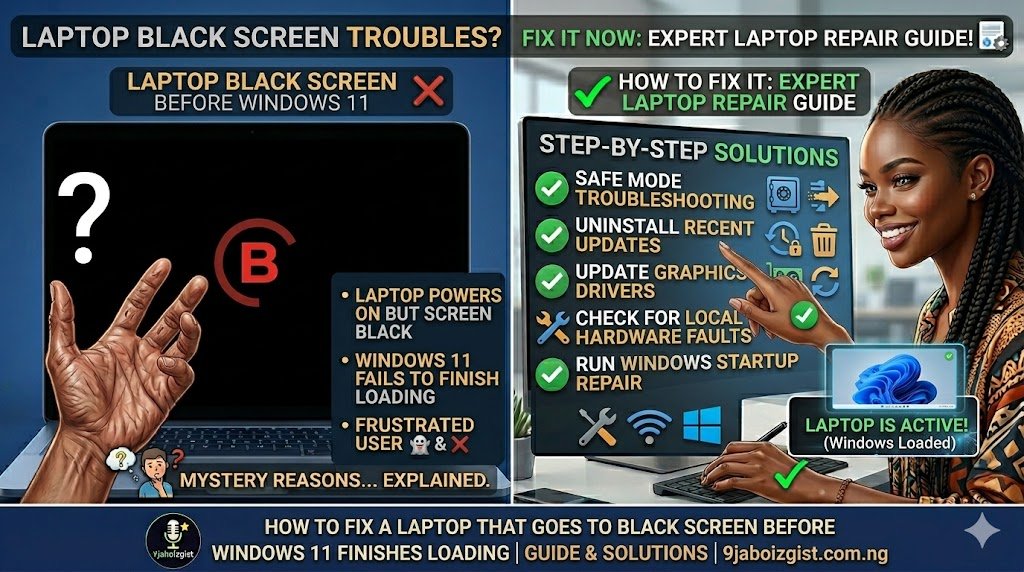
Your laptop powers on. You hear the startup sound, maybe see the manufacturer logo flash across the screen, and then nothing. Just a black screen sitting there while Windows 11 never finishes loading. The cursor might be visible. It might not. Either way, you’re stuck.
This is one of the most frustrating problems Windows 11 users deal with, and it happens more often than Microsoft would probably like to admit. The good news is that in most cases, it is fixable without wiping your drive or rushing to a repair shop. The fixes range from simple two-minute restarts to deeper system-level repairs, and this guide walks you through all of them in the right order.
Let’s start with the fast ones.
Force a Restart and Check Your Power First
Before assuming the worst, try a force restart. Hold the power button on your laptop for about 10 seconds until it shuts off completely, then press it again to boot up. Sometimes Windows 11 gets caught mid-update or mid-process and a hard restart is all it needs to shake loose.
While you’re at it, check the basics. If your laptop is running on battery, make sure it has enough charge. A critically low battery during startup can cause the screen to cut out before the OS finishes loading. Plug in your charger, wait a minute, and try again.
Also disconnect any external devices plugged into your laptop. USB drives, external monitors, docking stations, SD cards, and even some mice or keyboards have been known to interfere with the Windows 11 boot process. Unplug everything, then restart clean.
What’s Actually Causing the Black Screen
Understanding the cause helps you pick the right fix. A black screen before Windows 11 finishes loading usually comes from one of several places.
A recent Windows update is one of the most common triggers. Windows 11 updates can sometimes conflict with existing drivers, especially graphics drivers, which directly control what your screen displays. When that handoff between the bootloader and the display driver fails, you get a black screen.
Corrupted system files are another major cause. If Windows 11 can’t read a critical file it needs to complete the boot sequence, it stalls and leaves you with a blank display. This can happen after a bad update, an improper shutdown during an update, or even a minor storage error.
Driver conflicts, particularly with the GPU driver, are extremely common. Your graphics card driver is responsible for rendering the desktop after Windows loads the core OS. If that driver is outdated, corrupted, or incompatible with a recent Windows update, the desktop never appears.
Windows Explorer crashing silently in the background is another culprit that often gets overlooked. The desktop and taskbar in Windows 11 are part of the Explorer process. If Explorer crashes right after login, you see nothing but a black screen even though Windows technically finished loading.
Finally, fast startup, a Windows feature designed to reduce boot times, can sometimes cause the OS to load from a corrupted hibernation state instead of a clean boot, producing a black screen every time.
Get Into Safe Mode Without a Working Screen
To apply most of the fixes below, you’ll need to access Safe Mode or Windows Recovery Environment. Here’s how to do that when your screen is black.
Force your laptop to shut down using the power button three times in a row during startup. After the third forced shutdown, Windows 11 should automatically enter the Windows Recovery Environment (WinRE). From there, navigate to Troubleshoot, then Advanced Options, then Startup Settings, and click Restart. Once it reboots, press 4 or F4 to boot into Safe Mode, or press 5 or F5 for Safe Mode with Networking.
Safe Mode loads Windows with only the minimum required drivers and services. If your laptop boots successfully into Safe Mode, that confirms the black screen is caused by a driver, software, or startup conflict rather than a hardware failure.
If you have a Windows 11 installation USB drive, you can also boot from it and access recovery tools from there. Microsoft provides a free Media Creation Tool on their official site that lets you create a bootable USB if you have access to another computer.
Disable Fast Startup to Fix Boot Conflicts
Fast startup is enabled by default on Windows 11, and while it generally works well, it can cause persistent black screen issues on certain laptops. When fast startup is active, Windows doesn’t fully shut down. Instead it saves a snapshot of the kernel session to a file and loads from it next time you boot. If that snapshot is corrupted, you get a black screen on every restart.
To disable it, boot into Safe Mode first. Once inside, open the Control Panel, go to Power Options, then choose what the power buttons do. Click the option to change settings that are currently unavailable and uncheck the box labeled Turn on fast startup. Save your changes and restart normally.
Many users find this single fix resolves the black screen entirely. It’s worth trying before anything more involved.
Update or Roll Back Your Graphics Driver
If disabling fast startup didn’t fix it, your graphics driver is the next most likely cause. In Safe Mode, right-click the Start button and open Device Manager. Expand the Display Adapters section and right-click your GPU. You’ll see options to Update Driver or to open Properties where you can roll back to a previous version.
If a recent Windows update changed your GPU driver automatically and that’s when the black screen started, rolling back is the smarter move. Choose Roll Back Driver and follow the prompts. If no rollback is available, try updating the driver instead by selecting Search Automatically for Drivers.
For laptops with both integrated Intel or AMD graphics and a dedicated Nvidia or AMD GPU, check both entries under Display Adapters. Sometimes the conflict is between the two, and disabling the dedicated GPU temporarily can confirm that’s the issue.
After making any driver changes, restart normally and see if Windows 11 now loads past the black screen.
Repair Corrupted System Files With SFC and DISM
If the driver isn’t the issue, corrupted system files could be preventing Windows 11 from completing the boot sequence. Windows has built-in tools to scan for and repair these, and they work well when run correctly.
Boot into Safe Mode with Networking, then open Command Prompt as an administrator. Type the following and press Enter:
sfc /scannow
This runs the System File Checker, which scans all protected Windows files and replaces any corrupted ones it finds. The scan can take 10 to 20 minutes. Once it finishes, restart and test.
If the SFC scan reports that it found errors but couldn’t fix them, run the DISM tool next. Type this in Command Prompt:
DISM /Online /Cleanup-Image /RestoreHealth
DISM connects to Windows Update servers to download clean replacement files and repair deeper corruption. This requires an internet connection, which is why Safe Mode with Networking is useful here. After it completes, run the SFC scan again, then restart.
These two tools together fix a surprisingly large number of black screen and boot failure issues in Windows 11.
Fix a Crashed Windows Explorer Process
If Windows 11 is actually finishing its load but Explorer is crashing immediately, you’ll see a black screen with a mouse cursor but no desktop or taskbar. This is more common than people realize.
To check, press Ctrl + Alt + Delete and open Task Manager. If Task Manager opens, look for Windows Explorer in the list. If it’s not running, click File in Task Manager, then Run New Task, type explorer.exe, and press Enter. If your desktop and taskbar instantly appear, Explorer was the problem.
To fix it permanently, check for corrupted user profile settings or recently installed apps that inject themselves into the Explorer process. Sometimes a shell extension from a third-party application causes Explorer to crash on startup. Using a tool like ShellExView (available from NirSoft, a trusted utilities site) lets you identify and disable problematic shell extensions without any risk.
Also make sure Windows 11 is fully up to date since Microsoft has released patches specifically targeting Explorer stability issues that caused black screens after login.
Check for a Stuck Windows 11 Update
A Windows update that got interrupted mid-installation is a common cause of black screen boot loops. The system tries to apply the update on startup, fails partway through, and leaves Windows in a broken state.
From the Windows Recovery Environment, go to Troubleshoot, then Advanced Options, then Uninstall Updates. You’ll see options to remove the latest quality update or the latest feature update. If the black screen started right after an update, removing it here is the cleanest fix.
After uninstalling, restart normally. If Windows loads successfully, go to Settings, then Windows Update, and pause updates temporarily while you investigate whether a newer patch has been released that addresses the issue. Microsoft’s Windows Update history page is a reliable place to check what each update contains and whether others have reported problems with it.
Adjust Your Display and Projection Settings
Sometimes the laptop screen itself isn’t the problem. Windows 11 might be outputting to an external display that isn’t connected. This happens especially on laptops that were recently used with an external monitor or docking station.
If you can see a cursor on the black screen, try pressing the Windows key plus P. This opens the display projection panel even without a visible screen. Press it several times to cycle through options: PC Screen Only, Duplicate, Extend, and Second Screen Only. Landing on PC Screen Only should bring your display back if this was the issue.
You can also try pressing Windows + Ctrl + Shift + B, which is a built-in Windows shortcut that resets the graphics subsystem and can instantly recover a black screen caused by a hung GPU driver. It’s worth trying even before entering Safe Mode since it works from the login screen.
Update Your BIOS If Nothing Else Works
If you’ve worked through every software fix and the black screen persists, an outdated BIOS can sometimes cause incompatibility issues with Windows 11’s boot process, particularly on laptops that were upgraded from Windows 10 rather than shipped with Windows 11 pre-installed.
Visit your laptop manufacturer’s official support page, search for your exact model number, and check the BIOS or firmware update section. Download the latest version if one is available and follow the manufacturer’s instructions carefully. BIOS updates require a stable power connection and should never be interrupted. If your laptop loses power mid-update, it can cause serious issues.
This is an advanced step and carries some risk if done incorrectly, so only attempt it after exhausting the software fixes above.
When It Might Be a Hardware Problem
If your laptop still shows a black screen in Safe Mode, across different boot environments, and after all software fixes, the issue may be hardware-related.
A failing or loose RAM stick can cause boot failures and black screens. If your laptop allows it, try reseating the RAM by removing and reinserting it firmly. If you have two sticks, try booting with only one at a time to identify a faulty module.
A damaged display cable or failing backlight can also produce a black screen that looks identical to a software issue. Shine a bright flashlight at the screen at close range. If you can faintly see the Windows desktop, your backlight is failing and the screen needs physical repair. If the screen is completely dark with no faint image, it could be a GPU issue or a display cable that has come loose internally.
At this point, professional diagnosis is the most practical path unless you’re comfortable with laptop hardware disassembly.
Frequently Asked Questions
Why does Windows 11 show a black screen only sometimes and not every time?
Intermittent black screens usually point to a driver stability issue, a background process crashing at startup, or a hardware component like RAM that’s beginning to fail. If it happens inconsistently, Safe Mode testing and driver updates are the best place to start since a fully dead component would cause a consistent failure every time.
Can a Windows 11 update cause a permanent black screen?
Not permanently. Even if an update breaks the boot process, you can always access Windows Recovery Environment to uninstall the problematic update or repair the system. A bad update can feel catastrophic in the moment, but there’s always a path back.
Does reinstalling Windows 11 fix the black screen?
In most cases, yes, but it should be a last resort after trying the repair options above. Windows 11 offers a Reset option within Recovery that lets you reinstall Windows while keeping your personal files. Only choose the full wipe if you’ve exhausted everything else and have a backup of your data.
Why is there a cursor on the black screen but nothing else?
A visible cursor with a black screen almost always means Windows finished loading but the desktop environment failed to start. Windows Explorer crashing, a corrupted user profile, or a GPU driver failure are the most common causes. Try the Task Manager method to restart Explorer.exe as described above.
How do I know if my black screen is caused by a driver or hardware?
If your laptop boots successfully into Safe Mode, it’s almost certainly a software or driver issue since Safe Mode bypasses most drivers. If it shows a black screen even in Safe Mode and during BIOS startup, hardware is the more likely culprit.
Can overheating cause a black screen before Windows 11 loads?
Yes. If your laptop’s CPU or GPU reaches a critical temperature, the system may cut display output as a protective measure. Make sure the laptop vents are clear of dust and not blocked. If the fan sounds unusually loud or the chassis gets very hot quickly, overheating should be investigated before anything else.
Will resetting the BIOS to default settings help?
Sometimes. If someone previously changed BIOS settings that affect display output, memory configuration, or boot order, resetting to factory defaults can resolve black screen issues. Access the BIOS at startup (usually by pressing F2, F10, Del, or Esc depending on your laptop brand) and look for a Load Defaults or Restore Optimized Defaults option.
The Bottom Line
A black screen before Windows 11 finishes loading is annoying but rarely a death sentence for your laptop. In most cases, the culprit is a graphics driver conflict, a corrupted system file, a bad Windows update, or the Fast Startup feature causing a broken boot state. Working through the fixes in the order laid out here covers the vast majority of cases efficiently.
Start with the fast stuff: force restart, disconnect peripherals, disable fast startup. If that doesn’t work, get into Safe Mode and go after drivers and system file corruption. For stubborn cases, update or uninstall recent Windows updates, and use SFC and DISM to repair the OS from the inside out.
If you’re dealing with other tech frustrations alongside this, the 9jaboizgist tech hub covers a wide range of practical troubleshooting guides you can work through. And if slow or unstable internet is making it harder to run online tools while you troubleshoot, this guide on why your internet speed feels fast but things still load slowly explains what’s really going on and how to fix it. The more stable your setup, the easier every tech problem becomes to solve.