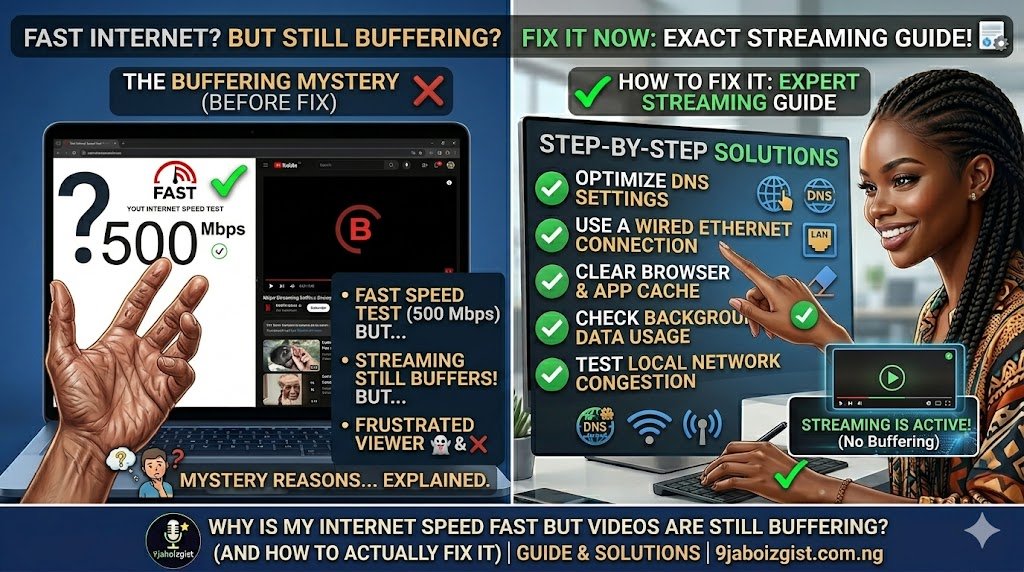
You ran a speed test. The numbers look great. Maybe 100 Mbps. Maybe even 200. Yet the moment you hit play on Netflix, YouTube, or any other streaming platform, that annoying spinning wheel shows up and kills the mood completely. It makes no sense, right?
You’re not alone. Video buffering despite a fast internet plan is common. “Fast” advertised speeds are only one factor; buffering results from a chain of conditions between your device and the streaming server. In other words, your speed test result is just one small piece of a much bigger puzzle.
This guide breaks down exactly why this happens and, more importantly, gives you real, working fixes you can try right now. We’ll start with the quick wins and work toward the deeper solutions if those don’t cut it.
What Buffering Actually Means (And Why Speed Alone Doesn’t Fix It)
Before diving into fixes, it helps to understand what’s actually happening. Your internet connection can’t always deliver data at the speeds necessary to stream a movie. To counter this, your device pre-loads the data into a cache and delivers the stored info at the right rate. If you’re seeing a spinning wheel, your cache is empty and the device can’t display your video.
So buffering is not about speed alone. High bandwidth in Mbps doesn’t guarantee low latency or stable packet delivery. Video players are sensitive to jitter and packet loss; even small latency spikes cause rebuffering.
Think of it this way. A wide highway (your Mbps) means nothing if there are potholes, roadblocks, or sudden traffic jams along the route between you and the streaming server. Good internet often refers to download speeds, but streaming success depends on more than just bandwidth. The quality of your connection, including latency, jitter, packet loss, and consistency, matters more than raw speed. Think of it like a highway: a fast speed limit doesn’t help if there are constant traffic jams, roadblocks, or detours.
With that in mind, let’s fix it.
Start Here: The Fastest Fixes to Try First
These take under two minutes each. Try them before anything else.
Restart your router and modem. Unplug your router for about 30 seconds, then plug it back in. A reset clears temporary glitches, refreshes your connection, and can instantly improve performance. If you find yourself restarting frequently, it may signal that your router is outdated and needs replacing.
Restart your streaming device. From smart TVs to streaming sticks to laptops, restarting your device can clear background apps or memory issues that slow down performance.
Close background apps and browser tabs. If your streaming video keeps stopping, fixing it could be as simple as closing an app or two. That’s because when your device is working in the background, that energy is taken away from your streaming video. When you have too many other apps or programs open, they can impact your streaming speeds. Close anything that runs or refreshes in the background.
Restart your streaming app. Sometimes buffering is caused by a temporary issue within the web browser or streaming app where you watch the video. Try restarting your browser, desktop app, or mobile app that you’re using for video streaming. This can help reboot the app and solve the buffering problem.
Pause and let it load. If you want to stop buffering, start by pausing your video. Give the streaming app time to catch up. This is the simplest fix of all, and it works more often than people expect.
Your Wi-Fi Signal Is Probably the Actual Problem
Most people stream over Wi-Fi without thinking twice. But Wi-Fi is almost always the weakest link in the chain. Wi-Fi inherently provides slower speeds than a direct wired Ethernet connection. On top of that, obstacles and interference can further weaken your wireless signal between your router and TV. Thick walls, long distances, and clutter blocking the line of sight will degrade your Wi-Fi speeds.
Your speed test might show 150 Mbps because the test runs from a device close to the router. But your smart TV in the bedroom three rooms away? It’s getting a fraction of that.
Switch to the 5 GHz band. Wi-Fi routers commonly have two frequency bands: 2.4 GHz and 5 GHz. While the 5 GHz band is faster, internet providers usually set your router to use the 2.4 GHz band for its farther reach. Go into your Wi-Fi settings and connect your streaming device to the 5 GHz network name instead.
Use an Ethernet cable if possible. For the fastest and most reliable speeds, connect your streaming device directly to your router via Ethernet cable. This bypasses any Wi-Fi issues. If your TV or streaming stick supports it, this single change can eliminate buffering entirely. For devices that can’t use Ethernet directly, powerline adapters or MoCA adapters are solid alternatives.
Move your router or check for dead zones. If your Wi-Fi analyzer found dead zones, move your router to a more central location in your home. Elevate it higher by placing it on a shelf to spread the signal wider.
Consider upgrading your router. If your router is limited to older Wi-Fi standards like 802.11n, upgrading to a newer Wi-Fi 5 (802.11ac) or Wi-Fi 6 router can provide faster speeds and wider coverage. Wireless routers last a long time, but the technology they use can get outdated pretty fast. If your router is more than three years old, it might be worth confirming whether its specs can actually support the internet speed you’re paying for.
Look into mesh Wi-Fi for larger homes. Another step to improve your home Wi-Fi range and stop buffering, especially for people who live in larger homes with multiple family members, is to get mesh Wi-Fi. Mesh Wi-Fi is similar to a Wi-Fi extender but is a solution for your whole house.
Too Many Devices Are Eating Your Bandwidth
Even if your plan is fast, bandwidth gets shared across every device on your network. Every device connected to your network shares bandwidth. If too many devices are streaming, downloading, or gaming simultaneously, buffering is almost inevitable.
Data-intensive background applications, such as parallel streams, downloads, and video conferencing, can massively slow down your stream buffer. For example, if a family member or house guest is watching an online video themselves, you may be “stealing” each other’s bandwidth.
This includes things you might not think about. A phone running a cloud backup. A laptop downloading a system update. A gaming console updating a game in the background. Game updates or installs running in the background can hog bandwidth.
What to do: Turn off unused devices while streaming. On a computer, close unnecessary apps or browser tabs. Freeing up network and system resources helps your video stream run smoothly.
Also, if your household does heavy uploads or large file transfers, activities that require considerable upload speeds are especially important to hold off on. If you are uploading videos or sharing large files, try postponing until late night or early morning.
Lower the Video Quality (It’s Not Defeat, It’s Smart)
Many people resist dropping the resolution, but it’s often the fastest and most effective fix. High-resolution video uses more bandwidth than lower-quality video. Depending on your ISP and internet plan, watching too much high-resolution video could gobble up your high-speed data. Switch from high-resolution to lower-resolution video, for example, from 1080p to 720p.
Here’s the good news. If your connection struggles with HD or 4K, lowering the video resolution can reduce buffering. The difference between 1080p and 720p is barely noticeable on smaller screens, but it greatly reduces bandwidth requirements. As a rule of thumb: the smaller the screen, the lower the resolution you can comfortably use.
For reference, you need at least 5 Mbps for HD streaming and 25 Mbps or more for 4K. If multiple people are streaming at once, you need more than that for each device.
Your Browser or App Cache Might Be Causing It
If you stream through a browser, a bloated or corrupted cache can slow things down significantly. When you revisit a website, the browser checks the cache. If the locally stored data is outdated and the temporary memory overburdened, you face slow buffering. One quick and easy solution for video buffering issues is to clean cookies, cache, and browsing history.
In Chrome, Firefox, or Edge, go to settings and clear browsing data. Make sure you include cached images and files. Then reload the streaming site fresh.
For apps on smart TVs or phones, clearing the app cache works the same way. On Android, go to Settings > Apps > find the streaming app > Storage > Clear Cache.
Sometimes, if you’ve got fast internet but slow streaming, it’s due to the app itself. If you have a tendency to watch one more than others, try switching it up. If one continually buffers while another streams seamlessly, it’s possible the buffering app needs a reboot. If that particular app continues giving you trouble, try uninstalling and reinstalling it.
ISP Throttling Is a Real Thing
Here’s something many people overlook. Your internet provider can deliberately slow down your connection when they detect heavy streaming activity. This is called throttling, and it’s more common than you’d think.
A VPN can help reduce buffering caused by ISP throttling since it hides what you do from your ISP, which often causes throttling when you’ve been streaming a lot or consuming a large amount of bandwidth.
However, keep in mind that VPNs come with a trade-off. Using a VPN invariably means a performance hit. Every data packet has to be encrypted and then decrypted at a remote server. You may notice this with video buffering problems. If you already use a VPN, test your stream with it turned off to see if it’s actually the cause of your buffering rather than the solution. Sometimes VPNs noticeably throttle internet and streaming speed. Temporarily disable your VPN tunnel and see if this improves streaming performance. If it does, select another server within your VPN service that is closer to your actual location, or switch to a different service altogether.
The Problem Might Be on the Streaming Server’s End
Sometimes it genuinely is not your fault. The streaming service’s origin or its CDN edge node serving your region may be overloaded, misconfigured, or far away, reducing effective delivery speed despite your link capacity.
If multiple users report the same issue, a specific show buffers, or only one service is affected while others work fine, the problem is likely CDN or server-side. A quick way to check is to open a different streaming platform and see if it plays smoothly. If YouTube runs fine but Netflix keeps buffering, the issue is likely on Netflix’s end.
Even the top streaming platforms may get overwhelmed during prime time or when a popular new show is released. In that case, there is nothing you can do except wait for the provider to catch up with requests.
Buffering is often a bigger problem during peak usage times when many other internet users are trying to watch videos and gobbling up bandwidth. Peak hours are typically between 6 and 11 p.m. So, if you can wait a few hours, you might have an easier time watching your video after peak demand time has passed.
Advanced Fixes for When Nothing Else Works
If you’ve tried everything above and still face buffering, these deeper solutions are worth exploring.
Change your DNS server. A slow DNS server can add delays before your device even begins loading video content. Change your DNS server. You can configure your router to use Google (8.8.8.8) or Cloudflare (1.1.1.1), which offers high-speed public DNS servers. This is done in your router’s admin panel, usually accessible at 192.168.1.1 or 192.168.0.1.
Set up Quality of Service (QoS) on your router. Set Quality of Service (QoS) priorities on your router to prioritize video streaming traffic. To prevent buffering, prioritize bandwidth for media streaming over other activities by tweaking the QoS. Your buffering speed will not be as compromised when other people in the house browse the internet while you are streaming a video. Most modern routers have this option buried in the admin panel under “QoS” or “Traffic Management.”
Update your device and app. Outdated TV firmware or streaming apps can cause performance issues. Check for updates on your smart TV, streaming stick, phone, or computer. Also update your router’s firmware through its admin panel.
Update your graphics drivers (PC users). Another way to fix slow buffering is to keep the graphics drivers updated. Companies like Intel, Nvidia, and AMD keep releasing driver updates to optimize and refine graphics performance. It is best to always use the most recent drivers for all devices.
Download content for offline viewing. If buffering keeps ruining your experience during peak hours, download the video instead. If you want to avoid buffering and don’t have home internet data caps, you can often download streaming videos onto your computer or mobile device. Many streaming platforms, like YouTube and Netflix, allow you to download videos directly onto your device.
This is especially useful if you use ChatGPT or AI tools on a slow or unstable connection. Speaking of that, if you’ve ever struggled with AI tools timing out or failing mid-task on a weak connection, this guide on how to use ChatGPT on a slow internet connection without it timing out has practical tips that apply here too.
When to Call Your ISP
If you’ve worked through every fix above and buffering continues across all devices and all streaming platforms, the problem is almost certainly upstream. Run a traceroute or MTR and check for packet loss; contact your ISP if loss or routing issues appear.
Upgrade your internet plan if you are consistently maxing out your available bandwidth. If internet speeds do not improve, contact your ISP to troubleshoot performance issues on their end.
Also, if you’re feeling frustrated by your current plan’s data caps or other issues, contact your ISP and see if an upgraded plan is available. Especially if it’s been a few years since you most recently signed up for internet service, there could be better, faster options in your area.
How to Prevent Buffering Before It Starts
Once you fix the problem, keep it fixed with a few simple habits.
Outdated routers and modems can bottleneck your speeds. Investing in newer hardware ensures you’re actually getting the performance you pay for. Aim to replace your router every three to four years.
Fiber-optic internet offers symmetrical speeds that are faster and more consistent than DSL or satellite. If fiber isn’t available, cable is the next best option.
Secure your network by limiting outside access and setting a strong Wi-Fi password. Unauthorized users leeching your connection is a surprisingly common and overlooked cause of buffering.
Also, if you rely on AI tools for research, productivity, or writing, managing your internet efficiency matters. You might find it useful to read about how to use Perplexity AI for research without running out of free searches, especially when working on a shared or bandwidth-limited connection.
Frequently Asked Questions
Why does my internet show fast speeds but streaming is still slow?
Speed test results measure the maximum potential of your connection at a specific moment, usually when your device is close to the router. Streaming depends on consistent data delivery, low latency, and stable packet flow. If any of those are off, your video buffers regardless of what the speed test says. Background apps, Wi-Fi interference, ISP throttling, and server-side congestion are the most common culprits.
How much internet speed do I actually need for smooth streaming?
For standard HD streaming, 5 to 10 Mbps per device is enough. For 4K streaming, you need at least 25 Mbps per device. If multiple people are streaming simultaneously, multiply that accordingly. So a household with three people streaming in 4K at the same time needs at least 75 Mbps just for video, with extra headroom for other devices on the network.
Why does YouTube buffer but Netflix doesn’t, or vice versa?
Different streaming platforms use different CDN (Content Delivery Network) infrastructure. If one service buffers while another runs fine, the issue is almost certainly on that platform’s server end, not your connection. It could be regional congestion, a CDN node overload, or a temporary outage. Checking the platform’s status page or waiting it out usually resolves it.
Does a VPN cause buffering?
Yes, it can. A VPN encrypts and reroutes your traffic through a remote server, which adds latency and reduces effective throughput. If you use a VPN and experience buffering, try disabling it temporarily and testing again. If streaming improves, switch to a VPN server closer to your physical location or consider a faster VPN provider.
Why does my video buffer more at night than during the day?
This is a network congestion issue. Evening hours, typically between 6 and 11 p.m., are peak usage times when millions of people stream simultaneously. This congestion can occur both on your local ISP network and at the streaming service’s servers. Streaming during off-peak hours, like early morning, almost always delivers a smoother experience.
Can too many devices on my Wi-Fi cause buffering even with a fast plan?
Absolutely. Every device sharing your network competes for the same bandwidth pool. Even devices that aren’t actively streaming can hog bandwidth through background updates, cloud syncing, or app refreshes. Disconnecting unused devices or setting up Quality of Service (QoS) on your router to prioritize streaming traffic makes a real difference.
Why does buffering happen on my smart TV but not on my phone?
Your phone is likely closer to the router and getting a stronger Wi-Fi signal. Smart TVs are often in rooms far from the router, receiving a weaker signal through walls and interference. Connecting your TV via Ethernet cable or switching it to the 5 GHz Wi-Fi band typically solves the problem.
Does clearing my cache actually help with buffering?
Yes, especially if you stream through a browser. A bloated or outdated cache forces your browser to work harder when loading video content, which can cause stuttering and buffering. Clearing cached images and files from your browser settings gives your streaming a fresh, faster start. For streaming apps on phones or smart TVs, clearing the app cache works the same way.
Is my router causing the buffering?
It could be. Older routers with outdated Wi-Fi standards like 802.11n struggle to handle modern streaming demands, especially in homes with multiple connected devices. If your router is more than three or four years old and you’re experiencing consistent buffering across all devices and platforms, upgrading to a Wi-Fi 5 or Wi-Fi 6 router is one of the most impactful changes you can make.
What is ISP throttling and how do I know if it’s happening to me?
ISP throttling is when your internet provider intentionally slows down your connection after detecting heavy streaming or high data usage. A simple way to check is to run a speed test normally, then run it again while using a VPN. If your speeds jump significantly with the VPN active, there’s a good chance your ISP is throttling your streaming traffic. Contacting your provider or switching to an unlimited data plan can help.
Why does my video buffer in 4K but play fine in 1080p?
4K streaming requires significantly more bandwidth than 1080p. If your connection can’t consistently deliver 25 Mbps or more to a single device, 4K streams will buffer. Lowering the resolution in your streaming app’s settings to 1080p is a quick fix. On most screens, the visual difference is minimal, but the improvement in playback smoothness is immediate.
Can my neighbor’s Wi-Fi interfere with my streaming?
Yes. If you live in an apartment building or densely packed neighborhood, overlapping Wi-Fi channels from nearby networks can cause interference that degrades your signal quality. Switching your router to a less congested channel, or using the 5 GHz band which has more available channels, can reduce this interference and improve streaming stability.
The Bottom Line
A fast internet plan does not automatically mean buffer-free streaming. For streaming online, there are three components: your device, your network, and the streaming server. A problem with any of the three will result in slow buffering.
Start with the quick fixes: restart your router, close background apps, and switch to the 5 GHz band or Ethernet. Then go deeper if needed by clearing cache, adjusting QoS, updating firmware, and checking for ISP throttling. If the problem is server-side, wait it out or switch platforms temporarily.
Most buffering problems are fixable with a bit of targeted troubleshooting. Work through the steps in order, and you’ll likely solve it faster than you expect. And once your connection is running smoothly, everything from streaming to using online AI tools becomes a much better experience.