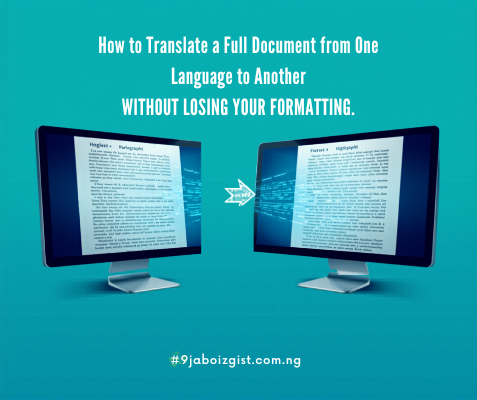
Most people solve a document translation problem the hard way. They copy all the text, paste it into Google Translate, get the translated version, and then spend the next hour trying to rebuild the formatting that got stripped out along the way. The bullet points are gone. The table is flattened into a wall of text. The bold headings look like regular body text. The columns have collapsed.
The frustrating part is that this method is completely unnecessary. In 2026, there are several free tools that translate entire documents while keeping your formatting intact. Most people simply do not know these features exist because they are buried inside tools already sitting on their computer.
This guide covers every working free method for full document translation with formatting preserved, explains which one works best for which file type, and tells you honestly where each method falls short.
The Method Most People Never Try: Google Translate Document Upload
Google Translate has a dedicated document translation feature that almost nobody uses. Instead of typing or pasting text, you upload the entire file directly. Google translates it and lets you download the translated version with the original formatting preserved as closely as possible.
This feature supports Word documents (.docx), PDF files, PowerPoint presentations (.pptx), Excel spreadsheets (.xlsx), and plain text files.
Here is exactly how to use it:
- Go to translate.google.com in any browser
- At the top of the page, click the Documents tab (next to the default Text tab)
- Click “Browse your files” and select your document
- On the left side, confirm the source language (or leave it on “Detect language”)
- On the right side, select your target language
- Click Translate
- Once translation is complete, click Download translation to save the translated file to your device
The downloaded file keeps your original formatting including headings, bold and italic text, bullet points, paragraph spacing, and most table structures. Very complex layouts with heavily nested tables or unusual column arrangements may shift slightly, but for the vast majority of standard documents the output is clean and ready to use.
File size limit: Google Translate document upload handles files up to 10 MB on the free tier with no account required for basic use. Signing in with a Google account may offer slightly expanded functionality.
Best for: standard Word documents, reports, letters, CVs, and simple PDFs where you need a fast free translation with minimal cleanup.
The Free Feature Built Into Microsoft Word That Almost Nobody Uses
If you use Microsoft Word, you already have a full document translation tool installed. It is under the Review tab and most people have never noticed it.
The feature is called Translate Document and it sends your entire document through Microsoft’s translation engine, then opens the translated version in a new window for review before you save it. The formatting is preserved extremely well because Word understands its own file structure natively.
Here is how to use it:
- Open your document in Microsoft Word
- Click the Review tab in the top menu
- Click Translate in the toolbar
- Select Translate Document from the dropdown
- A panel will open on the right side of the screen
- Choose your source language (or leave it on Auto-Detect) and your target language
- Click Translate
- Word opens a new document window with the fully translated version
- Review the translation, then click File > Save As to save the translated document
The translated document retains all your original formatting exactly, including fonts, spacing, styles, tables, bullet points, and heading levels. This is the cleanest formatting result of any free translation method for Word documents.
Important: this feature works in the Word desktop app and in the free web version of Word at office.com. If you do not have Word installed, you can access the free web version without paying anything. Our guide on how to use Microsoft Word for free in 2026 explains exactly how to access it at no cost.
Note: Word’s translation feature requires an internet connection because it sends the document to Microsoft’s translation service. If you need offline translation, see the sensitive documents section further below.
The Built-In Google Docs Translation Feature
If your document is already in Google Docs, or you are willing to convert it, Google Docs has a completely free built-in translation tool that creates a fully translated copy of your document in a new tab.
Here is how to use it:
- Open your document in Google Docs at docs.google.com
- Click the Tools menu at the top
- Select Translate Document
- In the popup, type a name for the translated copy
- Choose your target language from the dropdown
- Click Translate
Google Docs creates a new document with the translated version. Your original document is untouched. The translated copy preserves most formatting including paragraph styles, bold and italic text, bullet points, and hyperlinks. Complex tables may show minor alignment shifts.
Once the translation is complete, you can download it in any format from File > Download. Choose PDF Document for a final shareable version or Microsoft Word (.docx) if you need to edit it further.
Best for: documents you are already working on in Google Docs, academic papers, reports, and any file you want to keep editing after translation in a cloud-based environment.
Using DeepL’s Free Tier for Sharper, More Natural Translations
DeepL consistently produces more natural-sounding translations than Google Translate, particularly for European languages. Its free tier at deepl.com includes document translation for DOCX, PDF, and PPTX files.
Here is how to use it:
- Go to deepl.com and click the Translate Files tab at the top
- Click “Upload document” and select your file
- Select your source and target languages
- Click Translate and wait for the process to complete
- Click Download to save the translated file
DeepL’s free tier translation quality is noticeably better than Google for languages like French, German, Spanish, Italian, Portuguese, Polish, and Dutch. For business documents, contracts, and professional correspondence, DeepL produces output that requires less post-translation editing.
Free tier limits to know in 2026: DeepL’s free account limits document translations to a set number per month. The exact limit can change, but it is typically around three documents per 30-day period on the free tier. For text translation (copy-paste), there is no document limit but a 1,500 character per translation limit.
Workaround for the monthly document limit: if you reach your DeepL document limit, use Google Translate document upload or the Microsoft Word built-in translation for the rest of the month. Both produce good results even if DeepL is slightly more natural in tone.
Translating PDF Documents Without Destroying the Layout
PDF files are the most difficult document type to translate with formatting preserved. This is because a PDF does not store text in an editable flow the way a Word document does. It stores content as fixed positions on a page, which makes it harder for translation tools to reflow text correctly after translation.
Option 1: Google Translate PDF Upload (for simple PDFs) Google Translate document upload supports PDFs directly. For PDFs made from Word documents or other text-based software, the result is often acceptable. Upload the PDF at translate.google.com following the same steps above and download the translated version.
Limitation: if the PDF has complex multi-column layouts, text inside images, unusual fonts, or decorative elements, the translated output may show formatting shifts or missing sections.
Option 2: Convert PDF to Word First, Then Translate (Best Free Method for Complex PDFs) This two-step approach gives the best formatting results for complex PDFs.
Step 1: Convert the PDF to a Word document for free. Our guide on how to edit a PDF file and save changes for free without Adobe Acrobat explains several free conversion methods including Google Docs and online converters.
Step 2: Once you have a Word file, use either the Microsoft Word built-in Translate Document feature or Google Translate document upload to translate it with full formatting preservation.
Step 3: If needed, export the final Word document back to PDF using File > Save As > PDF.
For scanned PDFs: a scanned PDF is essentially a photograph of a page, not a text document. To translate a scanned PDF, you first need to run OCR (optical character recognition) to extract the text. Our guide on how to convert a photo of handwritten notes into typed text for free online covers free OCR methods including Google Drive’s built-in OCR feature.
Translating PowerPoint and Excel Files for Free
PowerPoint files (PPTX): Google Translate document upload directly supports PPTX files. Upload your presentation following the same document translation steps above. Google will translate all text on each slide and return a PPTX file with the translated content. Slide layouts, images, and design elements are preserved. Text box positions may shift slightly if the translated text is longer than the original.
DeepL also supports PPTX translation on the free tier and typically produces cleaner results for European language presentations.
Excel files (XLSX): Google Translate document upload has limited support for XLSX files and results can be inconsistent with complex spreadsheets. The most reliable free approach for Excel translation is:
- Open your Excel file in Google Sheets (upload it to Google Drive and open with Sheets)
- Use the Tools > Translate Document feature (same as Google Docs)
- Download the translated version as XLSX from File > Download
For smaller spreadsheets, another option is to use the Google Sheets built-in GOOGLETRANSLATE formula. Type =GOOGLETRANSLATE(A1,"en","es") in a new column where A1 is the cell with text you want to translate, “en” is the source language code, and “es” is the target language code. This translates cell by cell without uploading the file to any external service.
How to Fix Formatting After Translation
Even with the best free tools, some documents need minor formatting cleanup after translation. Here is how to handle the most common issues quickly.
Font changes: if the translated document shows a different font, select all text with Ctrl + A, then apply your preferred font from the font dropdown. This restores consistency throughout the document in one step.
Spacing issues: paragraph spacing sometimes shifts after translation, especially when the translated language uses longer or shorter words than the original. Select the affected paragraphs and use Format > Paragraph in Word or Google Docs to reset line spacing to your preferred setting.
Table misalignment: if table cells have expanded or collapsed due to longer translated text, click inside the table and use the Table Layout options to auto-fit contents. In Word, right-click the table, choose Table Properties, and select AutoFit to Contents.
Missing bullet points: if bullet points did not carry through, select the text that should be bulleted and reapply the bullet list format from the toolbar. This takes less than a minute for most documents.
In Microsoft Word, the Format Painter tool (the paintbrush icon on the Home tab) lets you copy the formatting from one section and paste it onto another with a single click. This is the fastest way to restore consistent formatting after translation without reformatting each element manually.
Translating Sensitive Documents Without Uploading to the Cloud
If your document contains confidential information such as legal contracts, medical records, financial statements, or personal identification details, you may not be comfortable uploading it to Google Translate, DeepL, or any cloud-based tool.
Here are your best free options for privacy-safe translation:
Microsoft Word desktop (with a privacy note): the Word Translate Document feature does send content to Microsoft’s servers to process the translation. It is subject to Microsoft’s privacy policy. For most business use this is acceptable, but for legally privileged or highly sensitive documents, check your organization’s data policy first.
DeepL desktop app: DeepL offers a free desktop app for Windows and Mac. Text translation is done via their servers but the desktop app gives you more control over what you submit compared to a browser-based tool.
Honest recommendation for the most sensitive documents: machine translation tools, even free ones from reputable companies, process your content on their servers. For documents involving legal privilege, medical confidentiality, or national security considerations, a certified human translator with a signed non-disclosure agreement is the appropriate choice. No free online tool provides that level of protection.
Which Free Translation Method Is Right for Your Situation?
| Your Document Type | Best Free Method |
|---|---|
| Word document (.docx) | Microsoft Word built-in Translate Document |
| Google Docs document | Google Docs Tools > Translate Document |
| Simple PDF (text-based) | Google Translate document upload |
| Complex PDF with layout | Convert to Word first, then translate |
| Scanned PDF | OCR first, then translate |
| PowerPoint (.pptx) | Google Translate document upload or DeepL free |
| Excel (.xlsx) | Google Sheets Translate Document or GOOGLETRANSLATE formula |
| Best translation quality | DeepL free tier (within monthly limit) |
| No cloud upload needed | Microsoft Word desktop with privacy review |
| Long document over 10 pages | Split into sections, use Google Translate upload per section |
For most people translating standard Word documents or Google Docs files, the built-in translation features of those tools are the fastest, cleanest, and most formatting-safe free option available. No extra tools, no sign-up, no cost.
Frequently Asked Questions
How do I translate a full document for free without losing formatting?
The best methods are Google Translate’s document upload feature at translate.google.com, Microsoft Word’s built-in Translate Document feature under the Review tab, and Google Docs’ Tools > Translate Document function. All three preserve most formatting including headings, bullet points, bold text, and tables without copying and pasting.
Can Google Translate translate an entire document while keeping the layout?
Yes. Go to translate.google.com, click the Documents tab, upload your Word or PDF file, choose your languages, and click Translate. Google will return a translated version of the file with formatting preserved as closely as possible. Complex layouts may shift slightly but standard documents come out clean.
Does Microsoft Word have a free built-in translation feature?
Yes. Open your document in Word, click the Review tab, click Translate, and select Translate Document. Word opens a fully translated copy in a new window. The formatting is preserved very well because Word handles its own file format natively. This feature is free and works in both the desktop app and the free Word Online version at office.com.
How do I translate a document in Google Docs for free?
Open your document in Google Docs, click the Tools menu, and select Translate Document. Choose a name for the translated copy and select your target language, then click Translate. Google creates a new document with the full translated version. Your original document is not changed.
How many documents can I translate for free on DeepL?
DeepL’s free tier allows a limited number of document translations per month, typically around three documents per 30-day period. For text-only translation, there is a 1,500 character per translation limit. For documents beyond the monthly limit, use Google Translate document upload or the Word built-in translator as a free alternative.
How do I translate a PDF document free without losing the layout?
For simple text-based PDFs, use Google Translate’s document upload. For complex PDFs with multi-column layouts or detailed formatting, convert the PDF to a Word document first using a free converter, translate the Word file using the Microsoft Word built-in translator, and then export back to PDF. This two-step method produces the best formatting results.
What is the best free tool for document translation in 2026?
For translation quality, DeepL’s free tier produces the most natural output especially for European languages. For formatting preservation and no usage limits, Microsoft Word’s built-in Translate Document feature is the best choice for Word files. Google Docs’ built-in translator is the best option for documents already in Google Docs format.
Can I translate a document offline for free?
Full offline document translation is not practical with free tools because all major free translators including Google, DeepL, and Microsoft Word’s Translate feature require an internet connection to process the translation. For highly sensitive documents that cannot be uploaded to any server, a certified human translator is the appropriate solution.
How do I fix formatting after translating a document?
Use Ctrl + A to select all text and reapply your preferred font in one step. Use Format > Paragraph to reset line spacing. Use the Format Painter tool in Word to copy correct formatting from one section to another. For tables, right-click and choose AutoFit to Contents. Most post-translation formatting fixes take only a few minutes on a standard document.
Is Google Translate accurate enough for a professional document?
For general understanding and internal use, Google Translate is accurate enough for most professional documents. For formal, legal, medical, or published documents where precise meaning matters, the translation should be reviewed by a fluent speaker or professional translator before use. DeepL tends to produce more natural-sounding output than Google for many languages, making it the better free choice for professional correspondence.
For more practical guides on working with documents for free without paid software, explore our articles on how to edit a PDF file and save changes for free without Adobe Acrobat and how to use Microsoft Word for free in 2026 without downloading anything.