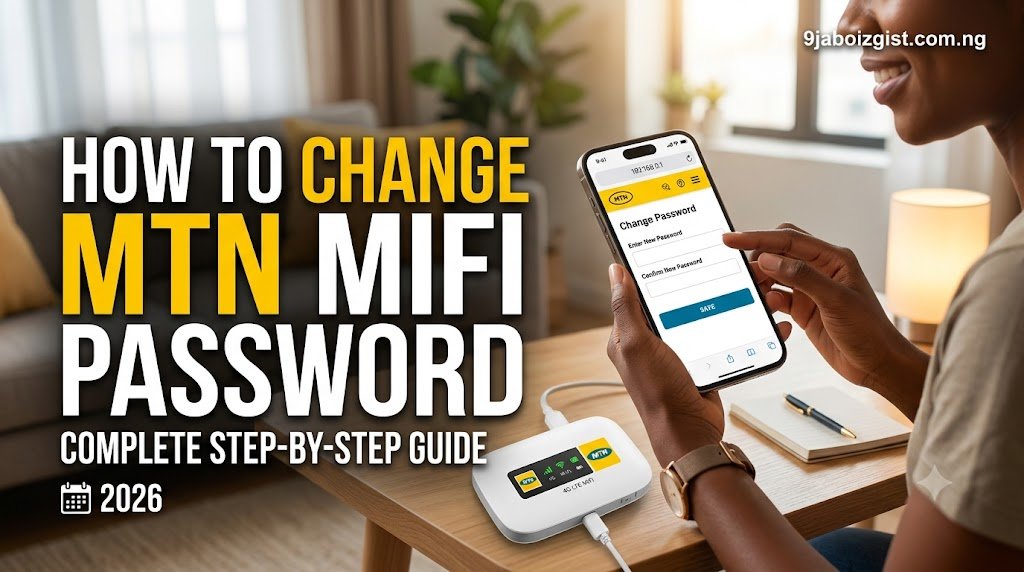
- Connect your phone or laptop to the active MiFi network before attempting any changes.
- Open your web browser and enter the default device IP address, which is usually 192.168.8.1 or 192.168.0.1.
- Log in using the default administrative credentials, typically set as ‘admin’ for both username and password.
- Go directly to the WLAN Settings or Wi-Fi Settings menu to locate the WPA pre-shared key field.
- Type in your new password and save the configuration immediately.
- Always note down or remember your new password prior to saving, otherwise you might lock yourself out and need a cable connection or factory reset.
Why You Should Change Your MTN MiFi Password Regularly
Leaving your MTN MiFi on default settings is an open invitation for neighbors or visitors to drain your allowance. Anyone who has caught a glance of the default password sticker printed at the back of the device can easily connect and surf for free. This article covers How to Change MTN MiFi Password.
Default credentials like ‘admin’ or manufacturer-printed keys are uniform across thousands of units. Because these combinations are so predictable, unauthorized devices can latch onto your signal without you ever realizing it.
Uncontrolled network access means your hard-earned data plan can vanish way faster than expected. It can even trigger network fair usage policies prematurely, leaving you stranded right when you need connectivity the most.
Securing your connection also protects your digital privacy from prying eyes. Unauthorized users on your local network could potentially monitor web traffic passing through your personal connection.
If you have ever timed exactly how long 1GB lasts on MTN, Airtel, and Glo, you already know how precious every megabyte is.
Letting freeloaders bleed your balance makes staying online unnecessarily expensive.
Avoid leaving your Wi-Fi open or using lazy default passwords, especially if you share a living or working compound with others. Taking two minutes to update your login details safeguards your monthly subscription.
Common MTN MiFi Models You Might Be Using
MTN distributes a wide variety of portable routers and pocket hotspots across Nigeria. Each hardware line often features a slightly different dashboard interface, though the core settings remain very similar.
Some of the most common models in active circulation include the popular MTN MF935 4G MiFi, the older MTN MF90 MiFi, and the versatile ZTE MF79 4G MiFi USB stick.
You will also encounter Huawei-based MTN hardware, larger MTN 4G and 5G Homebox routers, and fixed WakaNet routers in many homes and offices.
Despite the physical hardware differences between these devices, they share one common trait. Almost all of them utilize a local web-based admin portal that you can easily access through any standard phone or laptop browser.
Always check the physical sticker or product label on your specific device if you run into trouble. Some variations might use a different default IP address or unique login credentials instead of the standard 192.168.8.1 setup.
Step-by-Step Guide: How to Change MTN MiFi Password Using a Phone or Laptop
When you need to learn how to change MTN MiFi password, the process is straightforward if you follow the right sequence. From my experience with setting up portable routers, getting the initial local connection right is always the most important hurdle to clear first.
Make sure you are connected directly to the MiFi’s own Wi-Fi signal before attempting to load any IP addresses. Regular mobile data will not work because it cannot access your local admin gateway.
- Connect your phone or laptop directly to the MiFi’s Wi-Fi network. You can find the current SSID and password printed on the sticker underneath the device or beneath the battery.
- Open your web browser and type the default IP address into the URL bar. Depending on your specific model, this address is typically 192.168.8.1, 192.168.0.1, or 192.168.1.1.
- Log into the admin portal using the default login credentials. On most stock devices, the default username is admin and the password is also admin.
- Navigate through the dashboard to locate the WLAN Settings, Wi-Fi Settings, or Basic Settings menu.
- Find the WPA Pre-Shared Key field and enter your new custom security key. For the best security, choose a strong password of 8 to 12 characters mixing uppercase letters, lowercase letters, numbers, and symbols.
- Save or apply your changes. This action may cause the MiFi device to restart automatically.
- Reconnect all your personal phones, laptops, and smart TVs using your brand new Wi-Fi password.
How to Change the Admin Login Password (Different From Wi-Fi Password)
Many users confuse their network security key with the administrative dashboard credentials. The Wi-Fi password you use to join the network is completely different from the admin login password used to access the router settings.
Changing one of these passwords does not automatically change the other. You have to update both of them separately if you want complete home network security.
Leaving the admin dashboard credentials as their factory default of admin and admin creates a major security gap. Anyone who manages to join your Wi-Fi network can easily access the router dashboard, change your settings, or view your connected devices.
To update your admin credentials, log into the dashboard via your browser IP address. Navigate directly to the System, Settings, or Device Management menu to locate the password modification section.
Enter your current admin password along with your new custom password and save the changes. Just make sure you write down your new admin credentials somewhere safe.
Do not lose your new admin password under any circumstances. Forgetting it will require a hard factory reset of the MiFi device just to regain access to the settings panel.
What to Do If You Forgot Your MTN MiFi Password
If you locked yourself out because you forgot your MTN MiFi password and cannot log into the admin portal or connect via Wi-Fi, don’t panic. You will simply need to perform a physical factory reset to clear out the old custom data.
Every MTN MiFi device features a tiny, recessed reset button clearly labeled with the word RESET.
To execute the reset, make sure the device is powered on. Take a sharp pin, a bent paperclip, or a smartphone SIM ejector tool and press into the recessed hole.
Hold the reset button down for about 5 to 10 seconds while watching the LED indicators. The indicator lights will begin to flash rapidly, signaling that the device is actively restoring its factory defaults.
This process completely reverts your Wi-Fi name, Wi-Fi password, and admin login back to the original factory settings. You can then find these default credentials printed right on the sticker under the battery or back cover.
Keep in mind that performing a factory reset erases all customized settings, saved configurations, and custom passwords. It returns the router completely to its out-of-the-box state, requiring you to set up your preferred network name and security key all over again.
Myths vs Facts About Changing Your MiFi Password
A common myth is that changing your Wi-Fi password will automatically stop your data bundle from expiring. In reality, data expiration dates are strictly tied to the validity period set by MTN rather than network security settings.
Another widespread misconception is that you need a special mobile application or third-party computer software to alter your router configurations. Any standard web browser on your phone or laptop is completely sufficient for the job.
Some users also believe that hiding their SSID, or network name, provides bulletproof security against intruders. But tech-savvy unauthorized users can easily detect hidden networks using basic Wi-Fi scanner tools.
Because of this loophole, relying on network concealment alone leaves your allocation exposed. Making sure you use a strong WPA2 or WPA3 security key remains absolutely indispensable.
Do not rely solely on hiding your SSID or filtering MAC addresses to keep intruders out. These measures can be bypassed quickly by motivated unauthorized users who do not encounter a strong WPA password.
Common Mistakes Nigerians Make With MTN MiFi Security
Many Nigerian users leave their factory default credentials, such as admin/admin or printed sticker keys, unchanged for months or even years. This oversight leaves the network wide open to neighbors, visitors, and passersby.
Another major operational error is sharing the Wi-Fi key too freely with casual guests or shop customers. Doing this in a commercial environment without setting up a separate guest network invites rapid data depletion.
Using overly simple passwords like phone numbers, birthdays, or sequential digits makes it effortless for unauthorized people to guess or brute-force their way in. It defeats the entire purpose of having a locked network.
Failing to check connected devices regularly also means unwanted users can silently drain expensive data allocations before you even notice. If you want to master the routine maintenance required, learning How to Change MTN MiFi Password periodically is your best defense.
Sharing your primary network key openly in business shops or public spaces risks severe data exhaustion. It also severely compromises your local network traffic safety.
How to Check Who Is Connected to Your MTN MiFi
To check who is currently connected to your router, log into the device admin portal via your browser using 192.168.8.1 or 192.168.0.1.
Once you are logged in, navigate directly to the Device Information, Connected Devices, or DHCP Client List section in the dashboard. This area acts as the central monitoring hub for all active traffic on your local network.
The client list will display specific hostnames, IP addresses, and MAC addresses for every phone, laptop, or smart TV tied to your router. You can cross-reference these details against your own household devices to spot any freeloaders.
If you spot unfamiliar device names or unknown MAC addresses hiding in your client list, change your Wi-Fi password immediately. Cutting off unauthorized access right away protects your remaining data bundle from being stolen.
Choosing a Strong Password for Your MTN MiFi
When you set out to How to Change MTN MiFi Password, picking the right combination makes all the difference in keeping your data safe. A secure mifi password stops neighbors and automated scripts from hijacking your network bandwidth.
Let’s look at what actually works when building a login key that holds up against basic cracking tools.
A strong MTN MiFi password should be at least 8 to 12 characters long. Anything shorter gives automated key-cracking scripts an easy opening to guess your credentials. In my testing with various pocket routers, longer alphanumeric combinations drastically reduce the chances of unauthorized network intrusions.
Combine uppercase and lowercase letters, numbers, and special symbols to prevent unauthorized entry. Using a mix like M! Fi#2026Secure creates a sturdy barrier that simple guessing algorithms can’t easily break.
The more diverse your character set is, the harder it becomes for someone nearby to piggyback on your monthly data allowance.
Avoid using predictable combinations like ‘12345678’, ‘password123’, names, birthdays, or phone numbers. These common choices are the very first strings any basic hacking tool tries during an automated brute-force attack. Skipping personal details keeps your router locked down tight.
Using overly simple passwords leaves your router vulnerable to neighborhood freeloaders and automated key-cracking scripts. Once an unauthorized user gains access, your data bundle drains at an alarming rate without your knowledge. Taking two minutes to craft a proper key protects both your wallet and your connection speed.
Frequently Asked Questions
What are the default login details for an MTN MiFi?
The default username and password for most MTN MiFi models are simply set to admin. However, it’s always smart to double-check the physical sticker located on the back or under the battery cover of your specific device to confirm.
What is the default IP address to access the MTN MiFi portal?
You can typically access your router settings dashboard by typing 192.168.8.1 into your web browser address bar. If that particular address doesn’t load the login page, common alternatives like 192.168.0.1 or 192.168.1.1 often work depending on your specific hardware firmware version.
What should I do if I forget my new MTN MiFi password?
If you get locked out after changing your credentials, you can easily restore access by performing a hard reset on the device. Just insert a pin or an unfolded paperclip into the physical reset hole on the MiFi and hold it down for about 5 seconds until the indicator lights flash.
Does a factory reset erase my custom router settings?
Yes, performing a hard factory reset will wipe out all of your custom configuration settings, including any personalized network names or passwords you previously set up. Your device will temporarily revert to its default open state until you go through the setup process and reconfigure everything from scratch.
Final Thoughts
Taking control of your router security is the single best way to stop unauthorized users from draining your data balance in the background.
Leaving your MTN MiFi on default security settings allows anyone who has ever seen the sticker at the back of your device to siphon off your monthly allowance.
Failing to secure your network puts your monthly data allowance at risk of rapid depletion from unauthorized background devices. Because default administrator credentials and Wi-Fi keys are public knowledge on physical stickers, a simple glance is all it takes for a neighbor or visitor to jump onto your connection.
Regularly changing your Wi-Fi password and inspecting your connected client list protects your data balance and online privacy. Make it a habit to log into your portal every few months to update your credentials and verify who is sharing your bandwidth.

Oladepo Babatunde (Prince Babatee Tunde) is a Computer Scientist, researcher, and professional content writer with a Higher National Diploma in Computer Science from Kwara State Polytechnic, Nigeria.
With a background in technology and a passion for clear communication, Babatunde specializes in creating thoroughly researched, reader-focused content on productivity, personal development, home living, and technology. Every article he writes is backed by extensive research and fact-checking to ensure readers receive accurate, actionable information.
As a freelance writer, he has helped brands and publications deliver content that educates, engages, and empowers their audiences. His mission at Vibena is simple: make complex topics easy to understand and help Nigerians live smarter, more productive lives.