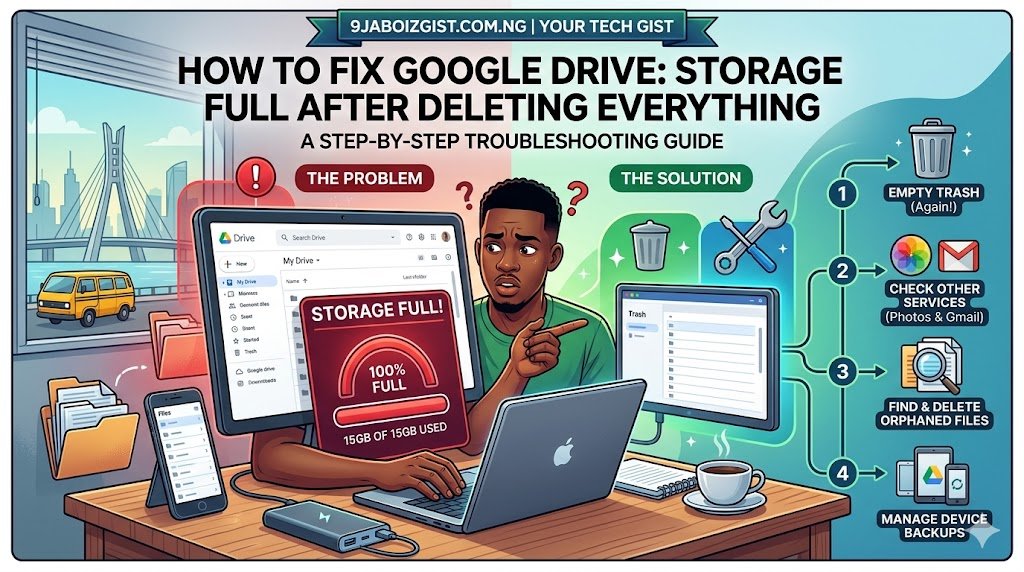
You deleted your files. You emptied the folder. You even did a second sweep to make sure nothing was left behind. And yet Google Drive still shows that your storage is full or nearly full. The counter hasn’t moved. New uploads are still being blocked. It makes absolutely no sense.
This is one of the most common and genuinely confusing Google Drive problems people run into. The reason it happens isn’t obvious, and the fix isn’t where most people think to look. But once you understand how Google’s storage system actually works, the solution becomes clear fast.
This guide explains exactly why this happens and walks you through every fix in order, starting with the ones that work in under two minutes.
The Trash Bin Is Almost Always the Reason
This is the fix for the majority of people who land on this page, so let’s start here. When you delete files in Google Drive, they do not disappear immediately. Google moves them to the Trash, where they sit and continue counting against your storage quota for 30 days before being permanently deleted automatically.
Most people assume deleting a file frees up the space. It doesn’t. Not right away. The file is hidden from your main Drive view, but it’s still there, still consuming storage, and still contributing to the full storage warning you’re seeing.
To fix this, open Google Drive in a browser and look for Trash in the left sidebar. Click it. You’ll see everything you’ve “deleted” that’s still sitting there. To permanently delete individual files, right-click them and select Delete Forever. To clear everything at once, click the Empty Trash button at the top right of the Trash page. Confirm the action when prompted.
Give it a few minutes after emptying. Google’s storage counter doesn’t always update instantly. Refresh the page or check your storage at one.google.com/storage and watch whether the number drops. For large amounts of deleted data, it can take up to an hour for the storage count to fully reflect the change.
If the storage counter drops after emptying Trash, that was your entire problem and you’re done. If it barely moved or didn’t change at all, keep reading.
Google Photos Has Its Own Separate Trash You Probably Forgot About
Here is where a huge number of people get stuck. Google Drive and Google Photos share the same 15GB storage pool, but they are separate apps with completely separate trash bins. Emptying the trash in Google Drive does nothing to clear deleted photos and videos sitting in the Google Photos trash.
If you use Google Photos to back up your phone’s camera roll, which is enabled by default on most Android phones and can be set up on iPhone too, every photo and video you’ve ever deleted from Photos is sitting in its own trash and eating into your shared quota.
Open Google Photos at photos.google.com or in the app on your phone. Tap the Library icon at the bottom, then look for Trash or Bin. You may find months or even years of deleted photos sitting there, potentially gigabytes worth of storage that is entirely invisible from your Google Drive interface.
Select everything and permanently delete it. The Google Photos trash also auto-clears after 60 days, but if you need the storage now, manually clearing it is the only way to reclaim it immediately.
After clearing both the Drive trash and the Photos trash, check your total storage again. For most people, this combination of steps recovers the majority of their lost storage.
Gmail Is Part of the Same 15GB Quota and Can Take Up a Surprising Amount
A detail that genuinely surprises many users: your Gmail inbox, attachments, and spam folder all count against the same 15GB of Google storage that Drive and Photos use. A single Gmail account with several years of emails, particularly those with large attachments, can quietly consume several gigabytes of your quota without you ever uploading anything to Drive.
Go to Gmail and sort your inbox by attachment size to find the biggest offenders quickly. In the Gmail search bar, type has:attachment larger:10MB and press Enter. This shows every email with an attachment larger than 10MB. Delete the ones you no longer need, then go to your Gmail Spam folder and empty it, and also empty your Gmail Trash from within Gmail itself, not from Google Drive.
Large video files, zip archives, and raw image files sent as email attachments are the most common culprits. A single email thread with a large video attached can consume hundreds of megabytes. Clearing out a few dozen of these emails can reclaim multiple gigabytes of storage.
Also check your Gmail Promotions and Updates tabs if you use them. These often accumulate thousands of newsletters and automated emails with small images embedded. While individually small, thousands of them add up to real storage consumption over time.
Files Shared With You Don’t Count, But Files You Own That Others Shared Into Your Drive Do
This distinction trips people up constantly. Files that someone else shared with you and that live in your Shared with Me section do not count against your storage quota. You are not the owner of those files, so they don’t touch your limit.
However, if someone shared a folder with you and you moved files from that shared folder into My Drive, you became the owner of those files in some configurations, and they now count against your storage. This is less common in 2026 since Google has tightened how ownership transfers work, but it’s still worth checking.
To see what’s actually consuming your storage and who owns what, go to one.google.com/storage in a browser. This page shows a complete breakdown of exactly how much storage each Google service is using. It will show you Drive, Gmail, and Photos totals separately, which helps you identify which service is the biggest consumer.
From Google Drive, you can also sort your files by storage used. Go to drive.google.com/drive/quota. This page lists your files in order from largest to smallest, which makes it easy to identify large files you may have forgotten about. Large video files, raw photo exports, PSD files, and large ZIP archives are the usual suspects at the top of this list.
Google Docs, Sheets, and Slides Files No Longer Take Zero Storage
This is an important change that caught many longtime Google users off guard. For years, native Google Docs, Sheets, Slides, and Forms files did not count toward your storage quota at all. That policy changed, and in 2026 any Google Workspace document created or edited counts against your storage.
If you have accumulated hundreds or thousands of Google Docs over the years, particularly old versions, duplicate documents, or auto-generated files from forms and workflows, they collectively consume meaningful storage. Files created before Google changed this policy still don’t count, but newer activity does.
To find these, go to Google Drive and use the search filter to show only Google Docs or only Google Sheets. Sort by Last Modified date. Documents you haven’t opened or used in years are prime candidates for deletion. Before deleting anything permanently, make sure you don’t need it since this action is irreversible once you clear the Trash.
Large Files Hiding in Unexpected Places Inside Drive
Files don’t always live where you expect them in Google Drive. Nested folders, old project archives, automatic backups from apps that sync to Drive, and duplicated files from sharing workflows can accumulate invisibly over time.
The most efficient way to find large files regardless of where they’re hiding is the storage quota page at drive.google.com/drive/quota. This view cuts through folder hierarchy and shows every file you own ranked by size. Work through this list from the top down and delete anything large that you no longer need.
Also check these locations that frequently contain forgotten large files. The Computers section in Google Drive, if you have Google Drive for Desktop installed on any computer, may contain full device backups. The third-party app data stored by Google apps you’ve connected to Drive can be found by going to drive.google.com and clicking the gear icon, then Settings, and looking at the Apps section. Some apps create their own hidden folders inside Drive that accumulate data silently.
Check if Shared Drives or Team Drives Are Contributing
If you use Google Workspace through a school, employer, or organization, you may have access to Shared Drives. Files stored in Shared Drives are owned by the organization rather than your personal account, so they typically don’t count against your personal storage quota. However, if your organization’s Google Workspace setup bills storage back to individual accounts in some configurations, it can appear to affect your quota.
More commonly relevant for personal accounts: files that were in a Shared Drive and were then moved to your personal My Drive become owned by you and start counting against your personal storage. If you recently received a large batch of files from a shared workspace, this transition could explain sudden storage consumption.
The storage breakdown at one.google.com/storage will confirm whether this is happening since it shows exactly how many gigabytes each category is using.
Google Account Storage Takes Time to Update After Deletion
After you empty the Trash in Drive, clear the Photos trash, and delete large Gmail attachments, you might check your storage immediately and find the number hasn’t changed. This is normal behavior, not a sign that something went wrong.
Google’s storage system is distributed across large data centers, and recalculating your exact quota after deletions can take anywhere from a few minutes to several hours. For very large amounts of deleted data, the update occasionally takes up to 24 hours to fully propagate.
If you’ve done all the right steps but the storage counter still shows full, give it some time before assuming the fixes didn’t work. Log out of Google Drive and log back in, or use the storage page at one.google.com/storage and refresh it periodically. The number will eventually reflect your deletions accurately.
Clearing your browser cache can also help in cases where the browser is displaying a cached version of the storage information rather than the live current data. In Chrome, press Ctrl + Shift + Delete, select Cached Images and Files, and clear it. Then revisit your Google storage page fresh.
Third-Party Apps Connected to Google Drive Can Be Silently Storing Data
Over time, many people connect third-party apps to their Google accounts. Apps that use Drive as a storage backend, backup tools, productivity apps, form builders, and workflow automation tools can all store data inside your Drive without you seeing it in the normal file browser.
To find and manage this hidden app data, open Google Drive in a browser, click the gear icon in the top right, then select Settings. In the left sidebar click Manage Apps. This shows every third-party app that has access to your Drive and displays how much hidden storage each one is using. For any app you no longer use or don’t recognize, click Options next to it and select Disconnect from Drive. You can also choose to Delete Hidden App Data before disconnecting, which removes the files that app stored invisibly.
This step frequently reveals gigabytes of data from apps people completely forgot they had connected to Drive. Old backup tools, abandoned project management apps, and forgotten integrations are all common finds here.
When to Consider Upgrading Google Storage Instead of Clearing More
After working through all of the above steps, if your storage is genuinely full because you have legitimate files you need to keep, upgrading your Google One storage plan is the practical solution. Google One plans in 2026 start at 100GB for a modest monthly fee and scale up to 2TB and beyond. The storage increase applies across Drive, Gmail, and Photos immediately.
Before upgrading, though, make absolutely sure you’ve genuinely exhausted the free options. Many people pay for expanded storage while gigabytes of trash, forgotten photos, and old email attachments are sitting unclaimed in their account. The one.google.com/storage page gives you a complete, honest picture of where your storage is going before you make any spending decisions.
If you share a household with family members, Google One’s family sharing option lets up to five people share a storage pool, which makes the cost per person very reasonable and reduces the need for everyone to manage individual accounts separately.
Prevent This From Happening Again
Setting up a few habits now saves you from dealing with this problem repeatedly.
Enable the Google Drive storage notifications in your Google One settings so you get an alert when you’re approaching your limit rather than hitting it abruptly. This gives you time to clean up proactively instead of scrambling after uploads stop working.
In Google Photos, review and adjust your backup settings. Set it to Back up in Storage Saver quality rather than Original quality if you don’t need full-resolution backups for every photo. Storage Saver compresses photos and videos slightly in ways that are invisible on phone screens and saves significant storage over time.
Make it a habit to periodically review your largest Drive files every few months. The quota page at drive.google.com/drive/quota takes thirty seconds to check and makes it easy to spot large files you’ve forgotten about before they become a storage problem.
For Gmail, setting up a simple filter that auto-deletes promotional emails and newsletters you never read keeps that source of storage creep under control passively.
Managing digital storage well is part of keeping all your devices and accounts running smoothly. If you’ve also been dealing with sluggish performance issues on your main computer alongside storage problems, the practical breakdown of why your computer keeps crashing randomly and how to fix it covers the most common causes and their solutions in detail.
Frequently Asked Questions
Why does Google Drive still show storage full after I deleted all my files?
The most common reason is that deleted files go to the Trash first and continue counting against your storage until you permanently delete them by emptying the Trash. Google Photos has its own separate Trash that also counts toward the same quota. Emptying both trash bins is the first step that fixes this for the majority of users.
Does emptying the Trash in Google Drive immediately free up storage?
Deleting files from Trash is immediate, but the storage counter update can take anywhere from a few minutes to several hours. If you’ve just emptied a large amount of data, give it time and refresh the storage page before assuming the fix didn’t work.
Why is my Google storage full but I can’t find any files in Drive?
Three common causes: large amounts of data in the Gmail inbox or attachments counting against your quota, deleted photos in Google Photos Trash that haven’t been permanently cleared, or hidden app data stored by third-party tools connected to your Drive. Check the storage breakdown at one.google.com/storage to see exactly which service is consuming the most space.
Do shared files count against my Google Drive storage?
Files that others have shared with you and that you haven’t moved into My Drive do not count against your personal storage. Files you own, including files you created or files moved into your personal Drive, count toward your quota regardless of whether they’re shared with others.
Can Google Docs and Sheets files cause my storage to be full?
Yes, in 2026 they can. Google changed its policy so that native Google Workspace files created or edited recently count against your storage quota. If you have a large number of Google Docs, Sheets, and Slides files, they can collectively consume significant storage, especially if many duplicates or auto-generated files have accumulated over time.
How do I find the largest files in my Google Drive quickly?
Go to drive.google.com/drive/quota in your browser. This page lists every file you own sorted by size from largest to smallest, cutting through all folder hierarchies. It’s the fastest way to identify large files you may have forgotten about regardless of where they’re stored within your Drive.
Why did my Google storage suddenly fill up when I didn’t upload anything?
Several background processes can cause this. Google Photos backing up your phone’s camera roll uploads new photos automatically. Gmail receiving emails with large attachments adds to your quota. Third-party apps syncing data to Drive in the background add hidden app data. And if you were approaching your limit, a policy change around Google Docs counting toward storage can push you over the edge without any manual upload.
Does Google Photos backup use my Google Drive storage?
Yes. Google Photos storage counts toward the same 15GB shared quota that Drive and Gmail use. If you back up photos in Original quality or have a large library of backed-up videos, Photos can easily be the largest single consumer of your storage. Switching to Storage Saver quality in Photos settings reduces storage consumption significantly for most users.
Will upgrading my Google One plan fix the storage full problem immediately?
Yes. A Google One plan upgrade takes effect immediately and gives you the expanded storage right away, unblocking any uploads or Gmail messages that were being rejected. However, upgrading without clearing unnecessary files means you’ll continue paying for storage that’s being wasted by trash, forgotten data, and unused files.
How long does Google take to update storage after deletion?
Typically a few minutes to a few hours for normal amounts of data. For very large deletions of hundreds of gigabytes, the update can occasionally take up to 24 hours to fully reflect. If the counter still looks wrong after 24 hours and you’ve confirmed the files are permanently deleted, try logging out of your Google account completely, clearing your browser cache, and checking the storage page fresh.
Can I recover files after permanently deleting them from Google Drive Trash?
Standard permanent deletion from Trash is irreversible through the normal Google Drive interface. Google does not offer a recycle bin beyond the 30-day Trash period for regular users. Google Workspace administrators in some plans have access to a Vault feature that can recover data for a limited period after permanent deletion, but this is not available for standard personal Google accounts. This is why it’s important to confirm you no longer need files before clearing the Trash.
The Bottom Line
Google Drive showing full storage after you’ve deleted everything is almost always caused by one of three things: the Drive Trash still holding deleted files and counting them against your quota, the Google Photos Trash doing the same thing separately, or Gmail consuming a large portion of your shared storage through old emails and attachments.
Start by emptying both the Drive Trash and the Google Photos Trash. Then check your Gmail for large attachments and clear the Gmail Trash and Spam folder. Visit one.google.com/storage to see an honest breakdown of exactly where your storage is going. Use the quota page at drive.google.com/drive/quota to find and remove large forgotten files. Check your connected apps for hidden stored data.
Work through those steps in order and you’ll likely reclaim your storage without paying for an upgrade. And once your Google account is running clean, keeping it that way takes only a few minutes of routine maintenance every couple of months.
For anyone dealing with tech problems across multiple fronts at once, slow recovery of deleted data and poor cloud performance are often made worse by a sluggish internet connection. This detailed guide on why your internet feels slow even when speeds look fast explains what’s really happening at the network level and how to fix it, which makes everything from Google Drive uploads to general cloud performance noticeably more reliable.