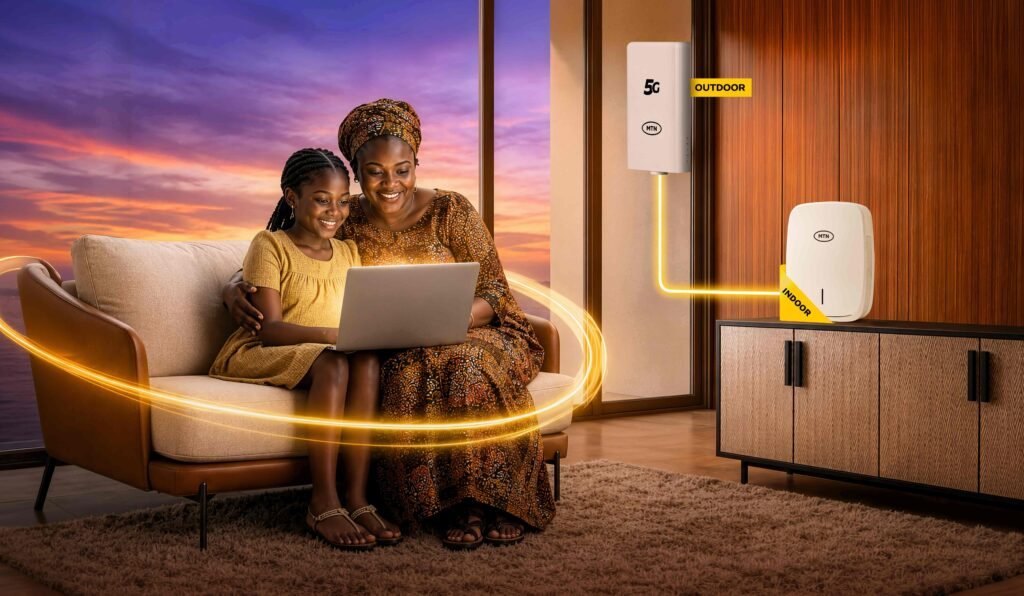
If your MTN FlyX router is on but there is no internet, do not start by resetting or dismantling the equipment. First check whether the problem affects one device or every device, confirm that the FlyX subscription is active, then inspect the power and connections between the outdoor unit (ODU) and indoor router. MTN’s official FlyX support instructions recommend restarting the router, checking that cables are secure, confirming stable power and contacting MTN Broadband support if the problem continues.
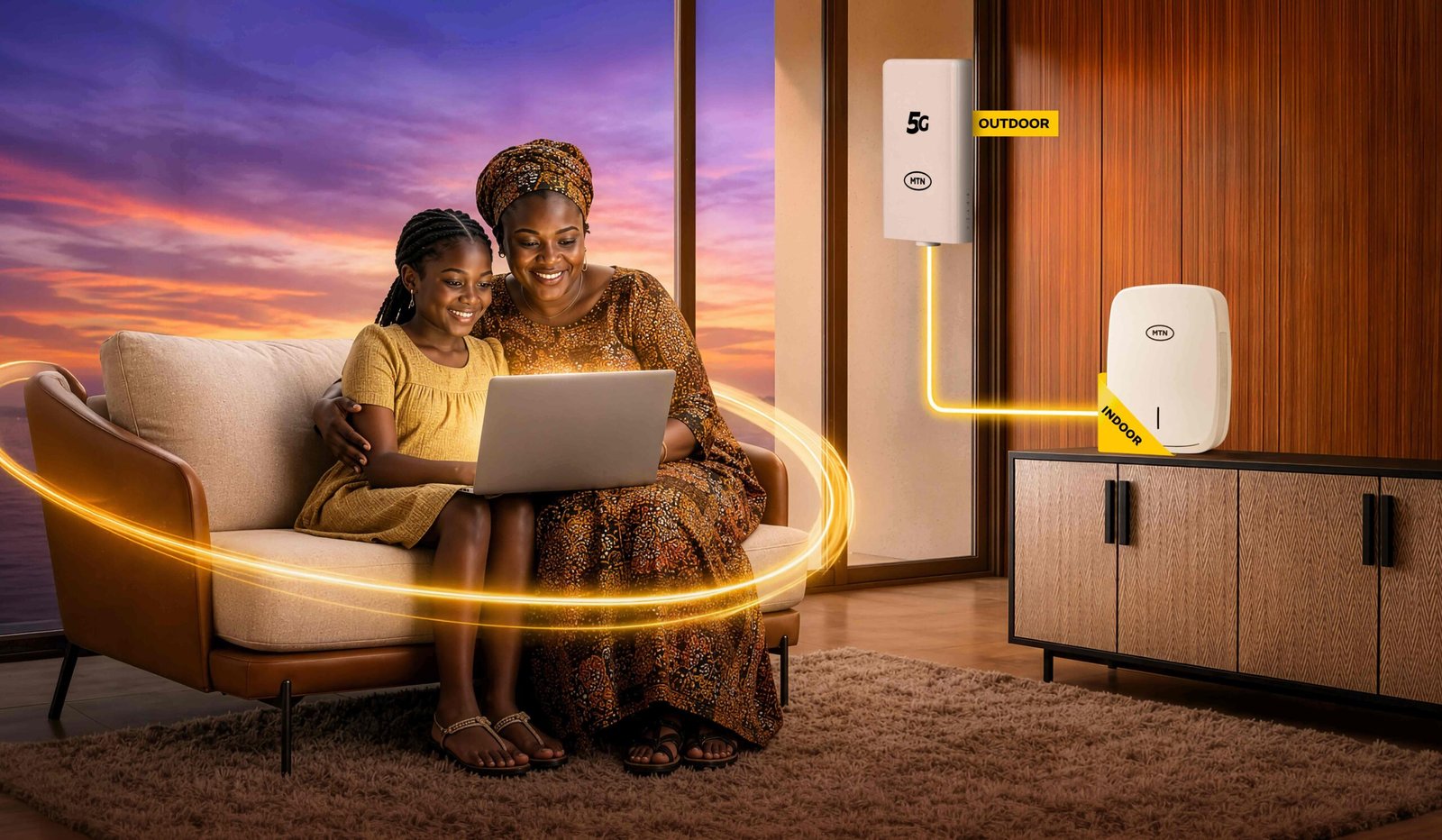
This guide covers the checks you can safely do when FlyX shows connected but has no internet, the Wi-Fi network disappears, the connection becomes slow or unstable, or an indicator turns red. MTN does not publish a complete FlyX red-light error-code chart on its support page, so do not assume a particular red light means the same thing on every model.
Quick checks when MTN FlyX has no internet
| What you notice | First check | What to do next |
|---|---|---|
| Wi-Fi connects, but websites do not open | Test another phone or laptop; check subscription and service status | Restart the FlyX equipment and contact MTN if all devices remain offline |
| Only one phone has no internet | Check that phone’s Wi-Fi, VPN, proxy and saved network settings | Forget the Wi-Fi network and reconnect; test another device |
| No Wi-Fi network appears | Check whether the indoor unit is powered and fully started | Check its power connection; do not reset it immediately |
| Red or unusual indicator | Record which unit and indicator is showing the light | Check power and cables; photograph the lights for MTN support |
| Internet works, but is very slow | Test close to the indoor router and compare more than one device | Check signal, congestion, connected devices and installation position through MTN |
| Connection drops repeatedly | Check for loose indoor connections and unstable electricity | Restart once, observe when it drops and report recurring faults |
1. Check whether the problem is FlyX or one device
Before touching the router, connect a second phone, laptop or smart TV to the same FlyX Wi-Fi network. Open a few different websites or apps. If the second device works, the FlyX connection may be fine and the issue could be limited to the first phone or computer.
- Turn Wi-Fi off and on again on the affected device.
- Confirm that it is connected to your FlyX network, not a saved network with a similar name.
- Temporarily turn off a VPN or manually configured proxy if you use one.
- Forget the Wi-Fi network, reconnect and enter the correct password.
- Restart the affected phone or laptop if other devices work normally.
If every connected device has the same problem, continue with the FlyX checks below. That makes a router, subscription, signal, power or MTN network issue more likely.
2. Confirm that your FlyX subscription is active
A Wi-Fi connection only means your device can communicate with the indoor router. It does not prove that the broadband service is active or that the outdoor unit has a working connection to MTN’s network.
Check your FlyX subscription or renewal status through the MyMTN app, MTN eShop, USSD *461# or an authorised MTN store. These are the renewal channels MTN lists for FlyX. If you paid recently, keep the payment receipt or transaction reference and check whether the bundle has actually been applied to the correct FlyX account.
Do not buy another bundle immediately if a payment is pending or the first subscription has not reflected. Ask MTN to verify the transaction and service status first.
3. Check the indoor unit’s Wi-Fi settings and local dashboard
If the Wi-Fi name has disappeared, the password suddenly stops working, or you need to confirm the indoor unit is responding, check its local management page while connected to the FlyX Wi-Fi network. MTN’s FlyX FAQ lists 192.168.0.1 and mtn.broadband.ng as access addresses and says to use the admin password to open Wi-Fi settings. The exact login screen and credentials can depend on the supplied unit, so use the label or installer instructions if those details do not work.
- Connect your phone or laptop to the FlyX Wi-Fi network.
- Enter 192.168.0.1 in the browser address bar, or try mtn.broadband.ng.
- Use the credentials provided for your unit; do not repeatedly guess passwords.
- If you change the Wi-Fi name or password, save the settings and reconnect your devices using the new details.
This local page is not a test of MTN’s mobile-network connection. It may open even when FlyX has no internet. Do not change mobile-network, eSIM or advanced WAN settings while troubleshooting.
4. Restart the FlyX equipment properly
MTN’s FlyX troubleshooting advice specifically says to restart the router. A restart can clear a temporary software or connection problem, but it will not repair a damaged cable, restore a network outage or activate an expired subscription.
- Save any work that depends on the internet and tell other users the connection will go offline briefly.
- Use the normal power control for the indoor unit if one is provided. If there is no power switch, follow the installer or equipment instructions for safely disconnecting its power adapter.
- Wait briefly, then reconnect the power and allow the equipment time to start and reconnect.
- Check whether the Wi-Fi network returns and test with two devices.
- If the same fault returns, note how long the connection stays online before failing again.
Do not repeatedly switch the equipment on and off every few seconds. Do not unplug the outdoor unit’s cable from a roof-mounted or wall-mounted position. If you cannot safely identify the correct indoor power connection, ask the installer or MTN support.
5. Check the cables between the indoor and outdoor units
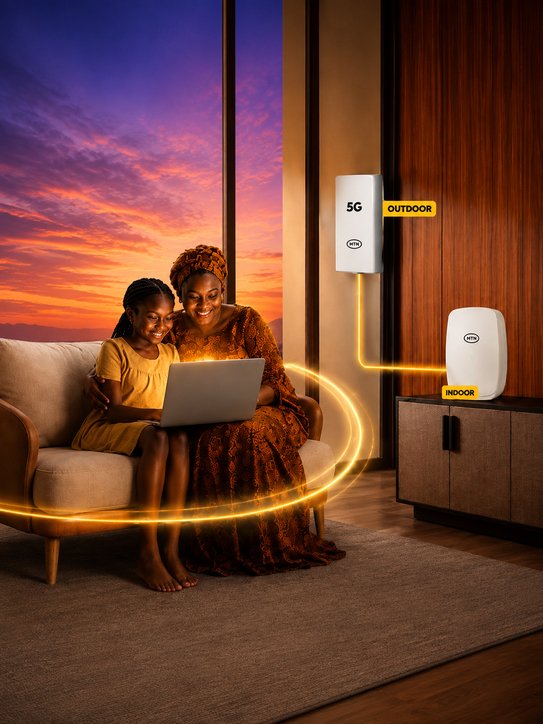
FlyX uses an outdoor unit mounted outside the premises and an indoor unit that provides Wi-Fi. The units must remain properly connected. A loose, damaged or accidentally disturbed cable can interrupt the connection even when the indoor Wi-Fi network is visible.
- Look at the accessible cable connections on the indoor unit and check for a plug that has become loose.
- Check whether the cable is visibly crushed, sharply bent, cut or damaged where you can see it safely.
- Make sure the indoor unit is connected to the correct power source and that the socket is working.
- If there was recent cleaning, renovation, moving of furniture or electrical work, consider whether an accessible cable may have been disturbed.
Do not climb onto the roof, open the outdoor unit, pull down the mounted receiver or try to re-terminate the cable. MTN says FlyX installation should be handled by certified installers. Ask MTN to arrange a technician if the outdoor connection or mounting needs attention.
6. What does a red light on an MTN FlyX router mean?
A red indicator can be worrying, but its meaning depends on the exact equipment model and the light label. MTN’s public FlyX FAQ tells customers to restart the router, check all cable connections, ensure stable power and contact support if poor performance continues. It does not provide a complete table that maps every FlyX red light or flashing pattern to a specific fault.
So, do not automatically conclude that a red light means your SIM is blocked, your data has finished or the outdoor unit is damaged. First record:
- Which unit shows the red light: indoor unit or outdoor unit, if its indicator is visible without climbing or opening anything.
- The exact label beside the light, if there is one.
- Whether the light is steady, blinking slowly or blinking rapidly.
- Whether the Wi-Fi name is visible and whether all connected devices are offline.
- Whether the light changed after a power interruption, restart or storm.
Take a clear photo or short video and send it to MTN Broadband support. This is more useful than reporting only that “the router is red”.
Important: FlyX is not FibreX
MTN FlyX is fixed wireless broadband that uses a 5G outdoor receiver. MTN FibreX uses a fibre-optic connection. MTN’s FibreX help page discusses a red LOS (Loss of Service) light on its fibre modem, but that FibreX-specific instruction should not be treated as a universal FlyX red-light code. If you have FlyX, report the exact indicator and equipment model instead of applying a FibreX diagnosis.
7. Check whether power supply is unstable
MTN specifically lists stable power as one of the first checks for poor FlyX performance. If the router restarts when NEPA power changes, the indoor unit’s adapter or socket may be affected, or the supplied power bank may need attention.
- Check that the power adapter is firmly connected to the indoor unit and wall socket.
- Try a known-good wall socket if the current socket appears faulty.
- Check whether the unit switches off or restarts whenever power changes.
- If using the supplied power bank, follow the supplied instructions and check whether it is charged and connected correctly.
- Stop using an adapter, cable or power bank that is unusually hot, damaged, swollen or smells burnt.
Do not substitute a random adapter or use a power supply with a different voltage or polarity. Use only the approved power equipment and ask MTN or the installer to confirm a replacement if the original is faulty.
8. FlyX is connected but very slow or keeps disconnecting
If the internet works sometimes but becomes slow at certain hours, the issue may be different from a complete outage. FlyX receives a mobile network signal through an outdoor unit, so performance can be affected by local coverage, network capacity, signal conditions and the installation position.
- Test close to the indoor router to reduce the effect of weak Wi-Fi coverage inside the building.
- Run a speed test at different times and record the date, time and result.
- Compare results on more than one device.
- Temporarily pause large downloads, cloud backups and streaming on other devices to see whether congestion inside your home is contributing.
- Note whether the problem happens at the same time every day or after rain, power cuts or equipment restarts.
Do not move the outdoor receiver to another wall or relocate the FlyX installation yourself to chase a better signal. MTN says FlyX is fixed to the registered address and the outdoor unit should be positioned by a certified installer. If the signal has become consistently poor, request a signal and installation check.
9. Check coverage or a possible MTN network problem
FlyX availability and performance depend on MTN coverage, network capacity and technical conditions. A service that worked during installation can still experience a temporary local network problem. Ask a nearby MTN user whether they are experiencing a similar issue, but remember that their phone connection is not a definitive test of your fixed ODU service.
You can check MTN’s official coverage locator, but a coverage map does not confirm that there is no temporary outage or fault at your serving site. If your connection stopped suddenly and the power and cables are fine, ask MTN to check the service from its side.
10. Do not factory-reset or dismantle FlyX as your first fix
A factory reset can erase Wi-Fi settings or other configuration. MTN’s published FlyX troubleshooting instructions recommend a restart, cable checks and stable power; they do not tell customers to factory-reset the ODU for every no-internet problem.
Do not press and hold a reset button unless MTN support or the certified installer has confirmed that this is the correct procedure for your exact unit and explained how to restore its settings. FlyX uses a preconfigured embedded eSIM, and the outdoor unit is MTN property under its free-to-use terms. Do not open, modify, relocate or attempt to replace the embedded SIM.
When should you contact MTN Broadband support?
Contact MTN if all connected devices remain offline after a proper restart, the router repeatedly loses connection, an indicator remains abnormal, a cable or power adapter appears damaged, or the problem returns after the basic checks. MTN’s current FlyX FAQ lists these support channels:
- From an MTN line: call 217 (the number shown on MTN’s current FlyX FAQ).
- From another network: call 0803 102 1700.
- Email: MTNBroadband.NG@mtn.com.
- In person: visit an authorised MTN store.
Contact-number note: MTN’s separate FlyX offer terms list 352 from an MTN line and 0707 352 0000 from other networks. The current FlyX FAQ instead lists 217 and 0803 102 1700. Because MTN’s own pages show different contact numbers, try the current FAQ numbers first; if they do not connect, use the alternative numbers in the terms or visit an MTN store. MTN’s general contact page also lists 352 for Broadband support.
When reporting the fault, provide your FlyX account or service reference, registered installation address, contact number, when the issue began, whether all devices are affected, the status of the indoor unit and any visible indicator labels. Include a photo or short video if possible. Keep your payment receipt if the issue started after a renewal.
MTN FlyX troubleshooting: common questions
Why is my MTN FlyX connected but there is no internet?
Your phone may be connected to the indoor Wi-Fi even though the FlyX service itself is offline. Check the subscription status, test another device, restart the router, check accessible cables and confirm stable power. If all devices remain offline, ask MTN to check the ODU connection and service status.
Why is my MTN FlyX router showing a red light?
MTN does not publish a complete FlyX red-light code chart in its public FAQ. The meaning depends on the unit and indicator. Record the light label and whether it is steady or flashing, check power and accessible cables, then send a photo to MTN support. Do not assume FibreX’s red LOS light instructions apply to FlyX.
Can I reset my MTN FlyX router?
You can restart it as part of MTN’s recommended troubleshooting. A factory reset is different and may erase settings. Do not factory-reset the indoor or outdoor unit unless MTN support or your certified installer gives instructions for your exact model.
Does MTN FlyX work without a subscription?
No active broadband subscription means the service may be suspended. MTN’s FlyX terms require customers to maintain an active subscription and state that the ODU may be recovered after 90 days without an active subscription. Check your renewal status through MyMTN, the eShop, *461# or an authorised MTN store.
Can I move the FlyX outdoor unit to another room or house?
No. FlyX is installed at a registered address and MTN’s terms restrict moving the ODU without prior authorisation. Contact MTN Broadband support if you are relocating or believe the installation position needs to be changed.
How do I contact MTN if FlyX is not working?
MTN’s current FlyX FAQ lists 217 from an MTN line and 0803 102 1700 from other networks, plus MTNBroadband.NG@mtn.com. Its separate offer terms list 352 and 0707 352 0000 as alternative helpdesk numbers. MTN’s own pages therefore show different contact numbers; try the current FAQ numbers first, then the alternative numbers or an authorised MTN store. Have your service details, registered address and a photo of the equipment indicators ready.
Related MTN broadband guides
- MTN FlyX price in Nigeria: acquisition cost, renewal plans and installation
- How to check MTN 5G coverage in your area
- MTN FlyX vs Airtel SmartConnect ODU: compare the two home broadband services
Bottom line: When MTN FlyX stops working, first separate a device-specific Wi-Fi problem from a full service outage. Confirm the subscription, restart the indoor equipment, check accessible cables and power, and record any abnormal indicator. Leave the outdoor installation alone. If the connection does not return, MTN’s support team needs to check the service and equipment from its side.
Sources: MTN FlyX official support FAQ; MTN FlyX offer terms and conditions; MTN FibreX FAQ (used only to distinguish fibre LOS guidance from FlyX).

Oladepo Babatunde (also known as Prince Babatee Tunde) is a Computer Scientist, researcher, professional content writer and SEO content strategist with more than eight years of experience. He holds a Higher National Diploma (HND) in Computer Science from Kwara State Polytechnic, Nigeria, and is based in Ilorin, Kwara State. As a freelance writer, he creates research-led, practical content on technology, Nigerian internet services, AI tools, gadgets and solar power. His work combines research, source checking, technical understanding and SEO strategy. Where an article includes hands-on testing, the product, method and relevant conditions are described in the article; research-based guides are identified as such.