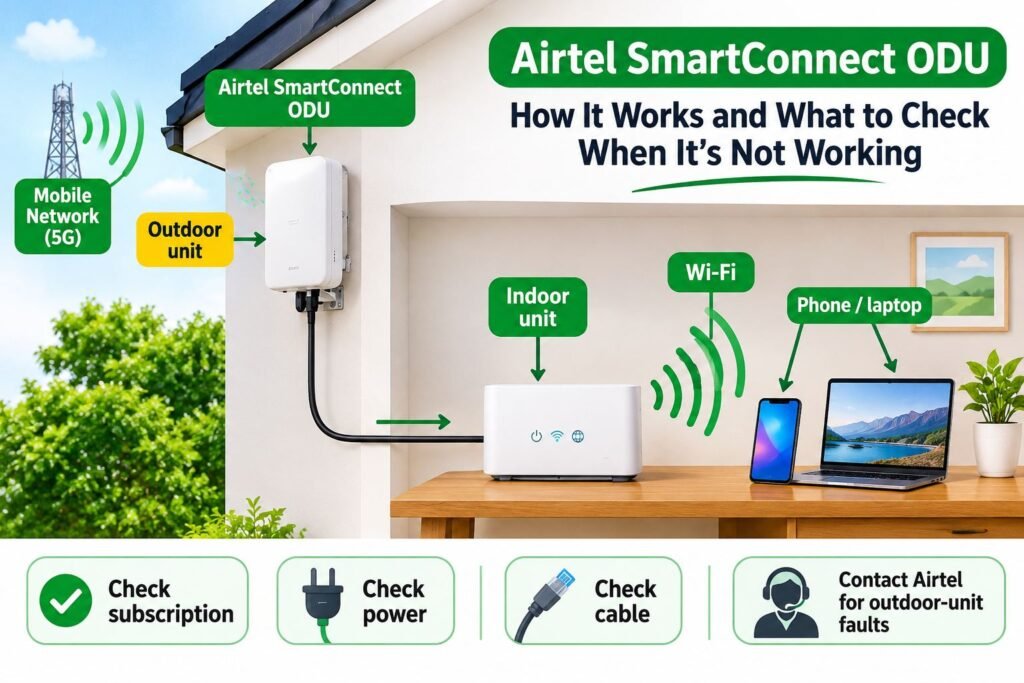
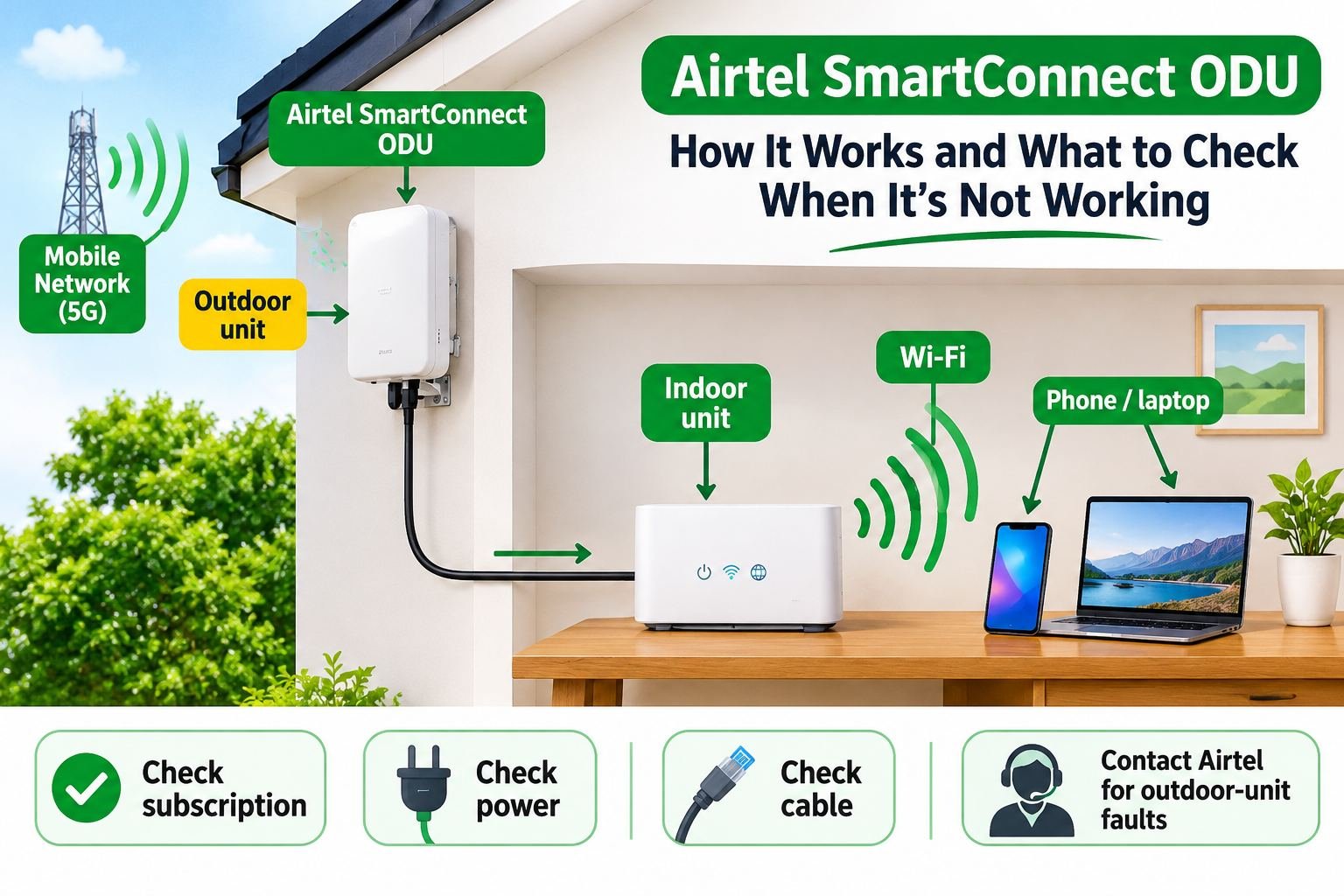
If your Airtel SmartConnect 5G ODU is connected to Wi-Fi but has no internet, the Wi-Fi connection and the mobile broadband connection may be failing at different points. Your phone can connect to the indoor Wi-Fi network even when the outdoor unit cannot reach Airtel’s network, your subscription is suspended, or the service is experiencing a local fault.
Start by checking whether every device is offline, confirm that the broadband subscription is active, and check the indoor unit’s power and accessible cable connections. Restart the equipment once if it is safe to do so. Do not climb up to adjust, open, relocate or repair the outdoor unit: Airtel’s published ODU terms restrict customers from tampering with or moving its equipment without written consent.
Quick checks when Airtel ODU has no internet
| What you notice | Check first | Next step |
|---|---|---|
| Wi-Fi connects but internet does not work | Test a second device and check the ODU subscription | Restart the indoor power unit once and contact Airtel if all devices remain offline |
| Only one phone or laptop cannot browse | Check that device’s Wi-Fi, VPN and saved network | Forget the network and reconnect; test another device |
| Wi-Fi name has disappeared | Check whether the indoor unit has power and has finished starting | Check the accessible power connection; do not factory-reset immediately |
| Red or flashing indicator | Record the unit, indicator label and light pattern | Check power and accessible cables; send a photo to Airtel support |
| Internet is slow or keeps dropping | Check data/service status, signal and time of day | Run repeat speed tests and request a network or installation check |
| Connection stops when electricity goes off | Check the built-in backup and power status | Ask Airtel to inspect the equipment if backup does not work as expected |
1. Check whether the problem affects every device
Connect another phone, laptop or television to the Airtel ODU Wi-Fi. Try opening a few websites or apps. If one device cannot browse but the others work, the problem is probably with that device rather than the ODU’s internet connection.
- Turn Wi-Fi off and on again on the affected device.
- Confirm that it is connected to the correct Airtel ODU network.
- Temporarily disable a VPN or manually configured proxy.
- Forget the saved Wi-Fi network and reconnect with the correct password.
- Restart the phone or laptop if it is the only device affected.
If every device connects to Wi-Fi but none can access the internet, continue with the ODU and Airtel account checks.
2. Confirm that your Airtel ODU subscription is active
Airtel’s ODU agreement says broadband plans are paid in advance and the service will be suspended if payment is not made on time; service is reactivated after the monthly payment is made. Your phone can still show the indoor Wi-Fi network while the broadband service is suspended. Check the ODU account’s payment and service status before buying another bundle.
Use the My Airtel app and add the ODU’s HBB device number as an account. Airtel’s FAQ says an OTP is sent to the alternate number for verification, after which the device balance appears on the dashboard. You can also use Airtel’s HBB portal at airtel.com.ng/broadband to register the data line and top up. Airtel lists *323# for data balance and validity. Make sure you are checking the ODU’s HBB number, not only the SIM in your personal phone.
If you paid for a renewal and the service has not returned, keep the transaction reference and ask Airtel to confirm whether the payment was applied to the correct ODU account. Avoid buying the same bundle again until Airtel checks the pending payment.
3. Restart the indoor power unit safely
A restart can clear a temporary connection problem, especially after a power cut. It will not fix an expired subscription, damaged cable, local network outage or faulty outdoor equipment.
- Tell other people using the connection that it will go offline briefly.
- Use the normal power switch if the indoor unit has one. Otherwise, disconnect its power adapter from the wall socket only if it is safe and accessible.
- Wait briefly, then reconnect the power.
- Allow the equipment several minutes to start and reconnect before testing.
- Test using two devices. If the same issue remains, note the indicator lights and contact Airtel.
Do not repeatedly switch the unit off and on every few seconds. Do not pull the cable running to the outdoor receiver or disconnect equipment mounted outside the building.
4. Check the power supply and backup battery
At the September 2025 launch, Airtel’s published product announcement described built-in backup power of up to five to six hours during electricity outages. That is a launch-era advertised maximum, not a guaranteed runtime for every unit today. Battery condition, load and the actual equipment supplied can affect how long it stays on.
- Check that the indoor unit’s power adapter is firmly connected.
- Try a known-working wall socket if you suspect the socket is faulty.
- Observe whether the unit switches off or restarts when mains electricity changes.
- Check the battery/backup indicator if your indoor unit has one.
- Stop using a damaged, swollen, unusually hot or burnt-smelling adapter or cable.
Do not use a random replacement adapter. Voltage, current rating and polarity must match the equipment requirements. Ask Airtel or its authorised technician to check the power unit if the backup does not hold or the device repeatedly restarts.
5. Inspect only the cable connections you can safely reach
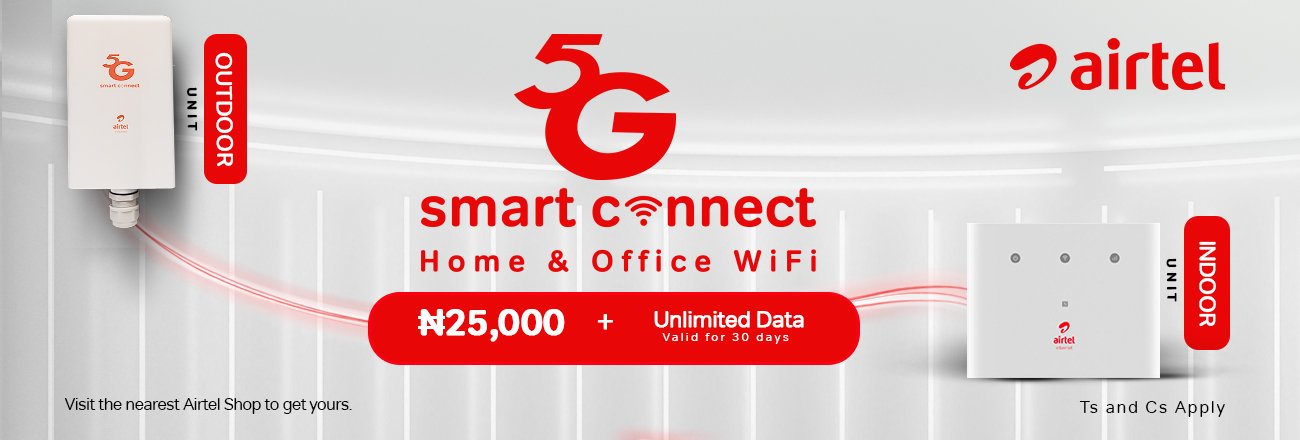
The SmartConnect ODU uses outdoor and indoor equipment. If a visible cable near the indoor unit has become loose, crushed or damaged, the connection between the units may be interrupted. Check only the accessible indoor connections without forcing plugs or opening the equipment.
- Look for a cable that has been pulled loose from the indoor unit.
- Check for visible cuts, crushing or sharp bends on accessible cable sections.
- Consider whether recent cleaning, furniture movement or renovation could have disturbed the indoor connection.
- If the cable disappears through a wall or runs to the roof, leave it in place and ask Airtel to inspect it.
Airtel’s ODU agreement says customers must not alter, tamper with, repair, rearrange, remove or relocate the equipment without prior written consent. Do not climb onto the roof, open the outdoor unit or attempt to realign it yourself.
6. What does a red light on Airtel SmartConnect ODU mean?
A red or flashing indicator does not have one confirmed meaning across every Airtel ODU model. Airtel’s public SmartConnect pages and general FAQ do not provide a complete ODU LED error-code chart that identifies each light pattern. Online posts about other Airtel routers may describe different hardware.
Before contacting support, record the following information:
- Which unit shows the light: the indoor unit or the outdoor unit, if visible from the ground.
- The exact label beside the indicator, such as power, network or signal.
- Whether the light is steady, flashing slowly or flashing quickly.
- Whether Wi-Fi is visible and whether all connected devices are offline.
- Whether the light changed after a power cut, restart, heavy rain or other event.
Take a photo or short video and share it with Airtel support. Do not assume that a red light automatically means the SIM is blocked, your data has finished or the outdoor unit is damaged.
7. Check whether the ODU has switched from 5G to 4G
Airtel says SmartConnect can use 5G where available and fall back to 4G LTE where 5G coverage is not available. This means the connection may remain online but become slower if the available network changes. A 4G fallback is not automatically a hardware fault.
If your connection is slow rather than completely offline, note the time and run speed tests on more than one device. Compare results at different times of day. A weaker signal, local network congestion, building conditions or Wi-Fi interference can affect the experience.
Do not assume that the ODU’s admin address is the same as an ordinary Airtel 4G MiFi or router. Airtel’s general FAQ gives login steps for its 4G router and MiFi, but does not publish those credentials as SmartConnect ODU instructions. Use the label or documentation supplied with your specific unit, or ask Airtel before changing settings.
8. Check whether the problem is an Airtel network issue
If the subscription is active, the power is stable and the accessible cables are secure, the issue may be on Airtel’s network or with the ODU’s connection to the serving site. Check Airtel’s network updates or ask another Airtel user nearby whether they are also having trouble. A phone working on Airtel does not prove that the fixed ODU service at your registered address is fault-free: the ODU uses a fixed installation and may connect differently from a handset. Treat another phone’s result as context only.
When you contact Airtel, ask the support agent to check the ODU account, local service availability and whether a technical visit is required. If the problem began suddenly and affects every device, mention that clearly.
9. Do not factory-reset or move the outdoor unit as a first fix
A factory reset can erase Wi-Fi settings and other configuration. Airtel does not publish a SmartConnect-specific factory-reset procedure in the public product information reviewed for this guide. Do not press and hold a reset button based on instructions for a different Airtel router model.
The outdoor and indoor equipment is subject to Airtel’s ODU agreement. During the initial two-year term the equipment remains Airtel’s property, and customers are not permitted to tamper with, repair, remove or relocate it without prior written consent. Ask Airtel support or an authorised technician before any reset that could affect service configuration or any physical adjustment.
When should you contact Airtel?
Contact Airtel if all devices remain offline after the basic checks, the unit will not power on, an abnormal indicator remains, the backup battery fails, a cable appears damaged, or the connection repeatedly drops. Use the My Airtel app, Airtel’s official support channels or visit an Airtel service centre. Airtel’s ODU terms specifically say to call 300 to report equipment damage, loss or theft; use the app or an official Airtel support channel to report an ordinary service fault and ask for a fault reference. Airtel’s FAQ also lists its store locator and My Airtel app for customer support and account management.
When reporting the issue, provide:
- Your ODU account or broadband number and registered installation address.
- The date and approximate time the problem started.
- Whether every device is affected or only one.
- Your subscription/payment reference and the date of renewal.
- A photo of the indoor unit and its indicator lights.
- Whether the issue began after a power cut, storm or change to the installation.
Ask for a complaint or reference number and keep it until the issue is resolved. If a technician visit is required, confirm the appointment through Airtel’s official channel.
Airtel ODU troubleshooting: frequently asked questions
Why is my Airtel ODU connected but there is no internet?
Your phone may be connected to the indoor Wi-Fi while the ODU has no active connection to Airtel’s network. Check the subscription, test another device, restart the indoor power unit and inspect accessible connections. If all devices remain offline, contact Airtel to check the account and service.
How do I check my Airtel ODU data balance?
Airtel’s FAQ lists the My Airtel app and *323# for checking data balance and validity. Make sure you select or enter the ODU broadband number rather than checking only the SIM in your personal phone.
Why is my Airtel ODU showing a red light?
Airtel does not publish a complete SmartConnect ODU red-light code chart in the public information reviewed here. Record the indicator label and whether it is steady or flashing, then send a photo to Airtel support. Do not use an error-code list for a different router model.
Can I use 192.168.0.1 to log in to Airtel SmartConnect ODU?
Airtel’s public FAQ gives 192.168.0.1 and 192.168.1.1, with an admin login, for its 4G routers and MiFi devices. It does not confirm that either address or those credentials apply to SmartConnect ODU. Do not try the 4G router credentials on the ODU; check the label or unit-specific instructions, or ask Airtel before changing settings.
Can I move or repair the Airtel ODU myself?
No. Airtel’s published ODU terms prohibit customers from tampering with, repairing, removing or relocating the equipment without prior written consent. Contact Airtel for a technician or authorised change to the installation.
How long does Airtel SmartConnect ODU backup power last?
Airtel’s launch information advertised approximately five to six hours of built-in backup power. Actual duration can vary with the equipment and its condition. If your unit shuts down immediately during a power cut, ask Airtel to check the backup system.
Related Airtel and home broadband guides
- Airtel SmartConnect 5G ODU price in Nigeria: device, plans and installation
- MTN FlyX not working? No internet and red-light troubleshooting
- MTN FlyX vs Airtel SmartConnect ODU comparison
Bottom line: When Airtel SmartConnect ODU has no internet, first rule out a device-specific Wi-Fi problem, then confirm the ODU subscription, check power and accessible connections, and restart the indoor unit once. Record abnormal lights rather than guessing their meaning. Leave the outdoor equipment alone and ask Airtel to inspect it if the connection does not return.
Sources: Airtel Nigeria SmartConnect ODU product page; Airtel Nigeria FAQs; Airtel ODU Standard Terms and Conditions; Tribune report on Airtel SmartConnect launch, 5G/4G fallback and advertised backup power.

Oladepo Babatunde (also known as Prince Babatee Tunde) is a Computer Scientist, researcher, professional content writer and SEO content strategist with more than eight years of experience. He holds a Higher National Diploma (HND) in Computer Science from Kwara State Polytechnic, Nigeria, and is based in Ilorin, Kwara State. As a freelance writer, he creates research-led, practical content on technology, Nigerian internet services, AI tools, gadgets and solar power. His work combines research, source checking, technical understanding and SEO strategy. Where an article includes hands-on testing, the product, method and relevant conditions are described in the article; research-based guides are identified as such.