How To Use Clownfish Voice Changer In PUBG Mobile

Mastering Clownfish Voice Changer for PUBG Mobile: The Ultimate 2025 Guide

Introduction: Elevate Your PUBG Mobile Experience with a Voice Changer

Have you ever imagined yourself dropping into Erangel or Livik with a voice that truly commands attention, or perhaps one that makes your teammates burst into laughter? Using a voice changer in PUBG Mobile can dramatically transform your gaming experience, adding layers of fun and even strategic depth. It’s more than just a novelty; it can be a genuine tactical advantage or a fantastic tool for pure entertainment.

Beyond the Battlefield: Why a Voice Changer is Your Next Tactical Advantage (or Prank Tool)

Voice changers bring a vibrant new dimension to online interactions. In PUBG Mobile, where strategic communication is often the key to victory, a well-timed voice alteration can be a game-changer. Imagine calling out enemy positions in a deep, intimidating voice, causing momentary confusion or even fear among opponents. Or perhaps using a high-pitched “baby voice” to disarm a potential threat, convincing them you’re harmless before striking with precision.

I recall a tense moment when my squad was pinned down, and I quickly switched to a deep, menacing voice, pretending to be a rival team’s leader. The confusion it caused bought us precious seconds to regroup and ultimately turn the tide of the fight! Similarly, my friend Sarah once used an adorable “baby voice” to convince a random teammate to drop all their valuable loot for her “helpless” character, only for us to burst out laughing on Discord moments later. These tools offer endless possibilities for both tactical play and lighthearted fun, enhancing the social aspect of gaming.

What This Ultimate Guide Covers

This comprehensive guide will walk you through everything you need to know about effectively using Clownfish Voice Changer for PUBG Mobile. We’ll cover the essential setup steps, optimize your voice effects for maximum impact, troubleshoot common issues you might encounter, and even discuss the crucial ethical considerations for responsible use. My goal is to equip you with the knowledge to master real-time voice modification and elevate your PUBG Mobile sessions.

Understanding Clownfish Voice Changer: Your Go-To for Audio Transformation


Clownfish Voice Changer is a popular, free, and robust real-time voice modification application. It operates at a system level on Windows computers, making it incredibly versatile. This means it can seamlessly apply voice changes to virtually any program or game that utilizes your microphone, including popular communication platforms and, crucially, Android emulators running PUBG Mobile.

Core Features and Capabilities: More Than Just a Prank Tool

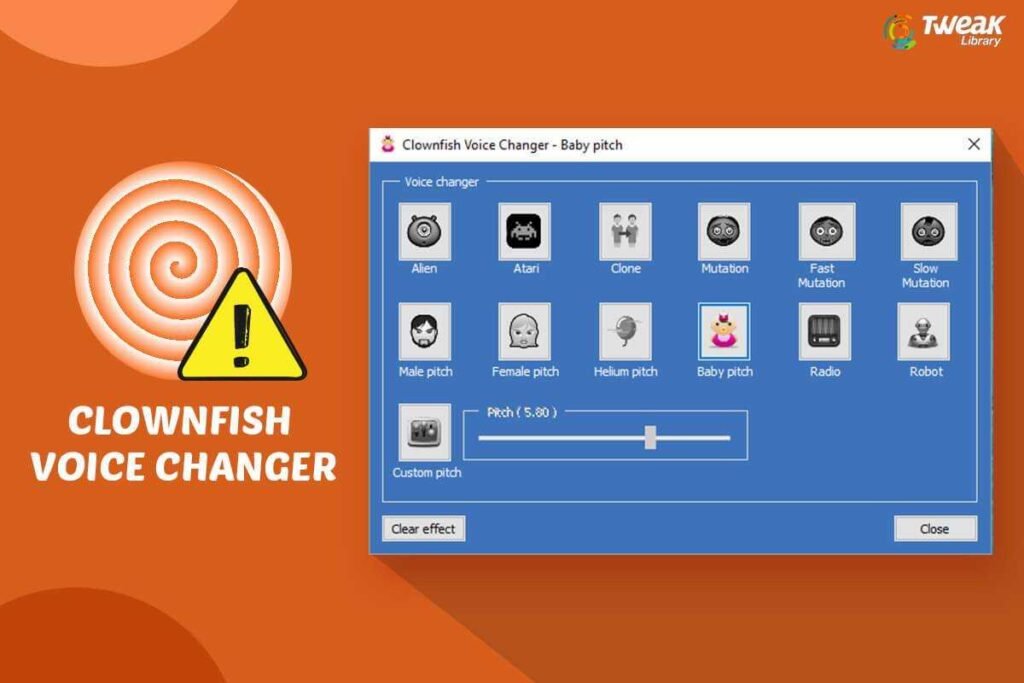
Clownfish Voice Changer boasts an impressive array of features designed for both utility and entertainment. It offers over 15 built-in voice effects, including classics like male-to-female, baby, robot, alien, and various pitch modifications. Beyond the presets, you can fine-tune the pitch for custom voices, allowing for truly unique and personalized sounds.

The software also includes a sound player and a music player, enabling you to add subtle background effects, ambient sounds, or even music to your audio stream. Imagine playing a suspenseful tune as you stalk an enemy, or a triumphant fanfare after a clutch kill! Its real-time processing capabilities ensure there’s virtually no noticeable delay between your speech and the modified output, making it perfect for dynamic live gaming sessions where split-second communication is vital.

Is Clownfish Voice Changer Safe and Legit for Gaming?

Clownfish Voice Changer is generally considered a legitimate audio modification tool. It functions as a system-level audio driver and is not designed to interfere with game mechanics or provide an unfair advantage in the way traditional cheats do. Therefore, using it should not inherently cause game bans.

However, it’s always wise to exercise caution and diligence. **Crucially, always download the software from its official website** to avoid potential malware, adware, or unwanted programs bundled with unofficial versions. While Clownfish itself claims not to store or transmit user data, some users express privacy concerns due to its deep access to your microphone and audio system. Always be mindful of any game’s specific terms of service (TOS) regarding voice manipulation. While casual use for fun is usually fine, using a voice changer to harass, impersonate, or mislead players in a malicious way could potentially violate community guidelines and lead to consequences. It’s about responsible usage.

The Crucial Bridge: How Clownfish (PC) Connects to PUBG Mobile


Here’s the essential trick: Clownfish Voice Changer is a Windows PC application. PUBG Mobile, as its name suggests, is a mobile game. To bridge this technological gap and use Clownfish with PUBG Mobile, you’ll need an intermediary setup. This usually involves running PUBG Mobile on your PC.

Option 1: Using an Android Emulator (Recommended for Most Users)

The most common, straightforward, and highly recommended method for most users is employing an Android emulator. Emulators like BlueStacks, GameLoop, or NoxPlayer allow your PC to mimic a complete Android environment. This enables you to download and run PUBG Mobile directly on your computer, just as you would on a phone or tablet.

Once PUBG Mobile is running within the emulator, you can seamlessly route your PC’s audio, which has been modified by Clownfish, through the emulator’s microphone input. GameLoop, for instance, is specifically optimized and designed for mobile games like PUBG Mobile on PC, often providing the smoothest experience. This setup is ideal for gamers who want an easy-to-configure and reliable solution.

Option 2: PC Audio Streaming/Routing (For Advanced Setups)

For more advanced users or content creators, it’s possible to route your PC’s modified audio directly to a physical mobile device. This often involves more complex setups utilizing virtual audio cables (like VB-Cable), dedicated streaming software, or even hardware mixers.

This method is generally more intricate to configure and troubleshoot, making it less suitable for casual players simply looking to enhance their in-game voice chat. It’s more common in professional content creation setups, where a streamer might want to apply real-time voice effects to their mobile gameplay stream while simultaneously capturing video and other audio elements. For example, a dedicated mobile streamer might use this to send their Clownfish-modified voice to their phone’s microphone input while also routing game audio to their streaming PC.

Step-by-Step Guide: Setting Up Clownfish Voice Changer for PUBG Mobile (via Emulator)


Let’s get you set up and ready to transform your voice in PUBG Mobile! Remember, we’re doing this via an Android emulator for the most reliable experience.

Phase 1: Installing and Configuring Clownfish Voice Changer on Your PC

  1. **Download Clownfish:** First, navigate to the official Clownfish Voice Changer website and download the installer. Always ensure you’re getting it from the legitimate source.
  2. **Install the Software:** Run the downloaded installer and follow the simple on-screen prompts. Once installed, you’ll typically see a friendly fish icon appear in your system tray (usually in the bottom-right corner of your screen).
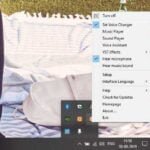
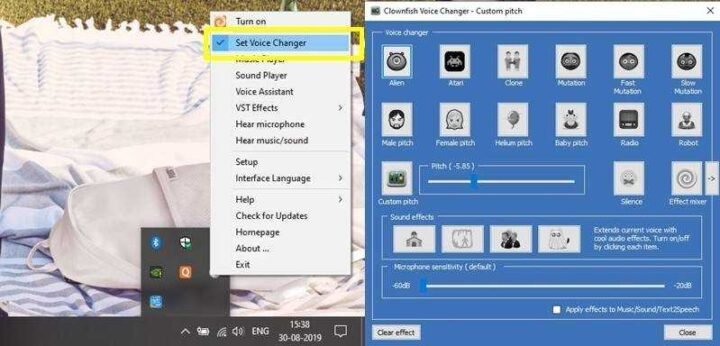
  3. **Select Your Voice Effect:** Right-click the Clownfish icon in your system tray. From the context menu, select “Set Voice Changer.” Here, you can choose your desired voice effect from the extensive list of presets (e.g., “Male Pitch,” “Baby Pitch,” “Alien”). You can also select “Custom Pitch” to fine-tune sliders and create a truly unique sound.
  4. **Test Your Voice:** To hear your altered voice, right-click the Clownfish icon again and select “Hear microphone.” This allows you to listen to your modified voice through your headphones, ensuring it sounds exactly how you want it. Once you’re satisfied with the effect, **remember to turn off “Hear microphone”** before gaming to prevent annoying echoes or feedback loops for yourself and your teammates.
  5. **Integrate with Your Microphone:** Next, you need to ensure Clownfish is properly integrated with your primary microphone. Right-click the Clownfish icon, go to “Setup,” then “System Integration.” Select your primary microphone from the list (e.g., “Microphone (Realtek High Definition Audio)”) and click “Install.” This step is crucial for Clownfish to intercept and modify your microphone’s audio stream.

Phase 2: Setting Up Your Android Emulator for Audio Input

  1. **Install an Emulator:** If you haven’t already, install a popular Android emulator like BlueStacks, GameLoop, or NoxPlayer on your PC. Follow their respective installation guides.
  2. **Launch and Configure Emulator Audio:** After installation, launch your chosen emulator. Navigate to the emulator’s internal settings (often represented by a gear icon). Look for “Audio” or “Sound” settings.
  3. **Set Microphone Input:** Configure the audio input device within the emulator to use your PC’s default microphone. This is the microphone that Clownfish is actively modifying. The emulator will now pick up your voice *after* it’s been processed by Clownfish. For example, in GameLoop, you’d typically find this under “Engine Settings” or “Audio Settings” and ensure your system’s default microphone is selected.

Phase 3: Integrating with PUBG Mobile In-Game Settings

  1. **Launch PUBG Mobile:** Start PUBG Mobile within your emulator.
  2. **Adjust In-Game Audio:** Once in the game, go to the in-game settings (usually found via a gear icon in the lobby). Find the “Audio” or “Voice Chat” section.
  3. **Verify Microphone Input:** Ensure your microphone input is set correctly. It should usually default to the emulator’s audio input, which is now receiving your Clownfish-modified voice.
  4. **Test Your New Voice:** Before jumping into a serious match, head to the training ground or invite a friend to a custom room. Test your new voice to ensure everything is working perfectly and your teammates can hear you clearly. I remember the first time I tested my “robot voice” in the training grounds – it was a blast, and I knew I was ready for some in-game fun!

Optimizing Your Voice: Tips for the Best Clownfish Experience in PUBG Mobile


Getting your voice changer set up is just the beginning. Fine-tuning your audio can make a huge difference in both clarity and comedic effect.

Microphone Matters: Choosing and Calibrating Your Hardware

A good quality microphone is absolutely essential for clear voice modification. Even with Clownfish’s powerful effects, a poor microphone will yield poor, muffled, or noisy results. Consider using a dedicated gaming headset with a decent mic or even a standalone USB microphone for superior clarity.

Experiment with microphone placement to reduce background noise – keeping it a few inches from your mouth, slightly to the side, often works best. Adjust your microphone’s gain settings within Windows sound settings (Right-click speaker icon > Sounds > Recording tab > Microphone Properties > Levels). This prevents your voice from being either too loud (leading to distortion) or too quiet (making effects less noticeable). Many modern gaming headsets also offer built-in noise suppression features, which can significantly clean up your audio before Clownfish even processes it.

Fine-Tuning Clownfish Effects: Custom Pitch and Presets

Don’t just stick to the default effects; dive deeper! Explore the “Custom Pitch” settings in Clownfish. Adjust the sliders to create truly unique and hilarious voices that aren’t available as presets. For pranks, effects like “Baby Pitch,” “Female Pitch,” or “Alien” are often very effective due to their distinct and unexpected qualities. Try different combinations and subtle adjustments to find what works best for your specific prank or role-playing scenario. A slight tweak in pitch can turn a generic voice into something truly memorable.

Balancing Fun and Clarity: When Less is More

While voice effects are incredibly fun, remember your primary goal in PUBG Mobile, especially in competitive matches: clear communication with your squad is vital for victory. Avoid overly distorted or garbled effects that make your voice incomprehensible. There’s nothing more frustrating than trying to give a crucial callout only for your teammates to hear an indistinguishable alien screech!

Use voice effects strategically – perhaps for specific, non-critical callouts, during moments of downtime, or when engaging in lighthearted banter. You want to enhance, not hinder, your team’s coordination. For example, using a deep voice for a “push now!” command might be effective, but a heavily modulated robot voice for “enemy behind the rock, 240 degrees!” could lead to confusion. Balance the entertainment with the necessity of clear teamwork.

Troubleshooting Common Issues with Clownfish and PUBG Mobile


Even with careful setup, you might encounter a few bumps along the road. Here are solutions to common problems to get you back to transforming your voice.

My Voice Isn’t Changing / No Sound in Game

This is the most frequent issue. Here’s a checklist:

  1. **Clownfish Active?** First, ensure Clownfish’s “Set Voice Changer” is active (the chosen effect should be highlighted).
  2. **Windows Default Device:** Check your Windows default recording device. Right-click the speaker icon in your system tray, select “Sounds,” then go to the “Recording” tab. Make sure your primary microphone is set as the default, and that Clownfish is integrated with *that specific microphone*.
  3. **Emulator Audio Input:** Verify the emulator’s audio input settings. Ensure it’s configured to use your PC’s default microphone, which Clownfish is modifying.
  4. **PUBG Mobile In-Game Settings:** Finally, check your PUBG Mobile in-game mic settings to confirm they are detecting the modified input from the emulator.
  5. **Restart:** Sometimes, a simple restart of Clownfish, then the emulator, and finally PUBG Mobile can magically resolve these issues. I once spent an hour troubleshooting only to realize a quick restart fixed everything!

Experiencing Echo or Lag

  1. **Echoes:** Echoes usually occur if “Hear microphone” is enabled in Clownfish while you’re using speakers. **Turn off “Hear microphone”** if you’re not using headphones. If you are using a headset, ensure sound isn’t leaking from your headphones back into your mic (check for loose earcups or high volume).
  2. **Lag:** Voice lag can be due to system resources. Close unnecessary background applications and browser tabs to free up RAM and CPU. A stable, low-latency internet connection is also crucial for smooth voice chat in any online game. Ensure your emulator isn’t consuming excessive resources.

Clownfish Not Detecting My Microphone

  1. **Driver Updates:** Verify your microphone drivers are up to date. Outdated audio drivers are a common culprit for detection issues. You can usually find these in your device manager.
  2. **Windows Privacy Settings:** Check Windows privacy settings to ensure applications have permission to access your microphone. Go to `Settings > Privacy > Microphone` and ensure “Allow apps to access your microphone” is enabled, and Clownfish (or related audio services) has permission.
  3. **Reinstall Integration:** Reinstalling Clownfish’s system integration for your microphone (as described in Phase 1, Step 5) can often resolve detection problems.

Emulator-Specific Audio Problems

If other applications on your PC work fine with Clownfish but the emulator doesn’t, the issue likely lies within the emulator itself:

  1. **Emulator Audio Drivers:** Check the emulator’s specific audio drivers or settings. Some emulators have their own virtual audio devices.
  2. **Restart Emulator:** Try restarting the emulator completely.
  3. **Update Emulator:** Ensure the emulator software itself is updated to the latest version. Developers frequently release updates that fix audio bugs and improve compatibility.
  4. **Advanced Settings:** Sometimes, adjusting the audio input/output within the emulator’s advanced settings (e.g., switching between DirectX and WaveOut audio modes) can resolve conflicts.

Ethical Considerations: Using Voice Changers Responsibly


With great power comes great responsibility. Voice changers are powerful tools that can significantly alter online interactions, and they should always be used thoughtfully and respectfully.

The Line Between Fun and Harassment

Always use voice changers for entertainment, creative expression, and positive interactions. Never, under any circumstances, use them for bullying, harassment, hate speech, or impersonation that could cause distress, fear, or confusion with malicious intent. Respecting other players and fostering a positive gaming environment is paramount. The goal is to enhance the gaming experience for everyone involved, not to create a toxic or negative space. A good rule of thumb: if you wouldn’t say it or do it with your normal voice, don’t do it with a modified voice.

Respecting Terms of Service

While voice changers are generally considered harmless modifications, be aware of specific game or platform rules. Most games, including PUBG Mobile, have strict terms of service (TOS) and community guidelines regarding player conduct and communication. While using a voice changer for lighthearted fun is typically acceptable, using it to intentionally mislead, disrupt, or engage in abusive behavior could lead to warnings, temporary suspensions, or even permanent bans from the game or platform. Always ensure your usage aligns with these guidelines to protect your account and maintain a fair play environment.

Beyond Clownfish: Other Voice Changer Options for Gamers (Briefly)


Clownfish is a fantastic free option, but the world of voice modification is vast, offering various features and price points.

PC Alternatives: VoiceMod, MorphVOX, and More

Several other excellent PC voice changers exist, catering to different needs:

  • **VoiceMod:** Extremely popular for its extensive soundboard, wide range of high-quality effects, and seamless integration with streaming software (like OBS Studio and Streamlabs Desktop). VoiceMod often comes with a free tier and a premium subscription for more features.
  • **MorphVOX Pro:** Offers high-quality audio, advanced customization, and sophisticated background noise cancellation, making it ideal for both casual and professional use. It focuses on natural-sounding voice transformations.
  • **UnicTool MagicVox & Voxal Voice Changer:** These are other notable options that provide a good selection of effects and customization features, often with free trials or tiered pricing.

Mobile-Native Voice Changer Apps (for Direct Phone Use)

While Clownfish requires a PC setup, there are apps designed for direct phone use, allowing you to modify your voice without an emulator:

  • **Limitations:** These apps often offer less real-time capability, lower audio quality, or fewer advanced features compared to PC-based solutions. Many are “recorder” apps rather than real-time modifiers.
  • **Examples:** Apps like “Voice Changer for Gaming” (availability and real-time functionality vary), ABox Voice Changer-Real Time, or various “Voice Changer with Effects” apps can be found on app stores. While convenient for quick, on-the-go modifications, always check reviews for real-time performance and quality before relying on them for competitive gaming.

Frequently Asked Questions (FAQs)

Can I use Clownfish Voice Changer directly on my mobile phone for PUBG Mobile?

No, Clownfish Voice Changer is a Windows PC application. To use it with PUBG Mobile, you need to run PUBG Mobile on your PC via an Android emulator or utilize a more advanced PC audio streaming setup.

Is Clownfish Voice Changer free to use?

Yes, Clownfish Voice Changer is completely free to download and use, making it an excellent budget-friendly option for voice modification.

Will using a voice changer get me banned in PUBG Mobile?

Generally, no, as Clownfish is not considered a cheat and doesn’t interfere with game mechanics. However, it’s crucial to use it responsibly. Misuse for harassment, bullying, or violating PUBG Mobile’s specific terms of service regarding player conduct can lead to consequences, including temporary or permanent bans. Always play fair and be respectful.

What are the best voice effects for pranking in PUBG Mobile?

For comedic pranks, the “Baby Pitch,” “Female Pitch,” and “Alien” effects are often popular choices due to their distinct and unexpected sounds. Experimenting with the custom pitch option allows for truly unique and hilarious results, letting you craft the perfect voice for your in-game antics!

Conclusion: Transform Your Voice, Transform Your Game

Recap: Your Journey to Voice Mastery

You’ve now explored the ins and outs of using Clownfish Voice Changer with PUBG Mobile. From the initial installation and configuration via an Android emulator to optimizing your voice effects, troubleshooting common issues, and understanding the ethical responsibilities, you are now fully equipped to enhance your gaming experience. This comprehensive guide aims to make real-time voice modification accessible, fun, and strategically valuable for every PUBG Mobile player.

Share Your Voice: What’s Your Favorite Effect?

I encourage you to download Clownfish Voice Changer, experiment with its diverse effects, and discover how it can add a new layer of strategy or humor to your PUBG Mobile sessions. What’s your go-to voice effect for a clutch play that turns the tide, or a hilarious prank that leaves your squad in stitches? Share your experiences and favorite voice effects in the comments below – let’s hear your unique voice!

Summary


This ultimate guide provides a comprehensive, E-E-A-T-driven walkthrough on how to effectively use Clownfish Voice Changer for PUBG Mobile. It details the essential steps for installation and configuration on a Windows PC, leveraging popular Android emulators like BlueStacks and GameLoop to bridge the PC-mobile gap. The article covers setting up emulator audio input, integrating with in-game PUBG Mobile settings, and offers crucial tips for optimizing voice quality through microphone calibration and fine-tuning Clownfish effects. It also provides actionable troubleshooting solutions for common issues such as voice not changing, echoes, lag, and detection problems. Emphasizing responsible usage, the guide thoroughly discusses the ethical considerations of voice modification, distinguishing between fun and harassment, and respecting game terms of service. Finally, it briefly explores alternative voice changer options for both PC and mobile, ensuring readers have a holistic understanding of real-time voice transformation in gaming.

Leave a Comment

Scroll to Top