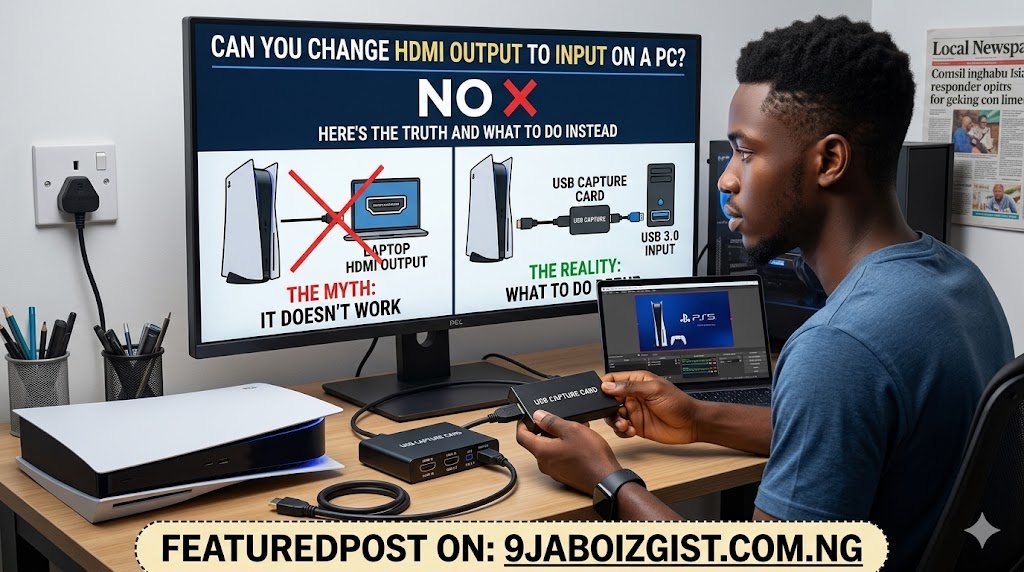
You’ve got a gaming console, another laptop, or a streaming device and you want to see it on your PC monitor or use your powerful PC screen as a display. You found the HDMI port on the back of your computer, plugged in the cable, and nothing happened. So now you’re searching for how to switch that HDMI port from output to input mode.
Here’s the honest answer: you can’t. Not directly. And understanding why will save you a lot of wasted time.
But here’s the better news: what you’re actually trying to do is completely achievable. You just need to go about it the right way. This guide explains exactly what’s happening with your HDMI ports, why the switch you’re looking for doesn’t exist, and every practical method for getting another device’s screen onto your PC display or into your PC software.
Why You Cannot Change HDMI Output to Input on a PC
This is the part most guides skip over or explain badly, so let’s be clear about it.
The HDMI port on your desktop or laptop is hardwired to output signal only. It is not a question of settings or software. The port is physically designed at the hardware level to send video and audio out from your PC to a display. It cannot receive an incoming signal from another device. There is no setting in Windows, no driver update, no registry tweak, and no software patch that changes this. The port simply does not have the circuitry needed to accept input.
Think of it like a one-way valve. Water flows through in one direction only. Pointing the other end of the hose at it and expecting it to reverse is not a plumbing fix you can find in a settings menu.
The reason people believe this might be possible is usually because some devices do have HDMI ports that work both ways. Certain laptops with Thunderbolt ports, some high-end capture-focused machines, and specialized hardware occasionally support HDMI input. But these are intentional hardware design choices, not the result of changing a setting. Standard desktop and laptop HDMI ports are output only, full stop.
Now let’s talk about what you’re actually trying to accomplish and how to get there.
What You’re Probably Trying to Do and Which Solution Fits
Before jumping into methods, it helps to identify which scenario applies to you since the right fix depends entirely on your goal.
If you want to display a gaming console, Blu-ray player, or streaming stick on your PC monitor, you need a monitor with a built-in HDMI input port, not the PC itself.
If you want to capture gameplay from a console onto your PC for recording or streaming, you need a capture card.
If you want to display another laptop or phone’s screen on your PC, you have options through wireless display, capture cards, or specific software depending on the devices involved.
If you want to use your PC monitor as a second display for another computer, the monitor’s own HDMI input is what you want, not the PC’s.
Keep your specific goal in mind as you read through the options below.
Use Your Monitor’s HDMI Input Port, Not the PC’s
This is the solution that most people need and don’t realize they already have access to. Your PC monitor almost certainly has its own HDMI input port, completely separate from the HDMI port on your computer. These are two completely different things.
The HDMI port on your PC sends video to the monitor. The HDMI port on the monitor receives that signal. But the monitor’s HDMI input can receive signals from any device, not just your PC. Plug a console, a Fire Stick, a laptop, or any HDMI-out device directly into the monitor’s HDMI port and then use the monitor’s input selection button to switch sources.
Look at the physical ports on the back or bottom edge of your monitor. If you see one or more HDMI ports there, those are inputs. You can plug your console or other device directly into one of them. Then press the input or source button on the monitor itself (usually a physical button on the bezel or the underside) and cycle through to the new input source. Most monitors display an on-screen menu for this.
This works entirely independently of your PC. Your PC can be on, off, or running something else entirely. The monitor handles multiple inputs just like a television does.
If your monitor has only one HDMI port currently used by your PC, an HDMI switch lets you connect multiple devices to that single port and select between them with a button press. These are inexpensive and widely available.
Use a Capture Card to Get External Video Into Your PC
If your goal is to bring video from another device into your PC, specifically to record it, stream it, or display it within software, a capture card is the correct tool for this.
A capture card is a piece of hardware that connects between your source device (like a PlayStation, Xbox, Nintendo Switch, or camera) and your PC. The source device’s HDMI cable plugs into the capture card’s HDMI input. The capture card then connects to your PC via USB or PCIe and makes that video signal available inside your computer as a video source.
External USB capture cards are the most accessible option. The Elgato HD60 X, AVerMedia Live Gamer Portable, and Razer Ripsaw are among the most popular in 2026, and they work on both Windows and macOS. You plug your console’s HDMI cable into the capture card’s input, connect the card to your PC via USB, and install the accompanying software. The video feed from your console now appears inside that software and in any streaming or recording application like OBS Studio.
Internal PCIe capture cards sit inside your desktop PC and offer lower latency and often higher quality throughput than USB options. AVerMedia’s Live Gamer 4K and Elgato’s 4K60 Pro MK.2 are well-regarded choices for desktop setups where you want to capture at high resolutions without USB bandwidth limitations.
Most capture cards also have a pass-through HDMI output port so you can simultaneously display the console on your monitor at full quality while the capture card sends a copy of that signal to your PC. This means no lag on your monitor while you record or stream.
Set Up a Wireless Display Connection Between Devices
If you want to display another laptop’s or phone’s screen on your PC without cables and without a capture card, wireless display technology is a practical solution, particularly for productivity and presentation purposes.
Windows 11 has a built-in Wireless Display feature that lets your PC receive screen casts from other Windows devices, Android phones, and some other Miracast-compatible devices. To enable it, go to Settings, then System, then Projecting to This PC. Set it to Available Everywhere or Available Everywhere on Secure Networks depending on your preference. Set Require PIN for Pairing based on your security needs.
Once enabled, other devices on the same Wi-Fi network can cast their screen to your PC. On another Windows device, press Windows + K to open the Cast panel and look for your PC in the list. On Android, use Screen Cast or Wireless Display in the quick settings. Your PC’s screen will display the other device’s output inside a Wireless Display window.
This is not the same as plugging in an HDMI cable. There is some latency involved, which makes it unsuitable for gaming but perfectly acceptable for presentations, video calls, or sharing content between devices. For low-latency wired-quality performance, a capture card remains the better option.
Use NDI, Spacedesk, or Remote Desktop for PC-to-PC Display Sharing
If the second device is another computer and you want its display to appear on your main PC either as a window or as an extended display, dedicated software provides several approaches depending on your needs.
Spacedesk is a free application that turns your PC into a secondary display for another Windows computer over a local network. Install the Spacedesk server on your main PC and the driver on the second PC. The second PC then sees your main PC as an available additional monitor and can extend or mirror its display to it. This is completely wireless and requires no additional hardware beyond your existing network connection.
Remote Desktop, built directly into Windows 11 Pro, lets you control another PC remotely and see its full desktop in a window on your main machine. Press Windows + R, type mstsc, and connect to the remote PC’s IP address. While this shows the remote desktop rather than mirroring it visually, it’s practical for accessing another machine’s content and files.
For content creators using multiple cameras and sources in live production, NewTek NDI (Network Device Interface) allows high-quality video to travel over a local network between devices. OBS Studio supports NDI through a plugin, meaning you can receive video from another computer on your network as a source in your streaming or recording setup without any capture card hardware.
How to Display a Phone Screen on Your PC
If the device you want to display is your Android phone or iPhone, the method depends on which platform you’re on and what you want to do with the screen.
For Android phones on Windows 11, the Phone Link app from Microsoft provides the most seamless experience. Search for Phone Link in the Start menu or download it from the Microsoft Store. Connect your Android phone through the setup process using your Microsoft account. Once linked, you can see your phone’s screen mirrored in a window on your PC, respond to messages, make calls, and access phone apps directly from your computer.
Samsung Galaxy users get an enhanced version of this through Link to Windows, which is integrated directly into One UI and supports full app streaming with lower latency than standard Phone Link.
For iPhones on Mac, AirPlay lets you mirror your iPhone or iPad screen directly to your Mac’s display from the Control Center on the iPhone. On Windows, third-party apps like LonelyScreen or Reflector create an AirPlay receiver on your PC that iPhones can cast to, though these are paid tools.
For a wired connection without any software setup, a Lightning to HDMI or USB-C to HDMI adapter from your phone to a capture card or to the monitor’s direct HDMI input achieves the same result with zero latency and no software dependency.
Thunderbolt and USB-C: When Laptops Can Accept Video Input
Here is a nuance worth knowing. Some high-end laptops, particularly those with Thunderbolt 3 or Thunderbolt 4 ports, can accept video input through those ports under specific conditions. This is not universal and does not apply to standard USB-C ports. It requires the laptop’s hardware to explicitly support Thunderbolt alternate mode video input, which only a small number of models do.
If your laptop has Thunderbolt ports and you want to know whether your specific model supports video input through them, check the manufacturer’s official spec sheet. Look for mentions of “Thunderbolt video input” or “DisplayPort input via Thunderbolt.” Models from certain generations of Apple MacBook and specific Dell and HP professional laptops occasionally support this, but it’s the exception rather than the rule.
Even when Thunderbolt video input is supported, it typically works for connecting to another computer in Target Display Mode rather than for general HDMI input from any source.
For the vast majority of laptops, even those with Thunderbolt ports, the correct solution remains a capture card or using the monitor’s own HDMI input as described earlier.
Setting Up OBS Studio to Display Capture Card Input on Your PC Screen
For anyone using a capture card and wanting a step-by-step guide to actually seeing the external device’s video on their PC screen, here’s how to do it in OBS Studio, which is free and widely supported in 2026.
Download OBS Studio from obsproject.com and install it. Open OBS and in the Sources panel at the bottom, click the plus button and select Video Capture Device. Give it a name, click OK, and in the dropdown menu for Device, select your capture card from the list. It will appear with the capture card’s brand name or model number.
Click OK and the video feed from your external device should appear in the OBS preview window. To make this your full screen view rather than just a preview within OBS, go to View and select Fullscreen Projector, then choose your monitor. This displays the capture card feed full screen while OBS continues running in the background.
For recording, click Start Recording in OBS. For streaming to platforms like Twitch or YouTube, set up your stream key in Settings under Stream, then click Start Streaming. The capture card feed becomes your primary video source for everything.
This setup is the same fundamental workflow used by professional streamers and content creators, and it works equally well for casual use like recording console gameplay for personal archives.
Avoiding Common Mistakes When Trying to Use External Video Sources
A few errors come up repeatedly that are worth knowing about before you start connecting hardware.
Plugging an HDMI cable from another device into your PC’s HDMI port and expecting it to work is the main one this entire article addresses. It won’t work. The port outputs only.
Using a passive HDMI switch that isn’t powered can cause signal quality issues and dropped connections. Powered HDMI switches and splitters are more reliable, especially at 4K resolutions.
Assuming USB-C equals video input is another common mistake. Not every USB-C port supports video at all, and those that do output video rather than accept it unless the device explicitly supports Thunderbolt video input as described above.
Buying a cheap unbranded capture card and expecting reliable results is frequently disappointing. Budget capture cards often have compatibility issues with newer consoles, HDCP-protected content from streaming devices, and high-refresh-rate signals. Sticking to established brands like Elgato, AVerMedia, or Magewell saves frustration.
Speaking of hardware working the way you expect it to, if your laptop has been having other connectivity issues like Bluetooth that keeps dropping, that’s a separate but equally fixable problem covered in detail in this guide on how to fix Bluetooth that keeps disconnecting from your laptop every few minutes.
Frequently Asked Questions
Can I change the HDMI port on my laptop from output to input through settings?
No. HDMI ports on laptops are output-only at the hardware level. No setting in Windows, no driver, and no software can change this. The hardware simply doesn’t have the circuitry to receive incoming video. To display another device’s signal on your laptop screen, you would need a capture card connected via USB, or you could use wireless display software like Miracast or Phone Link depending on what device you’re connecting.
Why does my TV have HDMI input but my PC doesn’t?
Televisions are designed to receive content from multiple sources, so they are built with HDMI input ports. PCs are designed to output video to a display, so their HDMI ports are built to send signal out. These are fundamentally different use cases reflected in the hardware design. Your monitor’s HDMI ports are inputs, just like a TV, which is why you can plug multiple source devices into a monitor and switch between them.
Can I use my laptop as a monitor for another computer?
In most cases, no, not through an HDMI cable. The laptop’s HDMI port is an output. However, you can use software solutions like Spacedesk to make your laptop screen act as a secondary display for another Windows PC over Wi-Fi. Some older laptops had an HDMI-in port for this purpose, but this feature was discontinued on virtually all consumer laptops.
What is the cheapest way to display a console on my PC screen?
If your PC monitor has its own HDMI input port (most do), you can plug the console directly into the monitor’s HDMI port for free. Just use the monitor’s input selection button to switch sources. This costs nothing if your monitor already has an available HDMI input. If you need to capture the gameplay into your PC for recording, an entry-level USB capture card is the most affordable hardware solution.
Do capture cards work with PS5 and Xbox Series X?
Most modern capture cards work with PS5 and Xbox Series X, but with an important limitation. Both consoles use HDCP (High-bandwidth Digital Content Protection) on their HDMI output by default, which blocks capture cards from recording the signal. You need to disable HDCP in the console’s settings before a capture card can receive the video signal. On PS5, this is under Settings, then System, then HDMI, then Enable HDCP, which should be turned off. On Xbox, this is under Settings, then General, then TV and Display Options, then Allow 4K, where you can also manage HDCP settings.
Can I display my phone screen on my PC without any apps or cables?
Without any apps, it’s not straightforward. Windows 11’s built-in Wireless Display feature requires the Phone Link or a Miracast-compatible connection from the phone, which technically involves apps or built-in OS features on the phone side. The most app-free approach is to use a USB-C or Lightning to HDMI adapter to connect your phone to your monitor’s HDMI input directly with a cable, which requires no software at all.
Will using a capture card add lag to my gaming?
It can, depending on the capture card and how you’re using it. Most mid-range and higher capture cards include a pass-through HDMI output that sends the original signal to your monitor with no added latency while simultaneously sending a copy to your PC for recording. You play on the monitor via pass-through and record on your PC simultaneously with zero gameplay lag. Entry-level cards without pass-through will add latency if you’re gaming from within the capture card’s software preview.
Is there a way to share my second computer’s screen on my main PC wirelessly?
Yes. Spacedesk is a free app that lets a second Windows PC extend or mirror its display to your main PC over a local Wi-Fi network. Microsoft’s built-in Wireless Display feature also allows Windows devices to cast to your PC. Both options involve some latency and work best on a fast, uncongested local network. For presentations and productivity tasks the latency is acceptable. For gaming or video with frame-perfect timing, a wired solution is more reliable.
My monitor has only one HDMI port currently used by my PC. How do I connect a second device?
Use an HDMI switch. This is a small box with multiple HDMI inputs and one HDMI output. You plug your PC into one input, your console or other device into a second input, and the single output goes to your monitor. A button on the switch (or a remote) lets you toggle between which input the monitor sees. Powered HDMI switches handle 4K and HDR signals more reliably than passive unpowered ones.
Can I stream video from a camera into my PC for video calls using a capture card?
Yes, this is one of the most popular uses for capture cards in 2026. Connect your camera’s HDMI output to the capture card, and the capture card appears as a webcam source in video calling apps like Zoom, Teams, and Google Meet. This lets you use a dedicated camera with significantly better image quality than a built-in webcam. Many mirrorless cameras and DSLRs support clean HDMI output specifically for this purpose.
The Bottom Line
Changing HDMI output to input on a PC is not a real option because PC HDMI ports are output-only at the hardware level. No setting changes that. But everything you’re actually trying to accomplish, displaying another device on your monitor, recording console gameplay, sharing a phone screen, using a second computer’s display, all of it is completely doable through the right approach.
Most people simply need to plug their device into the monitor’s own HDMI input port rather than the PC’s HDMI port. That single clarification solves the problem for the majority of cases. For capturing external video into your PC for recording or streaming, a USB capture card is the direct and reliable solution. And for screen sharing between computers and phones, software options like Spacedesk, Phone Link, and Wireless Display cover the remaining scenarios without any additional hardware.
Understanding your hardware correctly saves hours of troubleshooting the wrong problem. For other hardware-level mysteries that turn out to have clear explanations and practical fixes, the guide on why your laptop goes to a black screen before Windows 11 finishes loading follows the same principle: once you know what’s actually happening, the path to fixing it becomes straightforward.