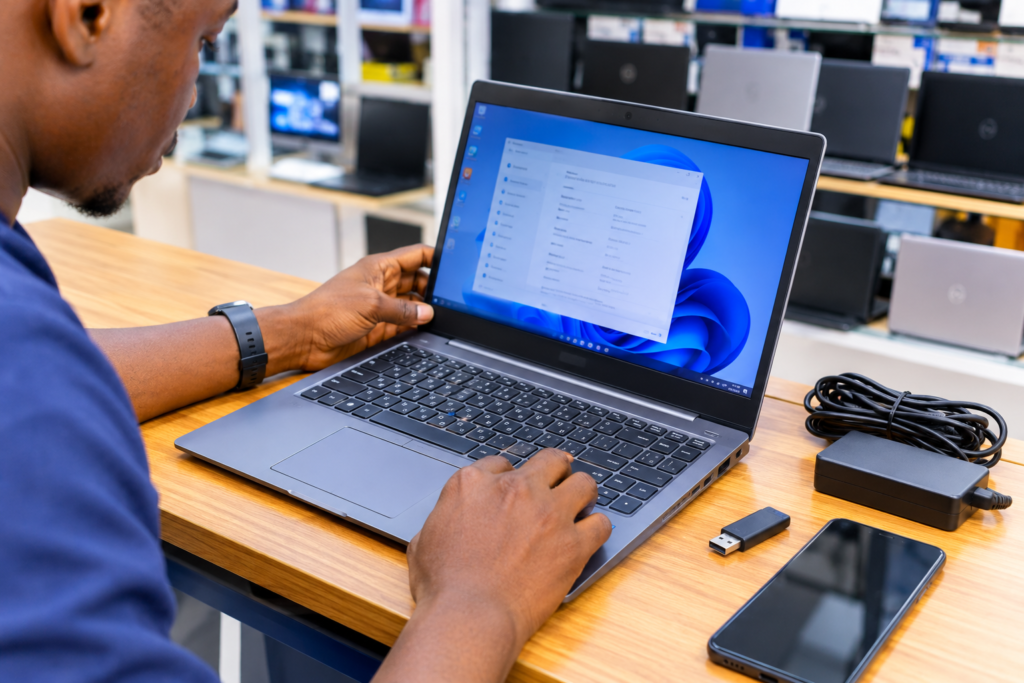
Buying a UK-used laptop can be a sensible way to get a business-class computer without paying the price of a new one. The problem is that two laptops with the same model name can be in very different condition. One may have a healthy battery and a clean screen. Another may have a weak battery, a damaged charging port or a hidden lock that makes it difficult to use.
Before you pay in a laptop shop, at Computer Village, or to an online seller, inspect the exact unit you will take home. Do not rely only on the seller’s word, a clean casing or a Windows desktop that opens normally.
This checklist covers 15 practical checks for common UK-used HP, Dell and Lenovo laptops, with a separate note for MacBooks. A first-pass inspection may take about 20 to 30 minutes, but a full battery report, manufacturer diagnostics or a clean Windows setup can take longer. Do not skip an important check just to meet a time target.
Quick answer: Confirm the exact specifications, test the battery and charger, inspect the screen and body, test the keyboard and ports, check storage health, verify Windows 11 compatibility and activation, look for BIOS or organisation locks, and get the serial number, receipt and warranty terms in writing. If the seller will not let you test the laptop, do not rush into payment.
Before you visit the seller
Prepare a small inspection kit. You do not need expensive tools.
- Your phone, with mobile data or hotspot enabled.
- A USB flash drive containing a few files, if possible.
- Wired earphones, or Bluetooth earphones, to test audio.
- A small torch for checking ports, hinges and the casing.
- A written list of the specifications you want and the maximum amount you can spend.
Allow enough time to test the actual laptop. If you are buying online, ask the seller to send a fresh video showing the serial number, system information, battery report and the main functions. A video is useful, but it does not replace testing the laptop yourself when it arrives.
15 things to check before buying a UK-used laptop

1. Confirm the exact model and processor
Do not stop at labels such as Core i5, Core i7 or Ryzen 5. These names cover many processor generations and performance levels. Ask for the full processor number, such as Intel Core i5-8350U, and confirm it in Windows.
Press Windows + R, type msinfo32 and press Enter. Check the System Model and Processor fields. You can also open Settings, then System, then About. Compare what you see with the seller’s listing.
Check the exact model on the manufacturer’s support website. This helps you confirm the original configuration, ports, supported memory and available drivers. For a model-specific example, our Lenovo ThinkPad T480 buying and price guide explains why different T480 configurations should not be treated as identical.
2. Check RAM and upgrade options
For ordinary browsing, documents and online classes, 8GB RAM is a practical starting point. If you regularly keep many browser tabs open, use design tools, code editors or several applications at once, 16GB is a more comfortable target.
Press Ctrl + Shift + Esc to open Task Manager. Select Performance, then Memory. Check the installed amount and, where Windows displays it, the number of slots used. Some laptops have soldered memory, so you may not be able to upgrade it later. Confirm upgrade options for the exact model before paying extra for a machine you expect to expand.
3. Confirm that it has an SSD and check its health
An SSD usually makes Windows start and applications open faster than an older mechanical hard drive. In Task Manager, open Performance and select the disk to see whether Windows identifies it as an SSD or HDD.
Check the capacity too. A 256GB SSD may be enough for basic work, while 512GB gives you more room for software and files. Do not assume the drive is healthy because Windows opens. Ask to run the manufacturer’s storage diagnostic or a trusted drive-health tool, and look for warnings or errors. If the seller refuses every form of inspection, treat that as a warning.
4. Generate a battery report
A seller may say the battery is strong, but you need more than a verbal estimate. On a Windows laptop, open Command Prompt and run:
powercfg /batteryreportWindows saves an HTML report and shows its location. Open the report and compare Design Capacity with Full Charge Capacity. The second figure estimates how much charge the battery can currently hold compared with its original design capacity.
For example, if the design capacity is 50,000 mWh and the full-charge capacity is 30,000 mWh, the reported full-charge capacity is about 60% of design. This is a useful indication of wear, not a guaranteed prediction of how many hours the laptop will run. Your workload, screen brightness, battery calibration and power settings also affect runtime.
Unplug the charger and use the laptop for several minutes. Watch for sudden drops, unexpected shutdowns, swelling or a battery warning. Microsoft also documents this built-in report in its Windows battery-care and battery-report instructions. If the model has more than one battery, check each one separately where the system reports them. Dell also provides built-in battery checks through BIOS and pre-boot diagnostics; see Dell’s battery-health instructions. HP users can run the battery test in HP PC Hardware Diagnostics.
5. Inspect the screen carefully
Open a plain white page, a dark page and a few different colours. Look for dead pixels, bright spots, dark patches, flickering, lines, uneven brightness and pressure marks. Move the lid slowly and check whether the picture cuts out or changes.
Confirm the screen resolution in Settings, then System, then Display. A seller may advertise a Full HD laptop even when the exact unit has a lower-resolution panel. Also check whether the screen is touch-enabled if that feature matters to you. Do not pay extra for a touchscreen until you have tested it.
6. Test every keyboard key and the touchpad
Open Notepad and type every letter, number and symbol. Test Shift, Ctrl, Alt, Enter, Backspace, the arrow keys and the function keys. Check the touchpad for smooth movement, clicking, scrolling and multi-finger gestures where supported.
Pay attention to the keyboard layout. Some UK-used laptops have a UK keyboard, which may place the pound sign and other symbols differently from the layout you are used to. Check the physical keys, not just the language setting in Windows.
7. Test all USB ports, video ports and the card reader
Plug your flash drive into every USB port. If the laptop has HDMI, connect it to a monitor or television when possible. Check USB-C ports for data and charging functions if the model supports them. A USB-C-shaped port does not automatically support charging or video output.
Also inspect the audio jack, SD or microSD reader, Ethernet port and any other connection listed for that model. A port that looks fine from the outside may still be faulty. If you cannot test a particular port, ask the seller to state that clearly on the receipt or warranty agreement.
8. Check the charger and charging port
Use the charger supplied with the laptop and confirm that Windows shows it is charging. Gently check whether the connection is stable. Do not force a loose connector or keep using a charger that becomes unusually hot, makes a buzzing sound or has damaged insulation.
Check the charger’s voltage, wattage and connector against the manufacturer’s requirements for that exact model. A low-wattage replacement may charge slowly or fail to keep up while the laptop is under load. If the original charger is missing, include the cost of a suitable replacement in your budget.
9. Test the webcam, microphone, speakers and Wi-Fi
Open the Camera app and confirm that the webcam produces a clear picture. Record a short voice clip or use the Windows sound recorder to test the microphone. Play audio through the speakers and your earphones. Connect to the seller’s Wi-Fi or your phone’s hotspot and open a few websites.
Check Bluetooth too if you plan to use wireless earphones, a mouse or other accessories. A laptop can look perfect and still have a faulty webcam, weak Wi-Fi antenna or damaged speaker.
10. Inspect the body, hinges, screws and signs of liquid damage
Look closely at the corners, base, palm rest and screen frame. Check for cracks, dents, gaps, missing screws, loose hinges and a lid that does not close properly. Open and close the screen several times. It should move smoothly without creaking badly or separating from the body.
Look for corrosion around ports, sticky keys, unusual stains and signs that liquid may have entered the machine. A few scratches are normal on a used laptop. A cracked hinge, bent frame or corrosion is more serious because repairs may involve more than the outer casing.
11. Check heat, fan noise and performance under light load
Turn the laptop on and use it for several minutes. Open a few browser tabs and play a video. Listen for grinding, rattling or repeated fan surges. Feel for unusual heat around the keyboard and underside, but do not block the ventilation openings.
A fan running during an update or heavy task is not automatically a fault. However, a laptop that becomes extremely hot, shuts down, freezes or makes abnormal fan noises during simple work needs proper diagnosis. Ask for a technician’s inspection if you notice these symptoms.
12. Check Windows 11 compatibility, not just the installed version
Windows 10 support ended on 14 October 2025. A laptop running Windows 10 can still turn on and work, but it no longer receives normal free security updates from Microsoft. Microsoft explains the end of support and the available options in its Windows 10 end-of-support notice. That makes future software support an important part of your buying decision.
Do not assume every 8th-generation Intel processor is supported or that every newer-looking laptop is eligible. Windows 11 has specific hardware requirements, including a supported processor, TPM 2.0, UEFI firmware with Secure Boot capability, at least 4GB RAM and 64GB storage. The exact processor must appear on Microsoft’s supported list. To check TPM, press Windows + R, type tpm.msc and look for Specification Version 2.0. To check firmware mode and Secure Boot, press Windows + R, type msinfo32, then look for BIOS Mode and Secure Boot State. Use Microsoft’s Windows 11 system requirements and PC Health Check to verify the exact machine.
Ask the seller to run Microsoft’s Windows 11 system requirements check or the PC Health Check app. Confirm the result on the exact laptop. A Windows 11 installation on unsupported hardware is not the same as confirmed official compatibility.
13. Check Windows activation and account or organisation locks
Open Settings, then System, then Activation. Check the activation status and edition. Microsoft explains that activation links a product key or digital entitlement to the device, but an activated status alone does not prove that the Windows copy is genuine. Read Microsoft’s Windows activation explanation before paying extra for a claimed licence. If the licence looks suspicious, ask the seller for proof of the licence and clarify what happens if activation fails after a reset.
Also check Settings, then Accounts, then Access work or school. If an unfamiliar organisation account is connected, ask the seller to have it properly removed before you buy the laptop. However, an empty Access work or school page does not prove that a device has been released from every company system. A former company laptop may still be registered with Windows Autopilot. If possible, ask the seller to reset the laptop and connect it to the internet during the first Windows setup. If the setup displays an organisation name or demands a work or school account, do not proceed until the previous organisation or authorised reseller has properly deregistered the device. A normal Windows reinstall does not necessarily remove an Autopilot registration. Microsoft explains the required Windows Autopilot device deregistration process.
Do not accept a laptop that asks for an unknown BIOS or administrator password, a company login you cannot remove, or a previous owner’s account after reset. Do not pay extra for a machine until the seller has resolved the lock and you have confirmed you can use it independently.
14. Enter BIOS or UEFI and check for a password
Restart the laptop and use the manufacturer’s key to enter BIOS or UEFI. Common keys include F2, F10, F1, F12 or Delete, depending on the brand and model. Check that you can enter the setup screen and view the system information.
If a supervisor, administrator or BIOS password appears and the seller cannot remove it, walk away. Such a lock can restrict boot settings, firmware changes and repairs. Do not rely on promises that a technician can always remove it; the options depend on the exact manufacturer and model.
15. Match the serial number and get written proof of the sale
Find the serial number on the laptop’s label, in BIOS or in the manufacturer’s system-information tool. Check that the numbers match. Use the manufacturer’s official support page to confirm the model and look up any remaining warranty. For Dell, you can use the Dell Support page and its Service Tag. HP and Lenovo also provide official product support and warranty lookup pages.
Before payment, ask for a receipt that records the laptop model, serial number, processor, RAM, storage, price, date and any warranty or return period. Ask the seller to write down what is covered, how long the cover lasts and where you should report a fault. Keep the receipt and the seller’s messages.
Extra check if you are buying a used MacBook
For a MacBook, check the model and serial number under the Apple menu, then About This Mac. Test the display, keyboard, trackpad, speakers, camera, ports, battery condition and charger. Most importantly, make sure the previous owner has signed out of their Apple Account and removed Find My and Activation Lock.
Do not buy a MacBook that still asks for the previous owner’s Apple Account during setup. The seller must turn off Find My and remove Activation Lock; simply erasing the Mac does not always remove the lock. Apple explains the process in its official Find My instructions. Ask the seller to erase the Mac and let you reach the normal setup screen before paying.
Red flags that should make you walk away
- The seller refuses to let you inspect or test the exact laptop.
- The processor, RAM or storage shown in Windows does not match the advert.
- The battery is swollen, the case is separating, or the laptop shuts down unexpectedly.
- The screen flickers, has lines, or changes when you move the lid.
- A BIOS password or previous organisation lock cannot be removed by the seller.
- The serial number is missing, damaged or does not match the system information.
- The charger is damaged or the charging port only works at a certain angle.
- The seller pressures you to pay immediately and refuses to issue a receipt.
- The seller promises a warranty but will not write down its duration and conditions.
Do not let a low price push you into accepting several serious faults. Add the likely repair costs to the asking price. If the total is close to the price of a cleaner unit, choose the cleaner unit.
How to decide whether the laptop is worth the price
Compare laptops with similar processors, RAM, SSD capacity, screen resolution and condition. A Core i7 label does not automatically make one machine better than a newer or healthier Core i5. A weak battery, damaged screen or locked firmware can erase the value of a low asking price.
If you are buying mainly for programming, compare the options in our best budget laptops for coding in Nigeria guide. If you have already settled on a ThinkPad T480, use the model-specific T480 price and configuration guide as well. Those pages compare particular models; this checklist is for inspecting whichever used laptop you find.
For remote work, remember to budget for reliable internet and backup power too. Our guide to laptop power banks in Nigeria explains why the laptop’s charging wattage matters when choosing a power bank.
Frequently asked questions about buying a UK-used laptop
What is the most important thing to check when buying a UK-used laptop?
Start with the exact specifications, battery condition, screen, storage, charger and any BIOS or organisation lock. These checks help you avoid a laptop that looks good but needs expensive repairs or cannot be set up properly.
How do I check the battery health of a used Windows laptop?
Open Command Prompt and run powercfg /batteryreport. Open the saved HTML report and compare Design Capacity with Full Charge Capacity. Also test the laptop unplugged because the report does not guarantee real-world runtime.
Is 8GB RAM enough for a UK-used laptop?
8GB can handle basic browsing, documents and online classes. For heavier multitasking, coding tools and several applications at once, 16GB is a better target where the laptop supports it.
Should I buy a laptop that only supports Windows 10?
Be careful. Normal Windows 10 support ended on 14 October 2025. The laptop still works, but it no longer receives regular free security updates. Check whether its exact processor and hardware meet Windows 11 requirements before buying.
Can a UK-used laptop have a BIOS password?
Yes. Some former business laptops may have a BIOS or administrator password. Ask the seller to demonstrate access to BIOS or UEFI and remove any unknown lock before you pay.
Is a UK-used laptop the same as a refurbished laptop?
No. UK-used describes a laptop’s previous market or origin. Refurbished should mean the unit has been inspected and, where necessary, repaired or restored. Ask exactly what was tested or replaced and request the warranty terms in writing.
Should I pay before testing the laptop?
Ideally, no. Test the exact unit before paying. If you are buying online, use a seller and payment method that give you a reliable way to inspect the laptop and resolve a problem after delivery.
Final advice
A UK-used laptop can save you money, but the real value is in the condition of the exact machine you are buying. Take your time, confirm the specifications, run the battery and hardware checks, test the ports and screen, and make sure there is no account or firmware lock.
If a seller will not allow a proper inspection, you do not have to complete the purchase. There will be another laptop. Keep your money until you find one you can verify.

Oladepo Babatunde (also known as Prince Babatee Tunde) is a Computer Scientist, researcher, professional content writer and SEO content strategist with more than eight years of experience. He holds a Higher National Diploma (HND) in Computer Science from Kwara State Polytechnic, Nigeria, and is based in Ilorin, Kwara State. As a freelance writer, he creates research-led, practical content on technology, Nigerian internet services, AI tools, gadgets and solar power. His work combines research, source checking, technical understanding and SEO strategy. Where an article includes hands-on testing, the product, method and relevant conditions are described in the article; research-based guides are identified as such.