If your 5G router is slow in Nigeria, full signal bars do not guarantee fast downloads, smooth streaming or stable video calls. That does not automatically mean the router is faulty. The slowdown may come from weak mobile-network signal quality, a busy cell tower, poor Wi-Fi coverage inside the house, too many active devices, an unsuitable router location or a plan limitation.
This guide explains how to identify which part is slowing your connection and what you can safely change. The steps apply to indoor 5G home routers and 5G MiFi devices used on Nigerian networks. Outdoor services such as MTN FlyX and Airtel SmartConnect have some different installation restrictions, which are explained where relevant.
Why is your 5G router slow in Nigeria? Start with this test
Do not start changing router settings at random. First separate the connection from the Wi-Fi signal inside your home.
- Stand close to the router and connect one phone or laptop to its Wi-Fi.
- Pause downloads, cloud backups, streaming and app updates on other connected devices.
- Run a speed test and note download speed, upload speed and ping. Use the same test service for later comparisons.
- Repeat the test at the same location using another phone or laptop if possible.
- If the router has an Ethernet port, test a laptop by cable. This helps separate Wi-Fi problems from the mobile connection, but only use a cable and port supported by your model.
If a wired or near-router test is also slow, investigate the mobile network, signal quality, plan or router. If the wired test is good but distant rooms are slow, the problem is more likely your home Wi-Fi coverage.
1. Move the router to a better position
Router placement is one of the easiest things to test. Thick concrete walls, metal security doors, tinted or coated glass, cupboards and nearby electronics can weaken or interfere with wireless signals. A router hidden behind a television or inside a cabinet may perform worse than one placed in an open position.
- Try a location near a window, preferably on a higher shelf.
- Keep the router upright and in the orientation recommended by its manufacturer.
- Keep it away from metal cabinets, large appliances and enclosed spaces.
- Test more than one window or room; the nearest window is not always the best one.
- After moving it, wait for the router to reconnect before testing again.
Do not put an indoor router outside where rain, heat or dust can damage it. Outdoor units such as FlyX or Airtel SmartConnect should only be repositioned by the provider or an authorised installer. Their mounting, cabling and service terms may restrict customer alterations.
2. Check whether 5G coverage is actually available where the router sits
A 5G-capable router does not create 5G coverage. It can use 5G only when the network has compatible service at that location and the router supports the operator’s deployed bands. Some devices fall back to 4G LTE when 5G is unavailable or unstable.
Check the network indicator or connection status in the router’s official app or administration page. The exact menu and labels differ by model. If it shows 4G or LTE, that may explain why performance differs from your expectations, but 4G is not automatically unusable: a strong, uncongested 4G connection can outperform a weak 5G connection.
For MTN, use its broadband page and coverage checker. Airtel also provides a 5G support page with coverage guidance. Availability can vary within a neighbourhood, so confirm the service at the exact address before buying or relocating equipment.
3. Do not judge signal quality by bars alone
Signal bars are a simplified display. They do not always show how clean or reliable the radio connection is. A router may show several bars while interference or congestion still causes poor performance.
If your router dashboard displays radio readings such as RSRP or RSRQ, record them before and after moving the router. The names, availability and interpretation of these readings vary by device and network technology. Some published guides explain LTE readings specifically; do not copy their numerical thresholds and treat them as universal 5G targets. Use the manual for your exact router, compare readings at different positions, and ask your provider if you are unsure.
Compare readings and speed tests at different positions rather than chasing a single “perfect” number. If signal quality remains poor at several locations, contact the network provider or installer. Do not buy an external antenna until you have confirmed that your exact router supports one and which antenna type and connectors it requires.
4. Test at different times of day to identify network congestion
If your connection is faster early in the morning but slows down in the evening, congestion may be involved. More people may be using the same cell site at busy times. A router upgrade or a stronger Wi-Fi signal inside the house cannot remove congestion on the provider’s network.
Run tests in the morning, afternoon and evening for at least two days. Keep the router in the same position and use the same test device. Record the time, download, upload and ping. Speed tests use data, so avoid running them repeatedly if you are on a small bundle.
| Test time | Download | Upload | Ping | Network shown |
|---|---|---|---|---|
| Morning | Record result | Record result | Record result | 5G or 4G |
| Afternoon | Record result | Record result | Record result | 5G or 4G |
| Evening | Record result | Record result | Record result | 5G or 4G |
If speeds repeatedly fall during busy periods while the local Wi-Fi remains strong, send the results to your provider and ask whether there is a known network issue or capacity problem in your area.
5. Separate 5G mobile signal from 5GHz Wi-Fi
These are different technologies, despite the similar names:
- 5G is the mobile network connection between your router and the operator’s cell site.
- 5GHz Wi-Fi is a wireless band your router can use to connect phones, TVs and laptops inside your home.
5GHz Wi-Fi can provide higher local speeds at shorter distances, but walls and floors can weaken it more quickly than 2.4GHz Wi-Fi. The 2.4GHz band usually reaches farther and may work better through obstacles, although it can be more crowded and may deliver lower speeds.
If your router offers both bands, test each from the room where you use the device. Use 5GHz near the router for speed, and try 2.4GHz in a distant room if the signal is more stable there. Some routers combine both bands under one Wi-Fi name and choose automatically; follow the manual before changing band-steering or channel settings.
6. Reduce Wi-Fi interference and improve home coverage
Nearby routers can compete for Wi-Fi airtime, especially in flats and densely populated streets. A microwave oven, thick walls, floors and large metal objects can also affect performance.
- Place the router in an open, central position if the mobile signal is still good there.
- Use the router’s automatic channel selection first; change channels only if you understand the available options and can compare results.
- Keep the router firmware updated through the manufacturer’s official process.
- For a large home, consider a compatible mesh system or access point connected correctly to the main router.
- Do not buy a Wi-Fi extender expecting it to improve the 5G signal from the cell tower. It extends local Wi-Fi coverage, not the mobile network connection.
7. Check connected devices and background usage
A phone backing up photos, a smart TV streaming high-resolution video, game downloads and automatic computer updates can use a large share of your available connection. Too many simultaneous users can also make browsing feel slow, even when the router itself is working normally.
Open the router’s connected-device list if your model provides one. Pause large downloads and updates, disconnect devices you do not recognise, and change the Wi-Fi password if you suspect someone else is using your connection. Use WPA2 or WPA3 security where supported; avoid leaving the network open.
Some providers also apply plan-specific fair-use rules, speed limits or data allowances. Check the exact plan terms rather than assuming every product described as “unlimited” has identical conditions. MTN’s broadband catalogue lists different device types and offers, while Airtel provides separate home broadband and router information.
8. Restart the router properly and check its power supply
A restart can clear a temporary software or connection problem, but repeatedly switching the device off and on is not a fix for weak coverage or tower congestion.
- Save work and stop downloads or calls.
- Use the router’s normal power button or shutdown procedure if provided.
- Disconnect power only as instructed in the device manual.
- Wait briefly, reconnect power and allow the router to register on the network.
- Run the same speed test again.
Use the supplied or manufacturer-approved power adapter. An unsuitable adapter, damaged cable or unstable power supply can cause random restarts and poor performance. Do not open the router or attempt electrical repairs.
9. Check your SIM, plan and device compatibility
Confirm that the data plan is active and has not expired or reached a speed threshold. If you use a network-branded router, check whether it is locked to that operator. An unlocked router still needs to support the relevant 5G and 4G bands used by the SIM network in your area.
Before buying a used or imported 5G router, check the exact model number, supported bands, SIM-lock status, power adapter, warranty and Nigerian NCC type-approval status. A label saying “5G” is not enough to establish compatibility. The router may support bands that are not used by your chosen operator, or may not support the local network’s required combinations.
Also distinguish a true 5G cellular router from a Wi-Fi router that only supports 5GHz Wi-Fi. A cellular 5G router has a mobile-network modem and SIM/eSIM capability; a 5GHz Wi-Fi router may connect to fibre or another modem and does not automatically connect to a 5G mobile network.
10. Check the router account and network status
Before changing advanced settings, confirm that the SIM or router account is active, the bundle has not expired and the device is registered on the provider’s network. A router can broadcast Wi-Fi normally even when its mobile data session or subscription is not working.
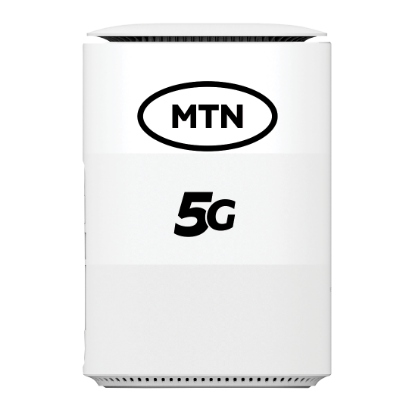
For an MTN 5G Broadband Router: MTN says its 5G router can fall back to 4G in areas without 5G coverage and supports a LAN cable connection. Its support page says customers can check the router’s data balance through the self-service portal, MyMTN or the device interface at 192.168.0.1; it also lists *312*500# for router-line management. Menu names and access details can vary by model, so follow the instructions supplied with your device. Do not assume every MTN-branded router uses the same login password.
For Airtel router users: Airtel’s FAQ says MyAirtelApp can be used to add a Home Broadband device number and view usage, while its router and MiFi balance guidance includes *323#. Those are account and balance checks, not a universal SmartConnect ODU dashboard login. Use the device-specific instructions supplied by Airtel for settings on an outdoor-unit installation.
If you are buying a replacement or imported router, check its exact model against the NCC’s device approval information and confirm that it supports the bands used by your network. A 5G label alone does not guarantee compatibility. The NCC publishes network-performance reports because coverage, speed and service quality can differ by operator and location.
Quick troubleshooting table
| What you notice | Possible cause | What to try |
|---|---|---|
| Fast near router, slow in bedroom | Wi-Fi range or wall obstruction | Test 2.4GHz, reposition router or add compatible mesh/access point |
| Slow on every device, including near router | Mobile signal, congestion, plan or router issue | Check network status, plan and speed at different times |
| 5G changes to 4G repeatedly | Weak or unstable 5G coverage, device or band compatibility | Test another position and confirm coverage and supported bands |
| Good signal bars but poor speed | Signal quality, interference or tower congestion | Compare dashboard readings and run time-based tests |
| Connection drops when power changes | Power adapter, cable or power instability | Use approved power supply and inspect external cables |
| Slow only when many people are online | Wi-Fi airtime or plan capacity being shared | Pause heavy use, check connected devices and plan terms |
When should you contact MTN, Airtel or your router provider?
Contact support when the router cannot register on the network, the problem affects every connected device, the connection drops repeatedly after basic checks, the device overheats or restarts, or speeds remain far below what your plan and local coverage reasonably support.
Before contacting support, prepare:
- Your router model and the network/SIM being used.
- Your general location or installation address, shared through the provider’s official support channel.
- The dates and times of slow tests, including download, upload and ping results.
- Whether the router showed 5G or 4G during each test.
- Whether the problem affects one device or all devices.
- Any error message or indicator pattern, described exactly as shown.
For MTN broadband, use its official broadband support and device information. For Airtel, use its official FAQ or My Airtel support channels. If the router was supplied by another provider or retailer, contact the seller or manufacturer as well.
Frequently asked questions
Why is my 5G router slow even with full bars?
Bars show a simplified signal-strength estimate. They do not prove that the signal is free from interference or that the cell site has spare capacity. Congestion, poor signal quality, plan restrictions and Wi-Fi issues can all cause slow speeds.
Does a 5G router need to be near a window?
It is worth testing because walls and building materials can weaken mobile signals. But the best window varies by building and cell-site direction. Compare several safe positions rather than assuming one side of the house is best.
Is 5GHz Wi-Fi the same as 5G internet?
No. 5G is the cellular network connection. 5GHz is a Wi-Fi frequency band used between your router and nearby devices.
Will a Wi-Fi extender make my 5G internet faster?
Not if the mobile connection from the tower is the bottleneck. An extender or mesh system can improve Wi-Fi coverage in distant rooms, but it cannot increase the speed supplied by the mobile network.
Should I force my router to use 5G only?
Not as a first step. If 5G coverage is weak or unstable, forcing 5G-only mode may cause disconnections. Use automatic network selection unless your provider or device manual recommends a specific setting for your location.
Can I add an external antenna to any 5G router?
No. The router must have compatible antenna ports and support the correct antenna type and frequency range. Check the exact model’s manual and ask the manufacturer or provider before buying or connecting an antenna.
Sources and further reading
- MTN Nigeria: Broadband devices and coverage information
- MTN Nigeria: 5G frequently asked questions
- Airtel Nigeria: Get 5G and check coverage
- TP-Link: Improving Wi-Fi signal and range
- Ubiquiti: Understanding cellular signal strength and quality (LTE metric explanations; not universal 5G thresholds)
- Nigerian Communications Commission: Network performance and quality-of-experience reports
- NCC: Approved communications equipment
Related guides
- MTN FlyX not working: no internet and connection troubleshooting
- Airtel ODU connected but no internet: troubleshooting guide
- MTN FlyX vs Airtel SmartConnect ODU comparison
- How to check MTN 5G coverage in Nigeria
- Best internet options for streaming in Nigeria

Oladepo Babatunde (also known as Prince Babatee Tunde) is a Computer Scientist, researcher, professional content writer and SEO content strategist with more than eight years of experience. He holds a Higher National Diploma (HND) in Computer Science from Kwara State Polytechnic, Nigeria, and is based in Ilorin, Kwara State. As a freelance writer, he creates research-led, practical content on technology, Nigerian internet services, AI tools, gadgets and solar power. His work combines research, source checking, technical understanding and SEO strategy. Where an article includes hands-on testing, the product, method and relevant conditions are described in the article; research-based guides are identified as such.