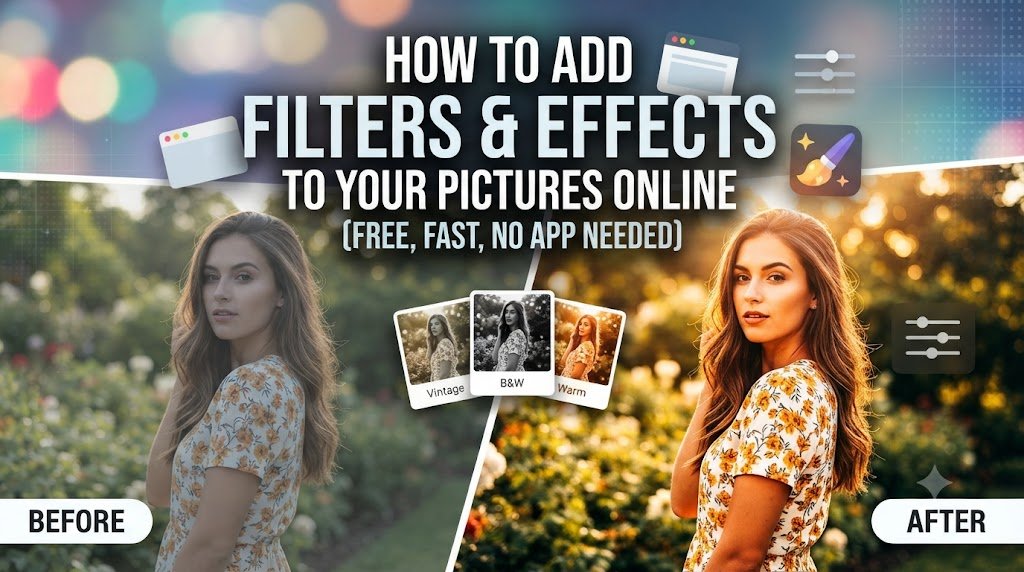
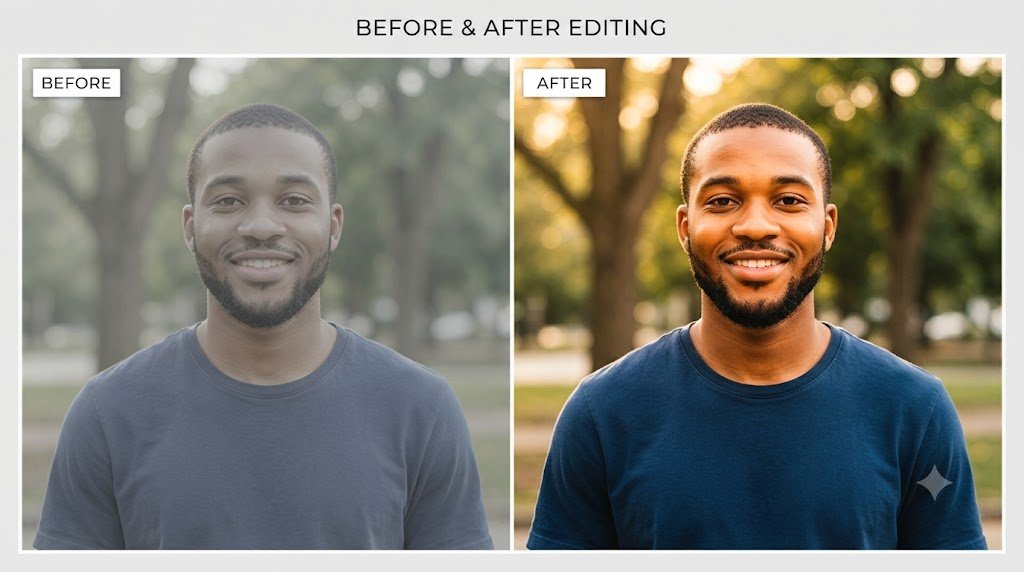
You just took a nice photo. The lighting was okay, the pose was clean, but when you look at it on your screen, something still feels flat. It does not “pop” the way the pictures you see on Instagram or WhatsApp status do.
Here is the good news. You do not need Photoshop. You do not need to be a designer. And you do not even need to download a heavy app that eats your phone storage.
You can add filters and effects to your pictures online in less than a minute, right from your phone or laptop browser. In this guide, I will show you exactly how to do it, which free tools work best, how to avoid watermarks, and how to do it without wasting your data. Let us get into it.
Quick Answer (For People In a Hurry)
Open a free online editor like Canva, Fotor, or Pixlr in your browser. Upload your picture, tap the Filters or Effects menu, pick the look you want, adjust the strength with the slider, then download. That is the whole process. No app, no payment.
Now let me break it down properly so you get the best results.
Filters vs Effects, What Is the Difference?
People use these words like they mean the same thing, but they are slightly different.
A filter changes the overall mood and color of your photo in one tap. Think of vintage tones, black and white, warm “golden hour,” or a soft matte look.
An effect is more specific. It adds or changes something in the image, like a blur on the background, a glow, a glitch style, or turning your photo into a cartoon or anime version.
Simple way to remember it: a filter sets the vibe, an effect adds the drama.
What You Need Before You Start
You do not need much:
- A phone or laptop with a browser (Chrome, Safari, Opera Mini works too)
- The photo you want to edit
- A little data or Wi-Fi, since online editors load in the browser
That last point matters for many of us. Online editing uses data because the tool runs on the internet. If your data is low, I will share some saving tips later in this article. If managing data is a constant struggle for you, this guide on [InsertInternalLink: best data-saving apps for Android] will help a lot.
How to Add Filters and Effects Online (Step by Step)
Step 1: Pick a Free Online Editor
The tool you choose matters. Some are truly free, and some hide the good stuff behind payment. Here are solid free options that work in your browser:
- Canva — beginner friendly, no watermark on edited photos
- Fotor — strong filters and AI effects, free plan available
- Pixlr — more advanced, feels like a light Photoshop
- Adobe Express — clean filters powered by Photoshop tech
- Picsart — great for AI and trendy effects
- BeFunky — famous for artistic “photo to art” effects
Step 2: Upload Your Picture
Go to the tool’s website, click Upload or drag your photo in. Most accept JPEG, PNG, WEBP, and HEIC files. On your phone, it simply opens your gallery so you can pick the image.
Step 3: Apply a Filter
Once your photo opens, look for the Filters or Effects tab. Tap different filters to preview them live on your image. When you find one you like, use the intensity slider to make it stronger or softer. Do not overdo it. A filter at 100 percent often looks fake.
Step 4: Add Effects
Now go to the Effects section. This is where you can:
- Blur the background to make your face stand out
- Add a vintage or sepia tone
- Add a glow or light leak
- Turn the photo into a cartoon, sketch, or anime style
You can even stack a filter and an effect together. Just keep it natural.
Step 5: Download Without a Watermark
Click Download or Export. Choose JPEG for social media or PNG if you need a clean, high-quality version. With tools like Canva and Fotor, your basic edits save without a watermark, which is exactly what you want.
Best Free Tools Compared
Here is an honest breakdown so you know what you are getting before you waste time.
| Tool | Best For | Watermark on Free Plan? | Sign-Up Needed? | Data Weight |
|---|---|---|---|---|
| Canva | Beginners, social posts | No | Yes (free) | Medium |
| Fotor | Filters + AI effects | No | Optional | Medium |
| Pixlr | Advanced editing | No (some AI uses credits) | No | Medium |
| Adobe Express | Clean pro filters | No | Yes (free) | Medium |
| Picsart | Trendy AI effects | Some Pro features locked | Yes | Heavy |
| BeFunky | Artistic art effects | No | No | Light |
Fact worth knowing: Many of these tools now use AI, but the AI features often cost “credits” even when the basic filters are free. So read the button carefully before you tap.
How to Do It on Android
If you use an Android phone like Tecno, Infinix, Samsung, or Redmi, you do not need an app at all.
- Open Chrome and go to any editor above
- Upload your photo from your gallery
- Apply your filter and effect
- Download back to your gallery
Tecno and Infinix phones sometimes have limited storage, so browser editing is perfect because nothing installs on your device. If your gallery is always full, this guide on [InsertInternalLink: how to reduce photo size without losing quality] is worth a read.
How to Do It on iPhone
iPhone users have two easy options.
The first is your built-in Photos app. Open a picture, tap Edit, then tap the three-circle Filters icon and swipe through the looks. It is fast and uses no data.
The second is using Safari to open Canva or Pixlr for stronger effects like blur, cartoon, or AI filters that your Photos app cannot do.
Trending AI Filters (Cartoon, Anime, Ghibli, Headshots)
This is where things got exciting in 2026. Online editors now let you completely transform a photo with AI filters, not just recolor it.
Popular ones right now:
- Cartoon and anime filters that turn your selfie into a character
- Studio Ghibli style soft, hand-painted looks
- AI headshot filters that turn a casual selfie into a clean, professional LinkedIn photo
- Old photo restoration that sharpens and colorizes faded family pictures
Tools like Picsart, Fotor, and Pixlr lead here. Just know these AI features usually run on limited free credits. If you want a full list of the best ones, check [InsertInternalLink: best free AI photo editing apps].
How to Add Filters Without Losing Quality
This is a common fear, so let us clear it up.
Myth: Adding a filter always reduces your photo quality.
Fact: The filter itself does not lower quality. What lowers quality is exporting at a small size or low resolution. So when you download, choose the highest quality or original size option, and pick PNG if the tool offers it. Your photo will stay sharp.
Common Mistakes Beginners Make
- Overdoing the filter. Keep it below 70 percent for a natural look.
- Stacking too many effects. One filter plus one effect is usually enough.
- Downloading a tiny version. Always export in full size.
- Ignoring the watermark trap. Some tools stamp your image unless you pay. Test with a free tool first.
- Editing the wrong file. Always keep your original photo untouched, just in case.
Privacy Warning, Is It Safe to Upload Your Photos?
Here is something most tool websites will not tell you loudly. When you upload a photo online, it goes to their servers.
Most trusted editors like Canva, Adobe, and Pixlr say clearly that they do not use your images to train their systems and that photos are deleted after a short time. Based on guidelines from these official privacy pages, reputable tools process your image and remove it quickly.
Still, use common sense. Do not upload sensitive documents, ID cards, or private photos to random editing sites you have never heard of. If online safety matters to you, and it should, read [InsertInternalLink: how to stay safe uploading photos online].
Data-Saving Tips for Nigerian and African Users
Online editing uses data, and we all know how quickly that MTN, Airtel, Glo, or 9mobile bundle can finish. Here is how to stay light:
- Edit over Wi-Fi when you can
- Use lighter tools like BeFunky or your phone’s built-in editor
- Skip heavy AI filters if you are low on data, since they load large files
- Resize your photo smaller before uploading if you only need it for status or DP
For everyday phone photos, your built-in Photos or Gallery editor costs zero data and still gives decent filters. Save the online tools for when you want something special.
Frequently Asked Questions
Can I add filters online for free without an app?
Yes. Tools like Canva, Fotor, and Pixlr work fully in your browser with no download needed.
How do I add filters without a watermark?
Use Canva, Fotor, or BeFunky. Their basic edits save without any watermark.
Does adding a filter reduce photo quality?
No, but exporting in a small size does. Always download in full or original quality.
What is the best photo editor for Instagram?
Canva and Picsart are top choices for social media because of their trendy filters and easy resizing.
Can I turn my photo into a cartoon online?
Yes. Picsart, Fotor, and Pixlr have one-click cartoon and anime AI filters.
Is it safe to upload my pictures to these sites?
Trusted tools are generally safe and delete your photos quickly, but avoid uploading private documents to unknown websites.
Final Thoughts and Next Steps
Adding filters and effects to your pictures online is genuinely one of the easiest wins in photo editing. You do not need money, a powerful phone, or design skills. You just need a browser and a few minutes.
Start simple. Pick one free tool from the list above, upload a photo, and try one filter plus one light effect. Once you see the difference, you will never post a flat, boring picture again.
Your next move: open Canva or Fotor right now, grab your favorite recent photo, and give it a fresh look. Then come back and explore how to remove background from a picture free to take your edits even further.
Happy editing.

Oladepo Babatunde (Prince Babatee Tunde) is a Computer Scientist, researcher, and professional content writer with a Higher National Diploma in Computer Science from Kwara State Polytechnic, Nigeria.
With a background in technology and a passion for clear communication, Babatunde specializes in creating thoroughly researched, reader-focused content on productivity, personal development, home living, and technology. Every article he writes is backed by extensive research and fact-checking to ensure readers receive accurate, actionable information.
As a freelance writer, he has helped brands and publications deliver content that educates, engages, and empowers their audiences. His mission at Vibena is simple: make complex topics easy to understand and help Nigerians live smarter, more productive lives.