Last updated on December 25, 2025
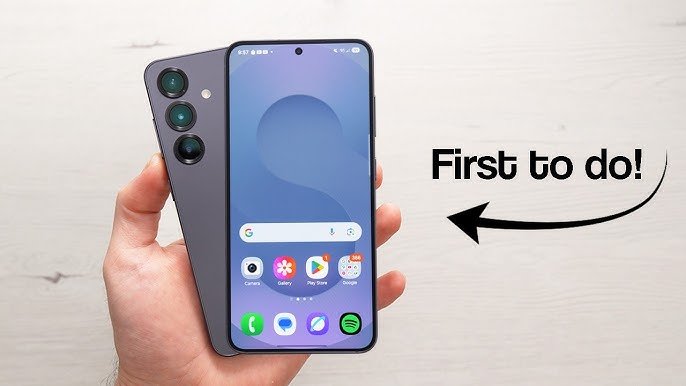
Welcome to your brand-new Samsung Galaxy S25! Getting a new phone is exciting, and this comprehensive Galaxy S25 setup guide is designed to make your first hour with it smooth and stress-free.
Our goal is to help you get your new Galaxy S25 ready for use in about an hour. We’ll cover everything from unboxing to transferring your old data and personalizing essential settings. You’ll learn how to quickly move your contacts, photos, and apps to your new device, making your initial setup experience enjoyable and stress-free.
- Unbox and power on your S25 with ease.
- Transfer all your important data seamlessly.
- Connect to Wi-Fi and sign into your accounts.
- Personalize key settings for a custom experience.
- Start capturing amazing photos right away.
Unboxing Your Galaxy S25 & First Power On
The first step to enjoying your new Galaxy S25 is carefully unboxing it. Inside, you should find your new phone, a USB-C charging cable, and a small SIM ejector tool. Make sure all these items are present before you proceed.
For detailed contents, you can always refer to the official Samsung support page.
Next, locate the SIM card tray on the side of your S25. Use the provided SIM ejector tool by gently pushing it into the small hole next to the tray. The tray should pop out easily.
Place your nano-SIM card into the tray, making sure it’s oriented correctly to fit snugly. A common mistake is trying to force the SIM card in the wrong way, so always double-check the tray’s orientation. Gently push the tray back into the phone until it’s flush.
If your phone’s battery is low, connect the USB-C cable and charge it for a few minutes before powering on. A good rule of thumb is to fully charge any new device before its first extensive use to calibrate the battery. Once charged, press and hold the power button on the side until the Samsung logo appears, and your S25 will begin to boot up.
Seamless Data Transfer: Moving Everything to Your S25
Moving all your precious memories and important information to a new phone can seem daunting, but Samsung Smart Switch makes it incredibly easy. This tool is designed to transfer your contacts, messages, photos, videos, and apps to your new Galaxy S25 without a hitch. You have options for transfer: wirelessly over Wi-Fi, or using a wired connection with a USB-C cable.
A common mistake is not backing up your old phone first, or having low battery on either device during the transfer. Always ensure both devices are sufficiently charged before starting a transfer. Some app data, especially for secure banking apps, might not transfer directly and will require re-login or re-setup.
Always verify the Smart Switch app is installed and updated on both your old and new phones for the smoothest transfer process.
From an Old Android Phone
If you’re upgrading from another Android device, the process is straightforward. First, install Smart Switch on both your old Android phone and your new Galaxy S25. Open the app on both devices and select ‘Send data’ on the old phone and ‘Receive data’ on the S25.
Choose ‘Wireless’ or ‘Cable’ connection, then follow the on-screen prompts to select the data you wish to transfer. A realistic example involves transferring all your photos, contacts, and WhatsApp chat history from your old Android phone.
From an iPhone
Switching from an iPhone to your new Galaxy S25 is also simple with Smart Switch. Ensure Smart Switch is installed on your Galaxy S25; for iPhone, you’ll typically use the wired connection or iCloud backup. Connect your iPhone to your S25 using a USB-C to Lightning cable (or a USB-C to USB-A adapter with your iPhone’s cable).
Follow the prompts on your S25 to select the data you want to import from your iPhone, such as contacts, photos, and messages.
Initial Setup Wizard: Getting Connected
Once your Galaxy S25 powers on, you’ll be greeted by the initial setup wizard. This guides you through essential steps to get your phone ready for daily use. First, connect your S25 to a stable Wi-Fi network early in the setup process.
This is crucial for downloading updates and completing account sign-ins efficiently.
Next, you’ll need to sign in with your existing Google Account or create a new one. This step is vital for accessing the Google Play Store, downloading apps, and using Google services like Gmail and Google Drive. You’ll also be prompted to sign in or create a Samsung Account, which unlocks exclusive features like Samsung Cloud for backups and Samsung Wallet for payments.
A limitation is that some advanced Samsung features, like ‘Find My Mobile’ or Samsung Cloud backup, require a Samsung Account.
Finally, set up a secure screen lock, such as a PIN, pattern, or password, to protect your device from unauthorized access. You’ll also have the option to set up biometric security like fingerprint unlock or face recognition later. A good rule of thumb is to use a strong, unique password for both your Google and Samsung accounts.
Remember your Google and Samsung account passwords, as you’ll need them for future access and security.
Essential Settings & Personalization for Your S25
Now that your Galaxy S25 is connected and your accounts are set up, it’s time to make it truly yours. Personalizing your phone enhances your daily experience and ensures it works exactly how you want it to.
Start by adjusting your display settings. You can set your preferred brightness, enable Dark Mode for eye comfort, and choose a comfortable screen timeout to save battery. Next, customize sound and vibration settings, including ringtones, notification sounds, and system vibration patterns.
A realistic example is changing your wallpaper to a personal photo and setting a custom ringtone for important contacts.
For security and convenience, set up biometric security like fingerprint unlock and face recognition for quick and secure access to your device. Be mindful of privacy settings when enabling face unlock. Lastly, manage your notification settings to control which apps can send alerts and how they appear.
A common mistake is ignoring notification settings, leading to constant interruptions from unwanted app alerts. Verify your software is up to date by checking ‘Settings > About Phone > Software information’ to ensure you have the latest features and security patches.
Capturing Memories: Your S25 Camera Basics
Your Galaxy S25 comes with an incredible camera system, ready to capture all your important moments. To open the camera app quickly, you can double-press the power button or simply tap the camera icon on your home screen.
Once open, familiarize yourself with basic modes like Photo, Video, and Portrait, which are great for everyday shots. You can quickly switch between the main, ultrawide, and telephoto lenses by tapping the zoom icons on the screen. A realistic example is taking a quick, vibrant photo of a local market scene or a family pet using the standard photo mode.
A common mistake is forgetting to clean the camera lens, which can result in blurry or smudged pictures. Always give it a quick wipe before snapping photos. A good rule of thumb is to experiment with different camera modes and settings to discover your preferred style and get the most out of your S25’s powerful camera.
Optimizing Your S25 Battery Life from Day One
Getting the most out of your Galaxy S25 means ensuring its battery lasts as long as you need it to. Your S25 features Adaptive Battery, which learns your usage patterns to optimize power consumption over time, but there are things you can do from day one to help.
One simple tip is to turn off features like Bluetooth, GPS, and Wi-Fi when you’re not actively using them to save battery. Also, adjust your screen brightness to a comfortable level and set a shorter screen timeout to reduce display power usage. A realistic example is checking the ‘Device Care’ section in Settings to see which apps are consuming the most battery.
Remember that heavy usage, such as prolonged gaming or video streaming, will naturally consume more battery regardless of optimization. Avoid using non-certified chargers, which can harm battery health. Verify your battery health and get optimization suggestions by regularly checking the ‘Battery’ section within ‘Device Care’ in your settings.
For more tips, consult Samsung’s official battery care guide.
Exploring Key Samsung Features
Your Galaxy S25 isn’t just an Android phone; it’s a Samsung Galaxy, packed with unique features designed to enhance your experience. One UI is Samsung’s user interface, designed for easy one-handed use and a clean, intuitive experience.
Take advantage of Samsung Wallet (formerly Samsung Pay) to make secure mobile payments and store digital passes like boarding passes or loyalty cards. Explore Bixby Routines to automate tasks, like turning on Wi-Fi when you arrive home or switching to silent mode at bedtime. A realistic example is creating a Bixby Routine that automatically optimizes your phone’s settings for driving when it connects to your car’s Bluetooth.
A common mistake is not exploring these built-in features, missing out on significant convenience and personalization. Ensure privacy settings are reviewed when setting up payment services. Verify the availability of specific Samsung services like Samsung Wallet in your region through the Samsung Members app or official Samsung website.
Managing Your Apps: Installation & Organization
Your Galaxy S25 is a powerful tool, and apps are what make it truly versatile. You can download new applications from the Google Play Store, which offers millions of apps for every need. Simply open the Play Store app, search for what you need, and tap ‘Install’.
To keep your home screen tidy, organize your apps by creating folders for similar apps. Just drag one app icon onto another, and a folder will automatically be created. You can then rename the folder to something like ‘Social Media’ or ‘Productivity’.
A realistic example is creating a ‘Social Media’ folder for Instagram, Facebook, and X, and a ‘Productivity’ folder for work apps.
You can also uninstall unwanted pre-installed apps (sometimes called bloatware) by long-pressing their icon and selecting ‘Uninstall’ or ‘Disable’. A common mistake is downloading apps from untrusted sources, which can pose security risks. A good rule of thumb is to only download apps from the official Google Play Store or Samsung Galaxy Store to ensure safety and compatibility.
Troubleshooting Common Setup Issues
Even with the best Galaxy S25 setup guide, sometimes little hiccups happen during setup. Don’t worry, most common issues have quick fixes. If your Wi-Fi isn’t connecting, try restarting your router and re-entering the password on your S25.
Sometimes a simple network refresh is all it takes.
If data transfer fails using Smart Switch, ensure both phones have enough battery, check the cable connection if you’re using one, and free up storage space if needed on either device. For minor glitches or freezing during setup, a simple restart of your S25 can often resolve the issue. A realistic example is your phone freezing during the initial Google account setup; a force restart (usually achieved by holding Volume Down + Power button simultaneously) can help.
Avoid repeatedly force restarting your device unless necessary. A limitation is that some complex issues might require contacting Samsung support or visiting a service center. Verify solutions for specific error codes or persistent problems by checking Samsung’s official support page for the Galaxy S25.
Your Galaxy S25 Journey Has Just Begun!
Congratulations! You’ve successfully completed the essential steps in this Galaxy S25 setup guide. Your phone is now ready for you to explore its powerful features and personalize it further to fit your lifestyle.
Remember to regularly check for software updates to keep your device secure and up-to-date with the latest features. Feel free to dive deeper into settings, download more apps, and truly make your S25 your own. The more you explore, the more you’ll discover how amazing your new phone is.
Frequently Asked Questions About Your Galaxy S25 Setup
How do I transfer data from my old phone to the Galaxy S25?
The easiest way is to use Samsung Smart Switch. Install the app on both your old phone and your new Galaxy S25, then follow the on-screen prompts to transfer contacts, messages, photos, videos, and apps wirelessly or via a wired connection.
What are the first things I should set up on my new Galaxy S25?
After unboxing and inserting your SIM card, the first steps include connecting to Wi-Fi, signing into your Google and Samsung accounts, and setting up a secure screen lock (PIN, pattern, or password).
How do I optimize battery life on my Galaxy S25?
To optimize battery life, adjust screen brightness, set a shorter screen timeout, turn off unused features like Bluetooth and GPS, and regularly check the ‘Device Care’ section in Settings to identify power-hungry apps.
Can I transfer data from an iPhone to my Galaxy S25?
Yes, Samsung Smart Switch supports transfers from iPhones. You can connect your iPhone to your S25 using a USB-C to Lightning cable or transfer data from an iCloud backup.
What is a Samsung Account and do I need one for my S25?
A Samsung Account unlocks exclusive features like Samsung Cloud for backups, Samsung Wallet for payments, and ‘Find My Mobile’ for locating your device. While not strictly required for basic phone use, it’s highly recommended to get the most out of your Galaxy S25.