Last updated on December 8, 2025
Understanding Your Tecno C9’s Clock Application
The ‘Clock’ app on your Tecno C9 is your central hub for managing alarms. It’s a standard feature built into the Android operating system, designed to be intuitive and reliable.
Within this app, you can set up multiple alarms for various purposes, whether it’s for waking up in the morning, remembering an appointment, or setting a timer. The flexibility allows you to tailor your alerts to your specific needs.
You’re not limited to just basic beeps. The app supports custom ringtones, letting you choose a sound that’s more pleasant or effective for you. Plus, you can decide whether you want your alarm to vibrate as well.
Step-by-Step: Setting a New Alarm on Your Tecno C9
- First, find and tap the ‘Apps’ icon on your Tecno C9’s home screen to open your application list.
- Look for the ‘Clock’ app icon, which usually looks like a clock face, and tap it.
- Once the Clock app is open, tap the ‘Alarm’ button, often located in the lower-left corner of the screen.
- To add a new alarm, tap the ‘Add Alarm’ button, commonly represented by a plus sign (+).
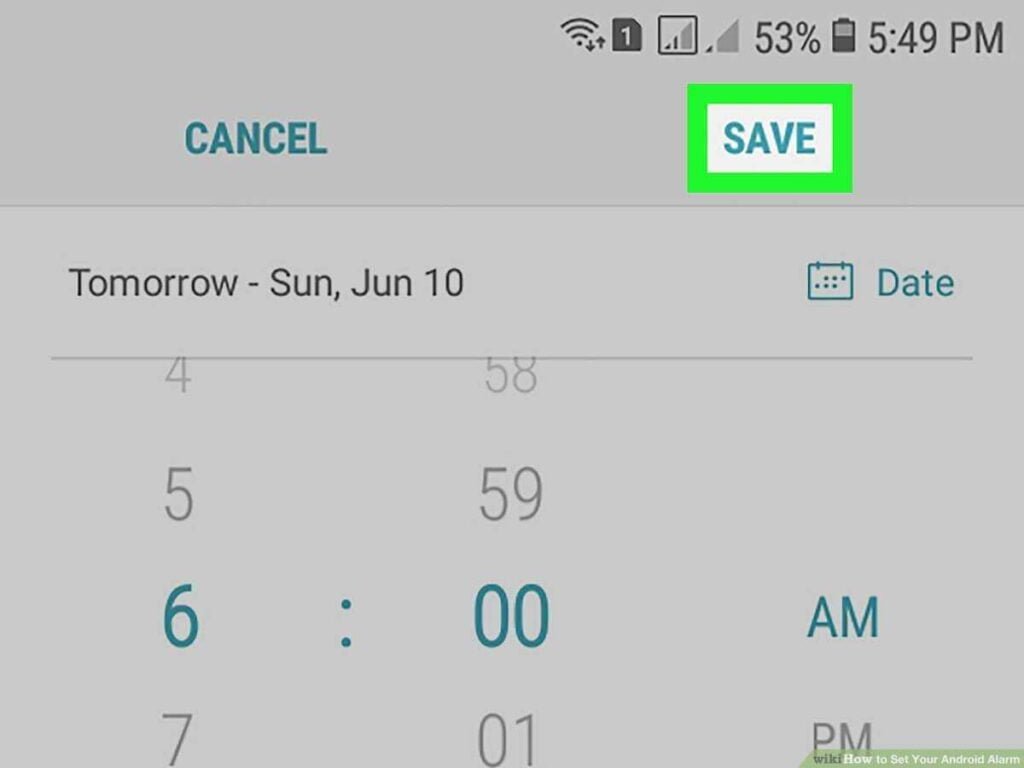
- You’ll now see selectors for the hour and minute. Adjust these to set your desired alarm time.
- It’s crucial to carefully select ‘AM’ or ‘PM’ to ensure your alarm is set for the correct part of the day.
- Tap on ‘Repeat’ to choose which days of the week you want this alarm to be active. You can select specific days or leave it for a one-time alert.
- Tap the option that shows the current ringtone (it might say ‘Default’ or a specific song name) to browse and select a custom sound for your alarm.
- Look for a ‘Vibrate’ option and toggle it on or off depending on whether you want your phone to vibrate in addition to ringing.
- Finally, tap ‘OK’ or ‘Save’ to confirm all your settings and activate the alarm.
Important Reminders: Always double-check the AM/PM setting to avoid waking up at the wrong time. Also, make sure your chosen ringtone is loud enough for you to hear clearly, especially if you’re a heavy sleeper.
Managing Existing Alarms: Edit, Disable, and Delete on Tecno C9
Once you’ve set an alarm, you’ll likely need to adjust it or remove it eventually. The Tecno C9 makes managing your alarms straightforward through the Clock app.
Temporarily Disabling an Alarm
If you have an alarm you don’t need for a specific day or period, you can easily turn it off without deleting it. Simply open your ‘Clock’ app and find the list of your set alarms. Next to each alarm, you’ll see an ‘ON/OFF’ toggle switch.
Tapping this switch will disable the alarm, indicated by the switch moving to the ‘OFF’ position. This is a great way to keep your alarm settings intact but inactive.
Remember, disabling an alarm only turns it off temporarily; it will remain in your list and can be re-enabled later by tapping the toggle again.
Editing an Alarm
Need to change the time, set it to repeat on different days, or select a new ringtone? To edit an alarm, just tap directly on the alarm entry in the ‘Clock’ app’s alarm list.
This will open up all the settings you initially configured, allowing you to make any necessary changes.
For example, you might want to set a distinct alarm for weekdays and another for weekends. After making your edits, be sure to tap ‘Save’ or ‘OK’ to confirm the modifications.
Deleting an Alarm Permanently
When an alarm is no longer needed, you can remove it completely. To delete an alarm, touch and hold the alarm entry in the list for a few seconds. Selection options should then appear, and you can tap the ‘Delete’ icon, which often looks like a trash can.
Caution: Deleting an alarm is a permanent action. Make sure you no longer need it before confirming the deletion, as it cannot be undone.
Troubleshooting Common Tecno C9 Alarm Issues
Sometimes, alarms don’t behave as expected. If your Tecno C9 alarm isn’t working, there are a few common culprits to check.
Checking Volume and Sound Settings
One of the most frequent reasons an alarm might seem silent is related to volume settings. Ensure your phone’s media volume is turned up, as the alarm volume is often linked to this setting.
You can usually adjust this using the physical volume buttons on the side of your phone or through the main ‘Settings’ menu under ‘Sound & Vibration’.
Do Not Disturb and Battery Saver Modes
Your ‘Do Not Disturb’ mode can sometimes silence alarms. Check your ‘Do Not Disturb’ settings to ensure that alarms are allowed to sound even when the mode is active.
Similarly, ‘Battery Saver’ or other power-saving modes might restrict background app activity, potentially affecting the ‘Clock’ app’s ability to trigger an alarm. Verify that the ‘Clock’ app has all the necessary permissions enabled in your phone’s application settings.
Software and App Conflicts
A simple restart of your Tecno C9 can often resolve minor software glitches that might be preventing your alarm from ringing. If the issue persists, check if your phone’s system software is up to date, as outdated software can sometimes cause unexpected problems.
Caution: If you use third-party alarm apps, they might conflict with the default ‘Clock’ app. If you’re experiencing persistent issues, try disabling or uninstalling any extra alarm applications to see if that resolves the problem.
Also, remember that a very low battery can prevent alarms from sounding or even cause the phone to shut down before the alarm time. Keep your phone charged!
Applicability to Other Tecno Models: Camon 12 and Spark 4
If you’re using a Tecno phone other than the C9, such as a Tecno Camon 12 or Tecno Spark 4, you’ll be happy to know that the process for managing alarms is very similar. The fundamental steps for setting, customizing, and managing alarms are largely consistent across many Tecno Android phones.
This guide’s instructions should be directly applicable to your device. You might notice minor user interface (UI) variations between different Tecno models or Android versions, but the core functionality for alarms remains the same.
Tip: While the steps are similar, always refer to your specific device’s on-screen prompts if you encounter slight UI differences. This ensures you’re navigating your particular model correctly.
Frequently Asked Questions (FAQ) About Tecno Alarms
Got a few lingering questions about your Tecno phone’s alarm features? We’ve got you covered. Many common tasks, like customizing your alarm sound or adjusting how long the snooze lasts, are easily managed within the Clock app.
Can I use my own music as an alarm sound?
Yes, absolutely! Most Tecno phones, including the C9, let you choose a custom sound for your alarm. You can select from audio files stored directly on your device, making your wake-up call a little more personal.
How long is the snooze duration on Tecno alarms?
The snooze duration on Tecno alarms can typically be adjusted within the alarm’s settings. You’ll often find options to set it for 5 or 10 minutes, giving you a little extra time to ease into your day.
How do I label my alarms?
Labeling your alarms is a great way to stay organized. You can add a name like ‘Work Meeting,’ ‘Gym Time,’ or ‘Doctor’s Appointment’ directly in the alarm settings. This clarity helps you know exactly what each alarm is for at a glance.
How do I control the alarm volume?
Your Tecno alarm volume is usually linked to your phone’s media volume. You can adjust this using the physical volume buttons on the side of your phone, or by navigating to the Sound settings menu. Make sure it’s loud enough to wake you up!
What if my alarm doesn’t sound?
If your alarm isn’t sounding, first check that it’s actually switched on and that the volume is turned up. Also, ensure your phone isn’t in a strict ‘Do Not Disturb’ mode that might be silencing alarms. Sometimes, a simple phone restart can resolve temporary glitches.
Conclusion: Master Your Tecno Alarm Settings
As you can see, setting and managing alarms on your Tecno C9, or similar models, is a pretty straightforward process. The built-in ‘Clock’ app is your central hub for all alarm-related functions, offering a good range of customization options.
By taking a few moments to explore these settings, you can ensure your alarms are set up exactly how you need them. Regularly checking your alarm settings and knowing how to troubleshoot common issues will help guarantee you get those reliable wake-up calls every day.
Mastering these simple alarm features can make a real difference in your daily routine, helping you stay on track and manage your time effectively. Enjoy the peace of mind that comes with a dependable alarm system!