Last updated on December 4, 2025
Managing your streaming devices can sometimes feel like a puzzle, especially when you hit a limit and can’t watch your favorite shows. On services like **Showmax**, understanding how to manage your linked devices is crucial for a smooth viewing experience. I’m here to walk you through everything you need to know about keeping your account in perfect order, ensuring you can always stream what you want, when you want.
Understanding Your Showmax Device Limits
Showmax, like most streaming platforms, has policies around the number of devices you can register and use. These policies help manage network bandwidth, prevent widespread account sharing, and ensure a fair experience for all legitimate users by protecting content licensing agreements. It’s important to differentiate between registered devices and those actively streaming.
As of **2025**, the specific limits depend on your subscription plan. For instance, the new **Showmax Premier League Mobile plan** is designed for a single mobile device, while the **Entertainment All Devices plan** allows for more flexibility across various screens. You’ll typically have a maximum number of devices you can register over time and a smaller number of simultaneous streams.
Showmax Registered Devices Limit
The **Showmax registered devices limit** refers to the total number of unique devices linked to your account over time. Even if a device isn’t actively streaming, it counts towards this limit once it’s been used to log in. This limit is often higher than the simultaneous stream limit.
Once you reach this cap, you might encounter issues logging in on new devices or receive an error message. That’s when you’ll need to actively manage and remove older, unused devices to make space. This limit helps maintain the integrity of their digital rights management and content protection.
Showmax Active Devices Limit and Simultaneous Streams
The **Showmax active devices limit** refers to the actual number of devices that can stream content at the exact same time. Even if you have many registered devices, only a few can be watching simultaneously. For example, your **Entertainment All Devices plan** might allow two concurrent streams.
If you try to exceed this, you might see an error, such as **Showmax error OVP_00014**, indicating too many simultaneous streams. This is where understanding your plan’s specific allowance for **Showmax simultaneous streams** becomes vital. It’s a common feature across all major streaming services to manage server load and ensure service quality.
Why You Might Need to Manage Your Showmax Devices
There are several reasons why you might find yourself needing to take control of your Showmax account devices. Perhaps you bought a new **Smartphone** or **Smart TV**, or maybe you’ve given an old device away. Each new login registers a device, and these can quickly accumulate, sometimes without you realizing it.
Common Scenarios for Device Management
One frequent issue is encountering the **Showmax error OVP_00014**, which typically means you’ve reached your maximum number of concurrent streams or registered devices. This error tells you it’s time to review your linked devices. Another common scenario is when you share your account with family members and collectively reach the **Showmax registered devices limit**.
Additionally, for security reasons, you might want to remove devices you no longer own or recognize. This helps protect your personal information and prevents unauthorized access to your **Showmax profiles**. It’s part of a good general practice for **Showmax troubleshooting** and overall account security.
How To Manage and Remove Your Showmax Devices
The process to manage your Showmax account devices is straightforward, whether you’re using a web browser or the **Showmax app**. I’ll guide you through both methods, so you can choose the one that’s most convenient for you. Remember, this is how you effectively **remove a device from Showmax** in **2025**.
Showmax Web Device Management (Using a Web Browser)
This is generally the most comprehensive way to manage your devices. You can use any **web browser** like **Chrome**, **Firefox**, **Edge**, or **Safari** on your **Laptop** or desktop computer.
Step-by-Step Guide:
1. **Log In**: Open your preferred **web browser** and navigate to the official Showmax website. Log in to your account using your email and password.
2. **Access My Account**: Once logged in, look for your profile icon or name, usually in the top right corner. Click on it to reveal a dropdown menu and select “My Account” or “Account Settings.”
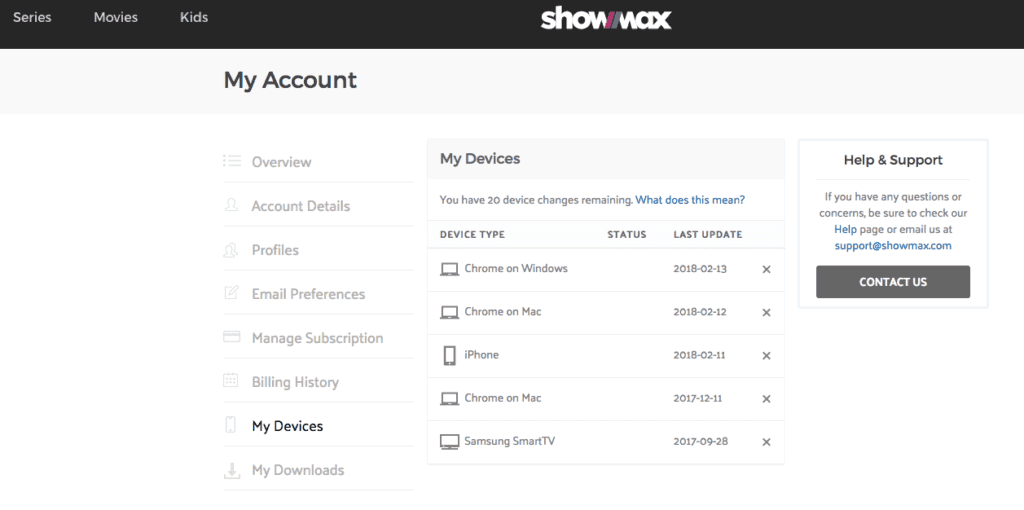
3. **Navigate to Devices**: Within the “My Account” section, you’ll see various options. Look for a section titled “My Devices” or “Manage Devices.” This is where you’ll find a list of all your registered devices.
4. **Remove Devices**: You will see a list of all devices that have ever logged into your account. Next to each device, there will typically be an option to “Remove” or “Unlink Device.” Click this button for any device you wish to unlink.
5. **Confirm Removal**: Showmax will likely ask you to confirm your decision. Once confirmed, the device will be immediately removed from your registered list. This frees up a slot for a new device if you were at your limit.
Showmax App Device Management (Using the Showmax App)
You can also manage some device settings directly through the **Showmax app** on your **Smartphone** or **Tablet**. While the web interface often offers more detailed control, the app provides convenient access for basic management.
Step-by-Step Guide:
1. **Open the App**: Launch the Showmax app on your **Smartphone** or **Tablet**. Ensure you are logged into your account.
2. **Access Settings**: Look for a “Settings” or “Profile” icon within the app, typically found in the bottom navigation bar or in a side menu. Tap on it.
3. **Find Device Management**: Within the settings menu, scroll through the options to find something like “Account” or “Devices.” Tap on this to view your connected devices.
4. **Remove Devices**: Similar to the web version, you should see a list of registered devices. You can then select the devices you want to remove. Confirm your choice when prompted.
Signing Out of All Devices for Security
If you suspect unauthorized access to your account, or if you simply want a fresh start, the **Showmax sign out all devices** feature is a powerful tool. This immediately logs out your account from every single device it’s currently logged into, ensuring complete security.
You can usually find this option within the “My Account” or “Security” section on the **Showmax web device management** portal. After signing out all devices, I strongly recommend changing your password immediately. This helps prevent anyone with your old password from logging back in and ensures your account remains secure.
Understanding Showmax Device Changes and Policy
Showmax has a specific **Showmax device policy** that governs how frequently you can add and remove devices. These policies are in place to prevent misuse of accounts and ensure fair usage for all subscribers. For example, there might be a limit to the number of device changes per month or year.
Showmax Device Changes Per Year
While the exact number can vary and is often not publicly disclosed, Showmax generally allows a reasonable number of **Showmax device changes per year**. This means you can swap out old devices for new ones without significant hassle. However, continuously adding and removing devices within a short period might be flagged as suspicious activity.
If you encounter issues while trying to add a new device, it might be due to hitting this less-publicized limit. In such cases, waiting a short period (e.g., 24 hours) or contacting Showmax support can resolve the issue. This policy is standard across many streaming platforms to regulate frequent account sharing and protect their service.
Troubleshooting Common Device Issues
Sometimes, even after managing devices, you might run into other problems. **Showmax login issues** are common, and often relate to incorrect credentials, internet connectivity, or outdated apps. Always double-check your username and password first.
If you’re still facing issues, try clearing your browser’s cache and cookies (for web viewing) or reinstalling the **Showmax app** on your device. For specific errors like **OVP_00014**, remember it’s often a device limit issue that requires you to remove an old device or wait for a simultaneous stream to end. Also, ensure your device is one of the **Showmax supported devices** and has the latest app version for optimal performance. Checking your internet connection stability is also a crucial first step.
Showmax Device Support and Compatibility
Showmax aims to be available on a wide array of devices, offering flexibility for its subscribers. This broad compatibility ensures you can enjoy your content almost anywhere.
Supported Devices Include:
- **Smart TV**s (various brands like Samsung, LG, Hisense, etc.)
- **Smartphone**s (Android and iOS via **Google Play**, **App Store**, **Huawei App Gallery**)
- **Tablet**s (Android and iOS)
- **Laptop**s/Desktops (via **Web browser** like **Chrome**, **Firefox**, **Edge**, **Safari**)
- Streaming devices such as **Apple TV**, **Android TV**, and **Roku** (where available).
- Gaming Consoles like **PlayStation** and **Xbox**.
- **Chromecast** for casting from mobile devices.
- Certain **MultiChoice** decoders like **Explora Ultra** and **Streama**.
Always ensure your device’s operating system and the Showmax app are updated to their latest versions for optimal performance. Outdated software can sometimes lead to **Showmax login issues**, playback problems, or security vulnerabilities.
Comparing Showmax Device Policies with Other Streaming Services
It’s helpful to see how Showmax’s **streaming service device policy** compares to other popular platforms like **Netflix** and **Prime Video**. While specific numbers can change, the general approach to device management is similar across the industry.
| Streaming Service | Registered Devices Limit | Simultaneous Streams | Key Policy Notes |
| Showmax | Plan-dependent (e.g., more for **Entertainment All Devices plan**, less for **Premier League Mobile plan**) | Plan-dependent (e.g., 1 for Mobile, 2 for Entertainment All Devices) | Specific limits on **Showmax device changes per year** to prevent excessive account sharing. |
| Netflix | Generally no strict “registered” device limit, but practical limits apply based on usage and plan. | Plan-dependent (e.g., 1, 2, or 4 simultaneous streams) | Primarily limits concurrent streams; recent crackdowns on widespread household sharing outside primary residence. |
| Prime Video | Typically allows up to 3 devices simultaneously streaming different titles. | Up to 3 simultaneous streams, but only 2 if streaming the same title. | Focuses on concurrent streams and limits on a single title; no hard registered device cap. |
This comparison shows that while each service has its nuances, the core idea of limiting simultaneous streams and managing device access is universal. This allows for effective **optimizing Showmax streaming** for all users and maintaining service quality.
Final Thoughts on Managing Your Showmax Devices
Taking a few minutes to understand and manage your Showmax devices can prevent a lot of frustration and ensure continuous entertainment. Regularly checking your “My Devices” section helps keep your account secure and within the platform’s limits. I hope this guide helps you feel more in control of your streaming experience.
By actively managing your devices, especially when you encounter an error like **Showmax error OVP_00014**, you ensure seamless access to your favorite shows and movies. Enjoy your Showmax experience!