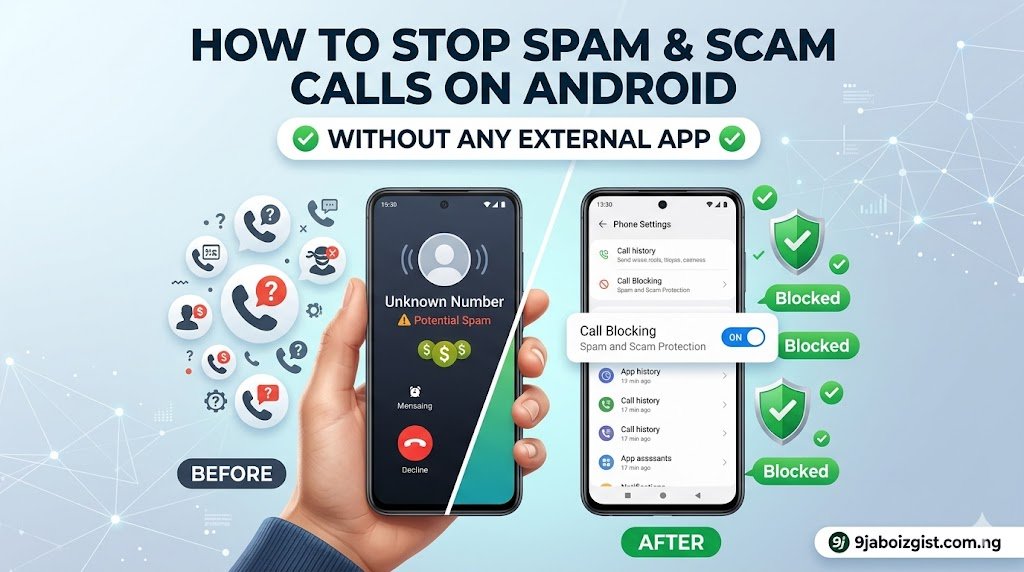
Your phone rings. Unknown number. You answer, and it’s either dead silence, a robotic voice telling you your bank account is compromised, or someone pretending to be from a government agency. You hang up. Ten minutes later, a different unknown number calls again.
Spam and scam calls have gotten significantly worse in recent years. Scammers now use number spoofing to make calls appear local, rotate through thousands of numbers to avoid being blocked, and use automated dialers that can call millions of phones per day. It feels like a losing battle.
But here’s what most people don’t know: Android has several built-in tools that can dramatically reduce the number of these calls reaching you, and none of them require downloading a third-party app. This guide covers every native Android feature and carrier-level solution available in 2026, starting with the fastest settings to enable and working toward the more thorough options.
Turn On Spam Protection in the Google Phone App Right Now
If your Android phone uses the Google Phone app as its default dialer, which is the case for most Pixel phones, many Samsung devices, and most mid-range Android phones running Android 9 or later, you already have Google’s spam detection engine sitting unused in your settings.
Open the Phone app, tap the three-dot menu in the top right corner, and go to Settings. Look for Spam and Call Screen or Caller ID and Spam depending on your Android version. Inside this section, you’ll find two key toggles: See Caller and Spam ID, which identifies and labels spam callers on your screen before you answer, and Filter Spam Calls, which automatically blocks calls Google has identified as spam so they never ring your phone at all.
Turn both on. The first one shows you a warning label when a suspected spam call comes in so you can make an informed choice about whether to answer. The second one does the work for you and sends confirmed spam straight to voicemail silently, where you can review them or ignore them.
Google’s spam database is enormous and updated continuously. It draws from billions of call patterns, user reports, and known scam number databases. Enabling these two toggles alone will stop a significant portion of the spam calls you currently receive without any configuration beyond flipping the switches.
Use Google’s Call Screen Feature to Screen Unknown Callers Automatically
Available on Pixel devices and increasingly rolled out to other Android phones with the Google Phone app, Call Screen is one of the most effective tools for handling unknown calls without answering them yourself.
When your phone rings from an unknown number, instead of answering or declining, tap Screen Call. Google’s automated system answers the call on your behalf, asks the caller to state their name and reason for calling, and transcribes their response in real time on your screen. You watch the transcript appear and decide whether to pick up, mark as spam, or hang up without ever speaking to the caller directly.
Legitimate callers will identify themselves. Robocalls and automated spam dialers will either hang up immediately when they detect an automated response or reveal themselves by playing a pre-recorded message that makes their nature obvious. This feature essentially removes the element of surprise that scammers rely on.
For Pixel users, you can also set Call Screen to handle calls automatically without any input from you. Under Phone Settings, then Spam and Call Screen, then Call Screen, enable Auto Screen for First-Time Callers or for numbers not in your contacts. The phone handles the screening in the background and only notifies you when a real person identifies themselves.
Block All Calls From Unknown and Private Numbers Natively
If you want a more aggressive approach and you don’t expect important calls from numbers not already saved in your contacts, Android has a built-in option to silence or block unknown callers entirely.
Open the Phone app, go to Settings, and look for Blocked Numbers or Call Blocking depending on your manufacturer’s version of Android. Here you’ll find an option labeled Block Calls from Unknown Numbers or Block Unknown Callers. Enabling this means any call from a number not in your contacts or previously called list will be blocked automatically.
On Samsung phones running One UI, this option lives in the Phone app under Settings, then Block Numbers, with a toggle for Block Unknown Callers at the top. On stock Android (Pixel), it’s under Phone Settings, then Blocked Numbers, with a toggle to Block Calls From Unidentified Callers.
This approach is effective but comes with a real trade-off. Delivery drivers, healthcare providers, and many businesses call from numbers that won’t be in your contacts. If you miss calls from these sources regularly, a less aggressive approach like the Google spam filter combined with Call Screen gives you the blocking benefit without cutting off all unknown callers entirely.
For most people, the best practical configuration is Google’s spam filtering turned fully on plus Call Screen for unrecognized numbers, rather than blocking all unknown callers completely. That combination stops the vast majority of spam while letting legitimate unknown callers still reach you through the screening process.
Set Do Not Disturb to Silence Unknown Callers Automatically
Do Not Disturb on Android is far more configurable than most people realize. Beyond just muting your phone entirely, it can be set to allow calls only from specific groups of people while silencing everything else, which is an effective spam reduction strategy.
Open Settings, then Sound or Notifications depending on your Android version, then Do Not Disturb. Inside the People section, tap Calls and set it to Starred Contacts, Contacts, or All Contacts depending on how broadly you want calls to come through. Any call from a number not in the allowed category will be silenced completely without ringing.
The phone will still log these silenced calls as missed calls in your recent list, so you can check them later and return calls from anyone who turns out to be legitimate. This is a key difference from blocking, which prevents the call entirely. Silencing through DND lets calls arrive quietly in your log without interrupting you.
You can schedule DND to run during specific hours when you’re most likely to receive spam calls or least able to deal with interruptions. Many scam operations are more active during certain time windows. Setting DND to run during business hours if you’re not expecting work-related calls, or overnight when no legitimate caller should be reaching you, reduces interruptions significantly without requiring permanent changes to your call handling.
Use Your Carrier’s Free Built-In Spam Blocking Service
Every major carrier in 2026 offers free spam and scam call filtering at the network level, and most people have never activated it. Network-level filtering works before a call even reaches your phone, which means your device doesn’t ring at all rather than silencing a call that already connected.
Here’s what the major carriers provide and how to access them.
AT&T offers a service called Call Protect that is free for all postpaid customers. You can enable it by dialing a short code or through your AT&T account dashboard online. AT&T also offers a premium tier called Call Protect Plus with additional features, but the free version provides solid automatic spam blocking that requires no app installation.
Verizon provides Call Filter as a free basic service for all customers. Access it through your My Verizon account or by visiting Verizon’s website while logged in. The free tier labels suspected spam calls and allows manual blocking. A premium upgrade adds robocall filtering and more detailed caller information.
T-Mobile includes Scam Shield free for all customers, which is one of the more comprehensive carrier-level offerings. It blocks known scam numbers automatically, labels suspected spam calls, and provides caller verification. Enable it through the T-Mobile account portal or app.
For carriers outside the United States, check your carrier’s support page for spam or scam call filtering features. Most major carriers globally have introduced some form of network-level call filtering in response to the significant increase in automated scam calling over the past few years.
Carrier-level filtering and Google’s built-in spam protection work independently of each other and can both be active simultaneously, which gives you two layers of spam filtering without any third-party app involvement.
Register on the Do Not Call Registry and Report Scam Numbers
If you’re in the United States, registering your phone number with the National Do Not Call Registry at donotcall.gov is a free and permanent measure that reduces unwanted telemarketing calls. Legitimate businesses are legally required to check this registry before calling, and being on it removes you from most legal marketing call lists within 31 days of registration.
It is important to understand what the registry does and does not do. It stops calls from legitimate businesses that follow the law. It does not stop actual scammers who operate outside legal boundaries and don’t check any registry. Robocallers, spoofed number operations, and international scam centers ignore the registry entirely. So while registration is worth doing, it’s one piece of a larger approach rather than a complete solution.
For reporting specific numbers that called you with scam or fraudulent content, file a complaint at the FTC’s website ftc.gov/complaint. The FTC uses these reports to build cases against scam operations, and patterns in the data help carriers and regulators identify and shut down large-scale calling operations. Reporting takes two minutes and contributes directly to enforcement efforts against the people running these operations.
Block Individual Numbers Directly From Your Call Log
For persistent numbers that call repeatedly despite your other settings, blocking them individually from your recent calls list is the most direct approach and requires no additional configuration.
Open your Phone app and go to Recent Calls. Find the number you want to block, tap on it to expand the call details, and look for Block or Block and Report Spam. Tapping this adds the number to your blocked list so it can never reach you again and, when you select the report option, sends the number to Google’s spam database to help protect other Android users.
You can also block a number during or immediately after a call. During an active call, look for the options menu within your phone app. After a call, tap the number in your recent list. The block option is accessible from both locations.
Manually blocked numbers go to a blocked list you can review anytime. Open Phone Settings and find Blocked Numbers to see everything you’ve blocked and remove any numbers accidentally added. This list works completely independently from Google’s spam database, so a number you block manually stays blocked even if Google doesn’t categorize it as spam.
Use Android’s Built-In Silence Unknown Callers Settings on Newer Versions
Android 12 and later versions introduced a more refined version of call filtering at the system level that’s separate from the Phone app’s settings. This is worth checking even if you’ve already configured the Phone app, since it operates at a deeper layer.
Go to Settings, then Phone or Phone Calls (the path varies by manufacturer), and look for Silence Unknown Callers or Unknown Caller Settings. This system-level setting instructs Android itself to silence calls from numbers not in your contacts, recent calls, or Siri suggestions, a category Google calls your known network.
The distinction between silencing and blocking matters here too. Silenced unknown calls appear in your missed calls log so you can return them. Blocked calls never appear at all. For most users, silencing is the better default since it prevents interruptions while preserving your ability to follow up with anyone who might have a legitimate reason to contact you from an unfamiliar number.
Samsung’s One UI has a feature called Silence Unknown Callers or Quiet Mode for Unknown Callers accessible through the Phone app settings that works on a similar principle. If your Samsung phone’s Phone app looks different from stock Android, look specifically in the Call Blocking or Block Numbers section of the Phone app settings for these options.
Configure Voicemail to Screen Calls Without Answering
Your voicemail setup directly affects how much spam disrupts your day. If your voicemail is set up with a generic carrier greeting, spammers learn nothing about whether the number is active. If it asks people to leave their name and reason for calling, it effectively screen calls passively.
Set up your voicemail greeting to say something that asks legitimate callers to leave their name, their number, and the reason for the call. This sounds simple, but it immediately filters out almost all automated callers since robodialers and automated systems either hang up when they hit voicemail or play a pre-recorded message that makes their nature instantly clear.
Check your voicemail regularly so that legitimate callers who do leave messages can be returned promptly. If you currently have voicemail full or not set up, callers who are trying to reach you legitimately have no way to leave information, which means you lose both ways: spam callers don’t get filtered out and real callers can’t leave a message.
On Pixel phones and some other Android devices, Google’s voicemail transcription automatically converts voicemails to text so you can read them without listening. This makes reviewing voicemail from potential spam calls quick and requires no additional setup beyond using Google’s Phone app.
Avoid Behaviors That Put Your Number on Spam Lists in the First Place
Understanding how spam callers get your number helps you reduce future exposure beyond the calls you’re already receiving.
Answering spam calls, even to say “remove me from your list,” confirms that your number is active and potentially increases the volume of calls you receive rather than decreasing it. Spam operations sell lists of verified active numbers to other operations. Engaging with a spam call, even briefly, marks your number as active and responsive.
Entering your phone number on websites, signing up for sweepstakes or competitions, and checking boxes agreeing to terms and conditions that include being contacted by partners are common ways your number ends up on calling lists. Reading the fine print on any form that asks for your phone number and unchecking pre-ticked marketing consent boxes limits this.
Your number can also appear on spam lists from data breaches at companies that stored it in their customer database. This is harder to prevent directly, but using a secondary phone number for low-trust signups (Google Voice provides free secondary numbers) keeps your main number off more lists over time.
What To Do When Calls Keep Coming Despite Everything
If you’ve enabled Google’s spam filters, activated your carrier’s blocking service, and set your phone to silence unknown callers, but you’re still receiving a significant volume of disruptive calls, there are a few additional escalation steps worth taking.
Check whether your number appears in data broker databases. Sites like Whitepages, Spokeo, and BeenVerified aggregate public records including phone numbers and make them available to anyone who searches. While removing yourself from every data broker manually is time-consuming, targeting the largest ones (starting with Whitepages and Spokeo using their opt-out forms) removes your number from the sources that spam callers most commonly purchase lists from.
Contact your carrier directly and ask specifically about enhanced spam filtering options. Carriers have more powerful network-level filtering tools available that aren’t always advertised on their main pages. Asking directly for maximum spam call protection sometimes surfaces options that aren’t visible through the standard account portal.
If specific types of scam calls are particularly persistent, such as calls impersonating the IRS, Social Security Administration, or your bank, filing reports directly with those institutions helps. The IRS, SSA, and major banks all have fraud reporting channels, and they use these reports to work with carriers on blocking numbers associated with impersonation scams targeting their customers.
Keeping your phone running smoothly while managing these kinds of settings goes hand in hand with keeping other aspects of your device healthy. If your phone has also been running low on storage alongside all these notification interruptions, the detailed breakdown of why your phone storage says full when you barely have anything saved covers every reason storage disappears without obvious cause and how to reclaim it quickly.
Frequently Asked Questions
Does blocking a number on Android notify the caller that they’ve been blocked?
No. When you block a number on Android, the caller hears either a standard ring followed by voicemail or a busy signal depending on your carrier settings. They receive no notification that their number has been specifically blocked by you. From their perspective, the call simply didn’t connect or went to voicemail as normal.
Can spam callers get through even after I enable Google’s spam filter?
Yes, occasionally. Google’s spam detection is excellent but not perfect since scammers continuously rotate to new numbers that haven’t yet been flagged. New numbers that haven’t accumulated enough spam reports will pass through the filter until they’re identified. Combining Google’s filter with your carrier’s network-level blocking and the silence unknown callers setting creates multiple layers that together catch significantly more than any single method alone.
What’s the difference between blocking a number and silencing unknown callers?
Blocking a specific number prevents that number from reaching you entirely and nothing appears in your call log. Silencing unknown callers means unrecognized numbers don’t ring your phone, but missed call notifications still appear in your recent calls log. Silencing is generally more practical since it prevents interruptions while preserving your ability to see who called and return legitimate calls. Blocking is better for specific repeat offenders.
Will registering with the Do Not Call Registry stop all spam calls?
No. The Do Not Call Registry legally prohibits legitimate telemarketers from calling you, and registering reduces calls from law-abiding marketing operations. However, actual scammers and fraudulent operations don’t comply with legal requirements and won’t stop calling regardless of whether you’re registered. The registry is worth using but should be combined with the technical filtering methods described in this guide for comprehensive protection.
Do these settings work against calls with spoofed local numbers?
Partially. Number spoofing, where a scammer makes their call appear to come from a local or familiar number, is specifically designed to bypass filters that rely on known bad numbers. Google’s behavioral analysis and call pattern recognition catches many spoofed calls based on how they behave rather than just what number they show. Carrier-level STIR/SHAKEN verification (a call authentication protocol implemented by most US carriers) also helps identify and flag spoofed calls. No solution catches all spoofed calls, but layered protection significantly reduces them.
Why am I receiving more spam calls after I answered one?
Answering a spam call confirms your number is active and responsive. Spam operations sell verified active number lists to other operations, so one answered call can result in your number appearing on multiple lists. Declining all suspected spam calls and never engaging with automated messages reduces this feedback loop over time, though numbers already sold to other operations will continue calling for a period regardless.
Can I block calls from a specific country code without downloading an app?
Not natively through Android’s built-in settings as of 2026. Country code blocking requires either a third-party app or a carrier feature. If you receive large volumes of international spam calls from specific country codes, asking your carrier whether they offer country-level call blocking is the most practical no-app approach. Some carriers provide this through their account portal.
What happens to calls blocked by Google’s spam filter? Do they still go to voicemail?
When Google’s Filter Spam Calls setting is on, spam calls are declined automatically and can go to voicemail depending on your voicemail settings, or they may simply be dropped. You’ll see a notification or entry in your recent calls log labeled as spam so you can review what was filtered. You won’t hear your phone ring, but you retain visibility into what was blocked.
Should I answer calls and press a number to be removed from calling lists?
No. This is a common piece of advice that often makes the situation worse. Pressing any key during a spam call or interacting with automated menus confirms your number is active and engaged, which is exactly the information spam operations want. The best response to any suspected spam call is to simply not answer or to let Google’s Call Screen feature handle it.
Is the Do Not Call Registry registration permanent?
Yes. Once registered, your number stays on the registry permanently. You don’t need to renew your registration. The only reason to re-register would be if you get a new phone number that you want to add to the registry, or if you previously requested removal from the registry and want to re-add yourself.
The Bottom Line
Spam and scam calls are a persistent problem in 2026, but Android gives you meaningful built-in tools to fight back without installing anything new. Enabling Google’s Caller ID and Spam filter with automatic spam blocking turned on handles the majority of known spam calls before they ever ring. Adding your carrier’s free spam blocking service creates a second independent layer at the network level. Using Call Screen for unknown numbers lets real callers identify themselves while sending automated systems away. Silencing unknown callers during high-risk hours keeps interruptions minimal without cutting off your entire incoming call capability.
Layer these methods together rather than relying on just one. Google’s filter catches known numbers. Carrier filtering catches network-level patterns. Call Screen handles new numbers that slip through. Silencing unknown callers provides a final backstop for anything that still reaches your phone. Together they create a stack of protection that makes your Android phone significantly more resistant to spam disruption without a single app download.
And if you’ve been dealing with other Android annoyances alongside the spam calls, slow performance, charging issues, and storage problems all have clear built-in solutions too. Start with the most disruptive issue, fix it systematically, and work through the rest one at a time.