Last updated on December 5, 2025
The Samsung Galaxy Note 9, though released several years ago, still offers impressive functionality with its versatile S Pen. Even in 2025, many features remain highly useful for productivity and creativity. This guide explores 11 essential S Pen features for Samsung Galaxy Note 9 owners, helping you maximize your device’s potential.
Introduction: Rediscover Your Galaxy Note 9’s S Pen Powerhouse
The Samsung Galaxy Note 9 S Pen is more than just a stylus; it’s a powerful tool that can significantly enhance your smartphone experience. Many users might not even realize the full extent of its capabilities.
Even in 2025, your Galaxy Note 9, coupled with its S Pen, still offers a wealth of features. These can boost your productivity, creativity, and overall interaction with your device. Let’s dive into 11 essential S Pen features for Samsung Galaxy Note 9 owners that continue to be incredibly useful.
Key Takeaways: Your S Pen’s Top 5 Game-Changing Abilities at a Glance
The S Pen on your Galaxy Note 9 has several impactful features that stand out. Here are five of its most game-changing abilities:
| Feature | Benefit |
|---|---|
| Remote Control (Camera, Media, Presentations) | Capture photos, control music, and navigate slides from a distance. |
| Screen-Off Memo | Quickly jot down notes without unlocking your phone. |
| Live Messages | Send personalized, animated handwritten messages. |
| Translate with a Hover | Instantly translate words or sentences by hovering the S Pen. |
| Customizable Air Command | Access your favorite S Pen features and apps instantly. |
Mastering Your S Pen as a Remote Control and Productivity Tool
The S Pen transformed with the Note 9, gaining Bluetooth Low Energy (BLE) connectivity. This upgrade allows it to act as a powerful remote control for various functions on your device. You can control apps, media, and even unlock your phone from a distance.
Capture Perfect Shots: S Pen Camera Remote
One of the most popular S Pen remote features is its ability to control your camera. You can launch the camera app, take photos, and even switch between front and rear cameras, making selfies and group shots much easier.
To use this, simply press and hold the S Pen button to launch the camera. A single press will take a photo, and a double press will switch between the front and rear cameras. You can customize these actions in the S Pen remote settings.
Seamless Media & Presentation Control
Your S Pen can also manage your media playback and presentations. This is incredibly useful when your phone is connected to speakers or a larger display.
A single press of the S Pen button can pause or resume music and videos, while a double press can skip to the next track or video. For presentations, a single press advances slides, and a double press goes back.
Unlock Your Device Remotely with S Pen
For added convenience, you can set up your Galaxy Note 9 to unlock with a press of the S Pen button. This feature is active when your S Pen is connected and outside its slot.
To enable this, go to Settings > Advanced features > S Pen > Unlock with S Pen remote and toggle the feature on. You will need to verify your screen lock method during setup.
Quick Notes, Creative Expression, and Communication
The S Pen truly shines when it comes to quick note-taking and creative tasks. It enhances how you interact with your device for communication and artistic endeavors.
Instant Ideas: Screen-Off Memos
Never miss a fleeting thought again with the Screen-Off Memo feature. You can quickly jot down notes on your Note 9’s screen without even unlocking it.
Simply remove the S Pen while the screen is off, and a blank canvas will appear, ready for your notes. The ink color can even match your S Pen’s color for a personalized touch. These memos are saved directly to the Samsung Notes app.
Personalized Messaging with Live Messages
Add a personal and artistic flair to your messages with Live Messages. This feature lets you create animated, handwritten messages that can be saved as GIFs and shared.
Access Live Message from the Air Command menu or the Samsung keyboard. You can customize pen effects, colors, and even use an image from your gallery as a background.
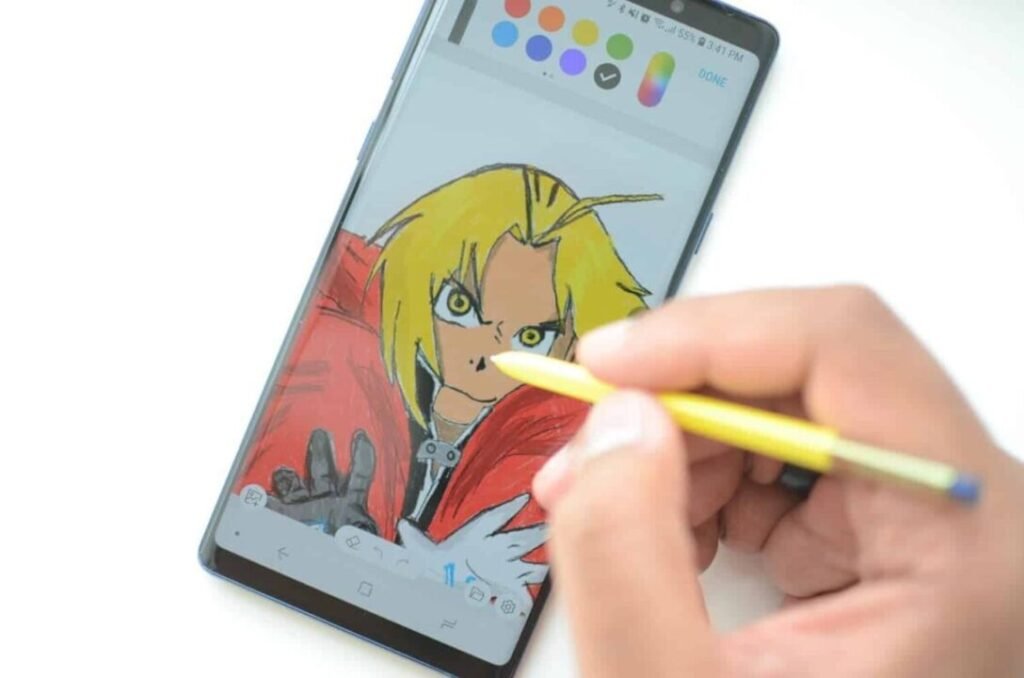
Unleash Your Inner Artist: Drawing and Coloring
The S Pen is an excellent tool for digital art, offering pressure sensitivity that mimics a real pen. Whether you’re sketching, doodling, or coloring, it provides a natural drawing experience.
Apps like Penup (available on the Google Play Store) are designed to take full advantage of the S Pen’s capabilities, offering various tools and a community for artists. Even after the S Pen’s Bluetooth battery is discharged, its core writing and drawing functions remain active.
Boosting Productivity and Accessibility with Your S Pen
Beyond creative uses, the S Pen on your Note 9 offers features that significantly enhance productivity and accessibility. It makes everyday tasks smoother and more efficient.
Effortless Translation with a Hover
The S Pen’s translation feature allows you to quickly translate text without leaving your current application. This is incredibly handy when browsing foreign websites or reading documents in another language.
To use it, open the Air Command menu, select Translate, choose your source and target languages, and then simply hover your S Pen over the word or sentence. You can even hear the pronunciation of the translated text.
Seamless Multitasking with Glance
The Glance feature is a powerful multitasking tool that lets you minimize an app to a thumbnail at the bottom of your screen. You can then quickly peek at it by hovering your S Pen over the thumbnail, and it will expand temporarily.
This is perfect for referencing information from one app while working in another, like checking details on a website while writing notes. To remove a glanced app, drag its thumbnail to the remove icon.
Intelligent Visual Search with Bixby Vision
Bixby Vision integrated with the S Pen offers intelligent visual search capabilities. You can use your S Pen to hover over an image or text on your screen, and Bixby Vision will analyze it.
This allows you to identify objects, extract text, shop for items, or search for similar images online. It’s a quick way to get more information about what you see on your screen.
Magnify Anything on Your Screen
For better readability or to focus on fine details, the S Pen offers a magnification feature. You can magnify any part of your screen by simply hovering the S Pen over it.
This accessibility feature is useful for those who need a closer look at small text, intricate images, or specific elements within an application.
Optimizing and Customizing Your S Pen Experience
To truly make the S Pen your own, it’s essential to customize its settings and understand its maintenance. This ensures a personalized and smooth experience.
Tailoring Air Command to Your Workflow
The Air Command menu is your quick access point for S Pen features and favorite apps. You can easily customize which shortcuts appear in this menu.
To customize, remove the S Pen to open Air Command, then tap the “Add shortcuts” option (or the settings icon). You can add up to 10 shortcuts, including S Pen features or any app installed on your phone.
S Pen Battery Life and Connectivity Tips
The S Pen for the Note 9 uses a supercapacitor, not a traditional battery, and charges wirelessly when inserted into the phone. It charges remarkably fast, taking about 40 seconds for a full charge. Some tests even show it charging in as little as 20-25 seconds.
A full charge provides about 30 minutes of standby time or up to 200 button clicks for remote functions. If your S Pen isn’t connecting, reinserting it into the slot usually re-establishes the Bluetooth connection and initiates charging. Remember, writing and drawing functions work even if the Bluetooth battery is depleted.
Common S Pen Pitfalls and Troubleshooting
While the S Pen is reliable, you might occasionally encounter issues. Here are some common problems and straightforward solutions:
| Issue | Possible Solution |
|---|---|
| S Pen not connecting via Bluetooth | Reinsert the S Pen firmly into its slot to re-establish connection and charge. Check S Pen remote settings to ensure Bluetooth is enabled. |
| Remote control features not working | Ensure the S Pen is charged and connected via Bluetooth. Verify app-specific S Pen remote settings are enabled and configured correctly. |
| S Pen functions (writing, drawing) not responding | Even if the Bluetooth battery is dead, passive functions should work. If not, try restarting your phone. |
| S Pen feels loose or falls out easily | This might indicate wear or damage. Consider a replacement S Pen. |
Frequently Asked Questions About the Note 9 S Pen
Here are answers to some common questions about the Samsung Galaxy Note 9 S Pen:
Can I use a different S Pen with my Note 9?
Generally, S Pens are designed for specific Note models due to their unique digitizers and Bluetooth capabilities.
While some older S Pens might offer basic screen navigation, the Bluetooth remote features of the Note 9 S Pen are specific to its design and won’t work with incompatible models.
How much does a replacement S Pen for Note 9 cost?
Replacement S Pens for the Galaxy Note 9 can vary in price depending on where you purchase them. Official Samsung replacements might be more expensive, while third-party options are available at lower costs.
Prices can range from under $8 to over $15. Note that some cheaper replacements might not include Bluetooth functionality.
Does the S Pen battery drain my phone’s battery?
The S Pen on the Note 9 uses a supercapacitor and charges very efficiently. When fully charged, the device’s battery loses a negligible 0.
5 mAh, which is extremely insignificant. So, no, it won’t noticeably drain your phone’s battery.
Is the Note 9 S Pen still useful in 2025?
Absolutely! As this guide highlights, many of the S Pen’s features, from remote controls and quick notes to translation and creative tools, remain highly functional and relevant for enhancing productivity and creativity even in 2025.
The Note 9, combined with its S Pen, still offers significant utility.
Conclusion: Maximizing Your Note 9’s Enduring Potential
Your Samsung Galaxy Note 9, especially with its intelligent S Pen, continues to be a remarkably capable device in 2025. By exploring and utilizing these 11 essential features, you can unlock new levels of productivity and creativity.
Don’t let these powerful tools go to waste. Integrate them into your daily routine and rediscover the enduring potential of your Note 9.
Here’s a quick checklist to get started:
| Action | Benefit |
|---|---|
| Experiment with the S Pen remote control | Control your camera and media from a distance. |
| Practice taking Screen-Off Memos | Capture instant notes without unlocking your phone. |
| Send a unique Live Message | Add a personal, animated touch to your communication. |
| Try the Translate feature | Effortlessly understand foreign content. |
| Customize your Air Command menu | Access your most-used features and apps quickly. |